Scanning restore points for known malicious files, the scan report, and SignGuard packages.
- Menu path: Settings › Backup › Malware scanning / SignGuard · Restore › Scan
- Who uses it: Scanning: Administrator, Operator, Restore only · settings: Administrator
Purpose
Malware scanning compares the SHA-256 hashes of the files on a restore point's disks with SignGuard's hashes of known malicious files. The disks are browsed read-only; the backup is not touched. SignGuard is Sysnet's signed data package service: it downloads IP reputation, country (GeoIP) and known-malicious-file packages.
Step-by-step
- In the Restore tree, click the restore point's Scan (magnifier) button, or click the badge to open the report page.
- Click Start malware scan (Rescan if a report exists). Scans run one after another; the page refreshes every 5 seconds and shows the disk, files scanned, data read, matches and the current file.
- Stop scan cancels a running or queued scan (the report is left incomplete).
- Read the result; if it is Suspicious, review the matching files and prefer an older restore point without matches.
Scan report
| Result | Meaning |
|---|---|
| Suspicious | Some files matched known malware. Review before restoring; suspicious scans from the last 7 days also appear in the top bar notifications. |
| No match | None of the scanned files are on the list. |
| No match (partial) | No matches, but some partitions/files could not be scanned. |
| Scan could not be completed / stopped | An error or a user stop; the report is incomplete. |
| Report section | Contents |
|---|---|
| Summary | Finish time, duration, started by (User, After backup, Before restore, Command line), files scanned, data read, matches. |
| Coverage | Unreadable files (NTFS compressed, EFS/fscrypt encrypted, inline data, XFS realtime, corrupt structure, read error), files exceeding the size limit, and files that could not be queried in the cloud. If any of these is non-zero, the result is partial. |
| Data source | Package version and cloud lookup status. |
| Matching files | Path (with disk and partition), family and type, size, first seen, full SHA-256. At most 1000 matches are kept. |
| Partitions | File system, size, files scanned, status: Scanned, No files, Unsupported (BitLocker/LUKS, FAT, unrecognized FS, raid/thin/cache LVM), Error. |
Supported: MBR (including extended), GPT, unpartitioned disks; NTFS, ext2/3/4, XFS; linear LVM (even when spanning multiple disks). The report is stored in the repository next to the restore point; when the restore point is deleted, the report is deleted too.
Malware scanning settings
| Setting | Default | Behavior |
|---|---|---|
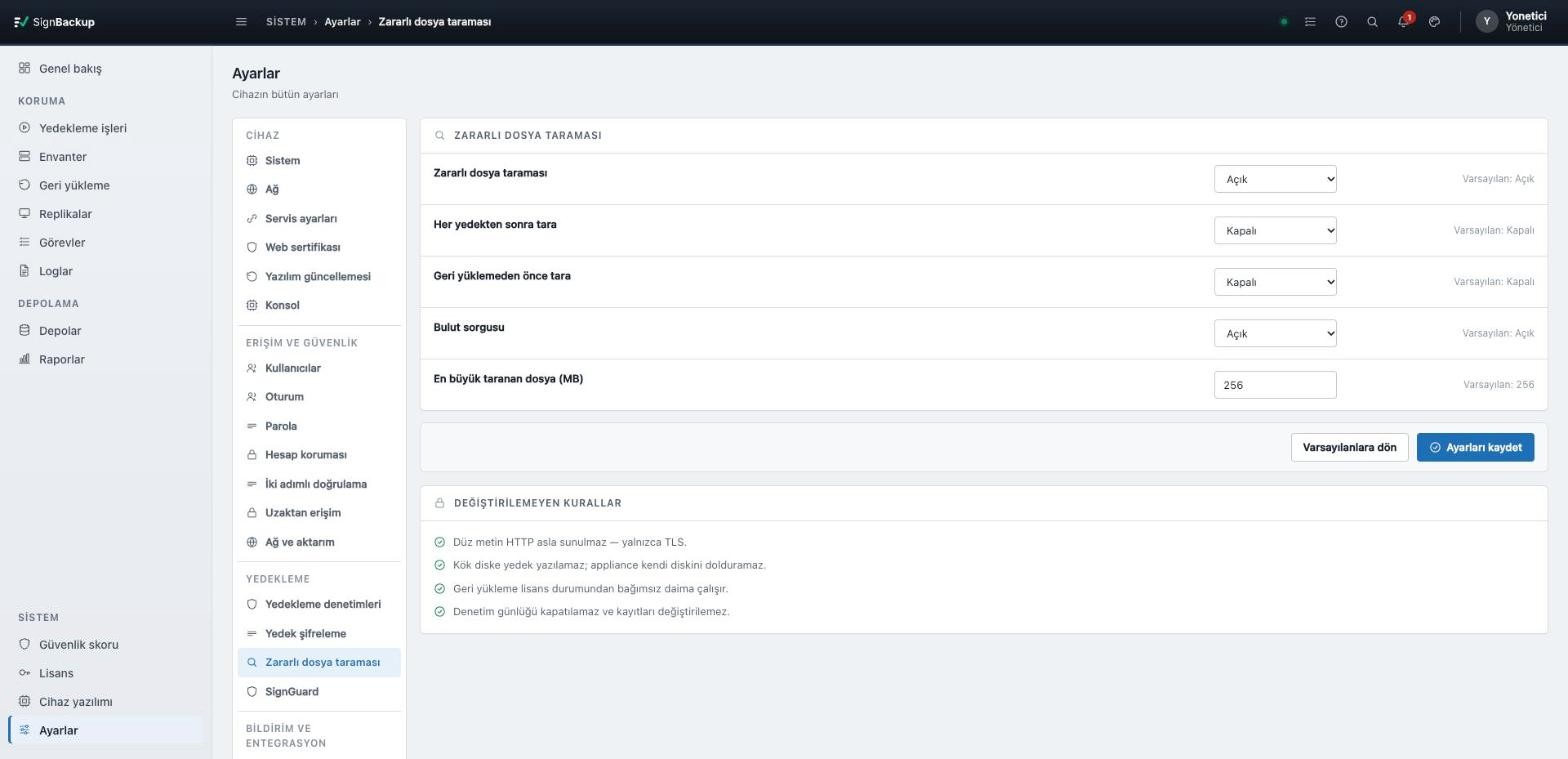
| Malware scanning | On | When off, manual scans are not possible either; the known-malware package is not downloaded and the local copy is deleted. While it is off, the Security score loses points. |
| Scan after every backup | Off | A new restore point is scanned in the background once it completes; this adds disk read load. |
| Scan before restore | Off | An unscanned restore point is scanned first; if malware is found, explicit confirmation is required. It does not block the restore. |
| Cloud lookup | On | Hashes not in the local package (last 30 days) are looked up across the full history. Only the first 16 bits of the hash are sent to the server. |
| Largest file scanned (MB) | 256 | 1–8192; larger files are counted as "skipped". |
SignGuard
| Package | Where it is used |
|---|---|
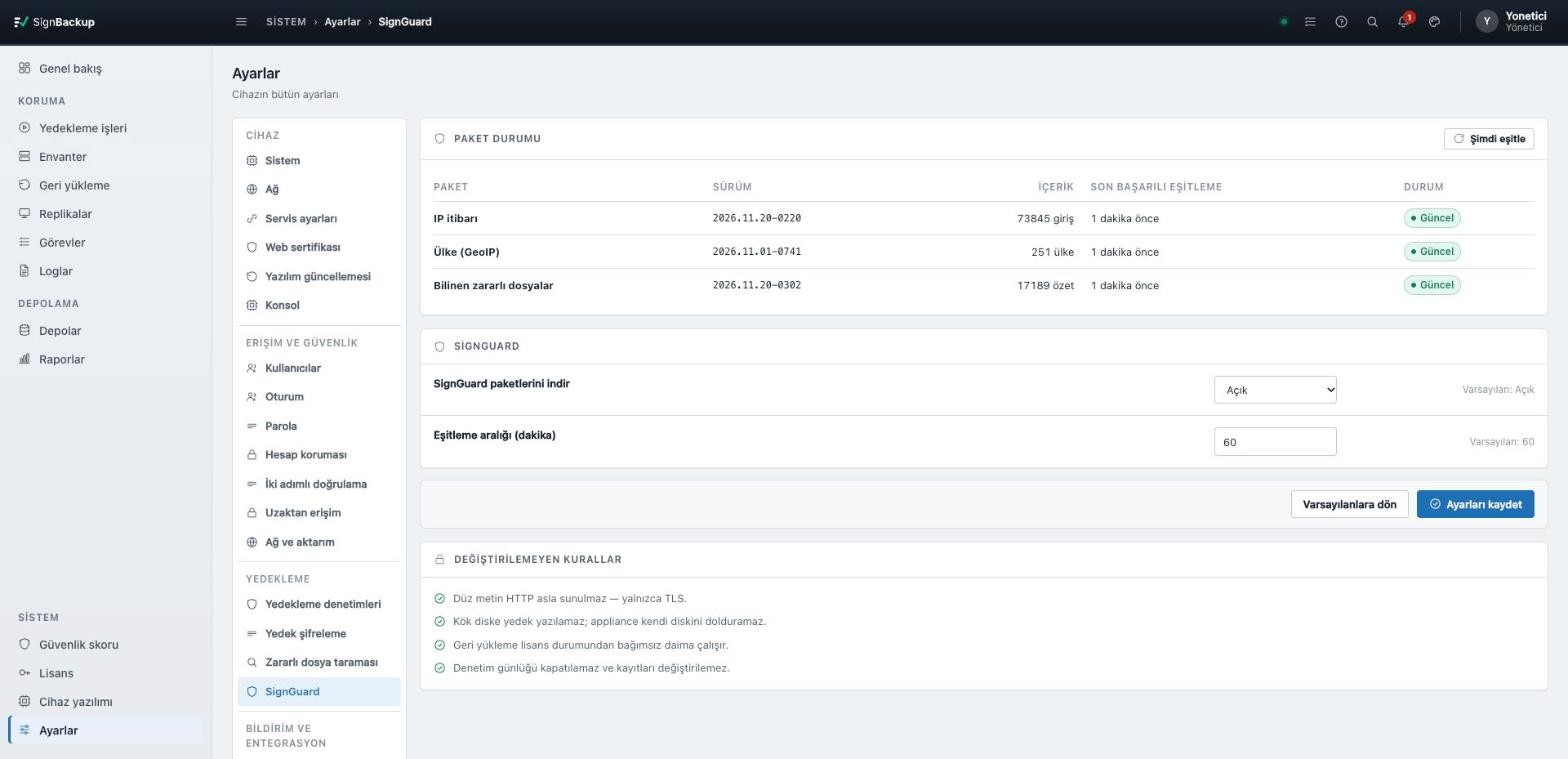
| IP reputation | Remote access › Blocked reputation sets (Tor exit nodes, attacker/scanner addresses, command-and-control servers). |
| Country (GeoIP) | Web and SSH country allowlist. |
| Known malicious files | Malware scanning (last 30 days). |
| Setting | Default | Behavior |
|---|---|---|
| Download SignGuard packages | On | If turned off, existing packages remain but are not updated; this counts as looser than the default. |
| Sync interval (minutes) | 60 | 15–1440. On error, it retries after a quarter of the interval (at least 5 min). The first sync runs ~45 s after startup. |
Sync now starts a round immediately (the button shows "Syncing…"). When a new IP reputation or GeoIP package is installed, the firewall rules are reloaded automatically.
Warnings and error messages
| Message / status | Meaning | What to do |
|---|---|---|
| No license key entered: SignGuard packages cannot be downloaded. | Downloading packages requires a license. | Enter a key on the License page. |
| Pending | The package has not been downloaded yet. | Wait for the sync or click Sync now. |
| Not used | This type is not needed (e.g. scanning is off). | — |
| Signature could not be verified / server unreachable / license rejected | The last attempt failed. | If it says "Using the last good package on hand", protection continues; check the connection and the license. |
| Scan cannot be started | Scanning is turned off in Settings. | Turn on malware scanning. |
| Unsupported partition | Encrypted or unsupported FS/LVM. | The result is considered partial; inspect that partition manually. |
Frequently asked questions
Are my files sent during cloud lookup?
No. Only the first 16 bits of the SHA-256 hash leave the appliance; the file name, contents and full hash are not sent.
Can a suspicious restore point be restored?
Yes. A warning and a checkbox appear on the Summary step; the confirmation is recorded in the audit log.
Does scanning extend the backup window?
"Scan after every backup" adds disk read load; keep it off if your window is tight.