Activation with a license key or an offline license file; appliance ID and license server.
- Menu path: Left menu › System › License (
/lisans) - Who uses it: Viewing: everyone · file upload: Administrator
Purpose
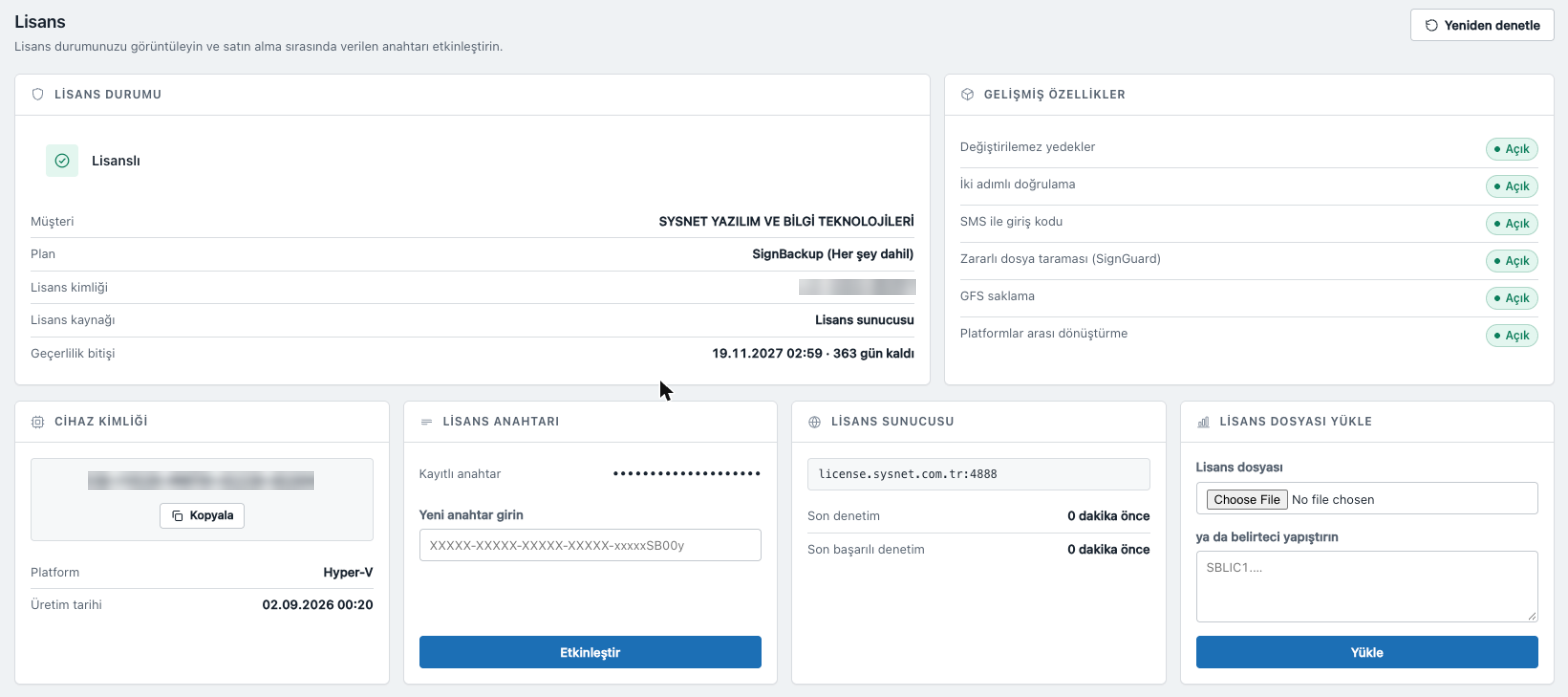
The License page shows the appliance's license status and activates the license. There are two ways to activate: a license key (if the appliance can reach the internet) and a license file (for installations without internet access).
Step-by-step
Activating with a key
- Type the key you received at purchase into the Enter your license key box exactly as it was given to you (it is case-sensitive).
- Click Activate. The key is sent to the license server together with the appliance ID.
- If the server cannot be reached at that moment, the key is still saved and the appliance retries several times a day. Check again queries the server immediately.
Without internet access: license file
- Copy the ID from the Appliance ID card with Copy and send it to your reseller.
- Your reseller enters the ID in the license portal and gives you a
.sblicfile. - Under License file, select the file or paste its contents into the box, then click Upload (Administrator). The upload is recorded in the audit log.
Fields and statuses
| Status | Meaning |
|---|---|
| Licensed | Valid license; the customer, package, license ID, source and expiry date are listed. |
| Grace period | The license obtained from the server has expired; during the grace period (30 days by default) the appliance works as if licensed. |
| Unlicensed | Limited mode: backups can be taken of at most 5 virtual machines, and advanced features are off (see below). Restores are always available; existing backups are not deleted. |
| Item | Description |
|---|---|
| Appliance ID | SB-XXXX-XXXX-XXXX-XXXX. Generated on first boot; does not change on factory reset or firmware update. It does not contain the letters I, L, O or U. Also shown under 1) Status in the console menu. |
| License key | Format XXXXX-XXXXX-XXXXX-XXXXX-xxxxxSB00y; the letters in the last group are lowercase. Bound to a single appliance. The connection is TLS-encrypted and pinned to the Sysnet root certificate; it does not work through corporate TLS inspection proxies. |
| License file | A single line; leading or trailing whitespace is not a problem. It must be generated for this appliance. Valid until its expiry date, with no grace period afterwards. A new file is required to extend it. |
| License server | Address, last check, last successful check, number of consecutive failed checks. The appliance must be able to connect outbound to license.sysnet.com.tr:4888 (HTTPS). |
Unlicensed appliance and advanced features
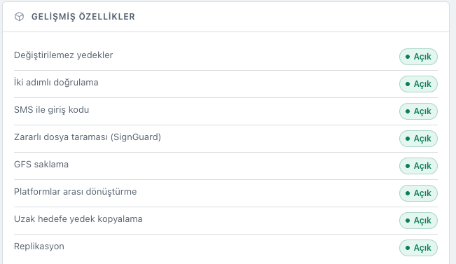
An unlicensed appliance is meant for evaluation: scheduled and manual backups, restores to the same platform and file-level restores work. A single license unlocks everything below; there are no separate packages.
| Requires a license | Without a license |
|---|---|
| Backing up more than 5 machines | Only up to 5 selected machines are backed up. |
| Immutable backup and emergency deletion | Immutability · License required on the repository card. Immutable backup |
| Two-factor authentication, sign-in code by SMS | A warning in Settings › Two-factor authentication; no second factor is requested at sign-in. Two-factor |
| Malware scanning (SignGuard) | A warning in Settings › SignGuard; no new scans start. Malware scanning and SignGuard |
| GFS retention | License required next to the GFS heading in the job wizard. GFS |
| Cross-platform conversion | Restores with conversion are rejected. Conversion |
| Replication | Replication jobs do not run; existing replicas are kept and can be failed over. Replication |
| Backup copy to a remote target (SFTP, S3, second SignBackup appliance) | The copy job does not copy to these targets; the job result shows …: copying to a remote target (SFTP, S3, second appliance) requires a license. Copy job |
No license is required for: copying to a second repository attached to the appliance, receiving a copy from another appliance, and fetching back from a remote repository; failing over a replica does not require a license either.
The Advanced features card shows whether each of them is currently on.
When the license expires
When the license and the grace period expire, advanced features are turned off immediately. The settings are not deleted; when the license is renewed, everything resumes where it left off.
Machines to back up
- If all machines of a job fit within the limit, the machines are selected automatically.
- If they do not fit (e.g. 20 machines on an appliance whose license has expired), none are selected: check up to 5 machines on the Machines to back up card and click Save.
- A machine that is not selected is skipped when the job runs, and this is recorded as a warning in the job result. Existing backups of the other machines are not deleted and can be restored.
Warnings and error messages
| Message | Meaning | What to do |
|---|---|---|
| no license found for this installation: License not found; check the key | The server found no license for this appliance (the key was not entered or is wrong). | Enter the key exactly as it was given. |
| Bound to another appliance | The key is bound to another appliance ID. | Contact Sysnet support to move it to a different appliance. |
| File is for another appliance | The .sblic file was generated for a different appliance ID. | Request a new file with the correct ID. |
| Confirmation for a file that expires earlier | The uploaded file expires before the current license. | Confirm if you are uploading it intentionally. |
| Revocation / suspension | The appliance switches to unlicensed mode at the next check; the reason is shown in the status line. | Contact your reseller. |
| Server unreachable | The license does not lapse on its own; a valid license remains valid until its expiry date. | Allow outbound traffic to license.sysnet.com.tr:4888 in the firewall. |
Related settings
The license has no group in Settings. The license key is also required to download SignGuard packages (Malware scanning and SignGuard); the firmware update entitlement comes from the license's support end date (Firmware).
Frequently asked questions
Can I access my backups after the license expires?
Yes. Restores are always available and backups are not deleted.
What happens to my immutable and GFS backups when the license expires?
The protection is removed immediately; the retention rule may delete these restore points on the first backup. The settings are not deleted and come back when the license is renewed.
Is the license lost after a factory reset?
No. The appliance ID and the license are kept.
Will a license installed from a file later switch to online checks?
If the appliance can reach the server, it returns to normal online checks; a revocation or suspension from the server takes precedence over the file license.