Ready-to-boot copies of machines on a target Proxmox, VMware or Hyper-V host: the replication job, the Replicas page, test failover and failover.
- Menu path: Left menu › Protection › Replicas (
/replikalar) · Backup jobs › Replication job - Who uses it: Viewing: everyone · failover/test: Administrator, Operator · permanent failover, deletion: Administrator
Purpose
A replica is a copy of a machine on a target hypervisor (Proxmox VE, VMware ESXi / vCenter or Hyper-V) that is ready to boot and waits powered off. When the production machine becomes unavailable, the replica is powered on within minutes; there is no wait for a restore.
- The replica is fed from existing backups: the production machine is not touched a second time, and on each run only the changed blocks are written to the replica's disks.
- A snapshot is taken before every update; the configured number of restore points is kept.
- The target can be Proxmox VE, VMware (ESXi / vCenter) or Hyper-V. The source backup can be VMware, Hyper-V or Proxmox; it is converted if necessary. Free ESXi (read-only API) cannot be a target.
- The replication job requires a license; failover does not. On an unlicensed appliance, the Source step of the wizard shows the warning Replication jobs require a license; this appliance is unlicensed. The job is saved but does not run until a license is installed. Even if the license expires, existing replicas are kept and can be failed over.
Replication job
On the Backup jobs page, create it with the Add replication job button on the Replication tab. In the list, a REPLICA badge appears in the size column and the target connection in the target column.
- Job name and an optional description.
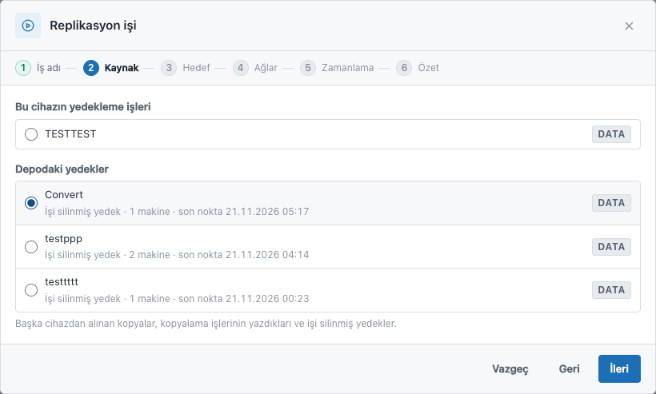
- Source — a single source: This appliance's backup jobs or Backups in repository (a copy taken from another appliance, a copy written by a copy job, or a backup whose job was deleted; each row shows the type, machine count, last restore point and repository). All machines of the source are replicated. Copy and replication jobs cannot be a source.
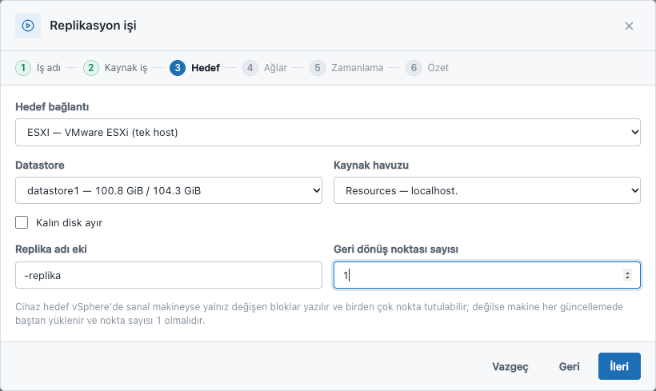
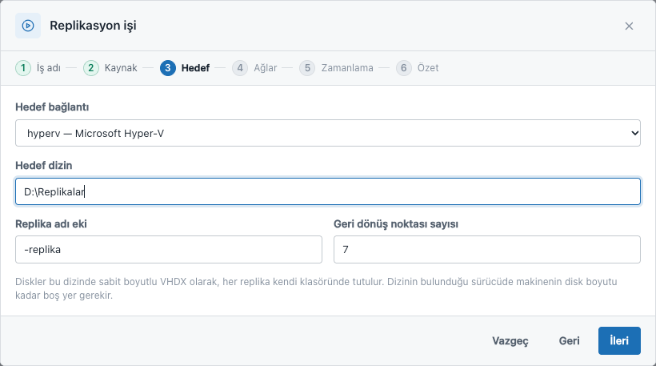
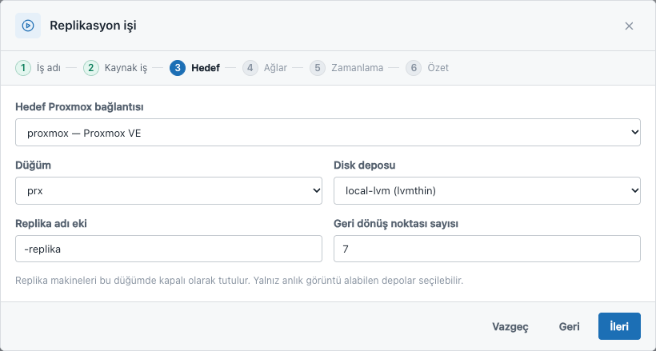
- Target — a Proxmox, VMware or Hyper-V connection. On Proxmox, the node and disk storage (only storages that support snapshots); on VMware, the datastore, resource pool, on vCenter the folder, and Thick provision disks; on Hyper-V, a single field, Target directory (e.g.
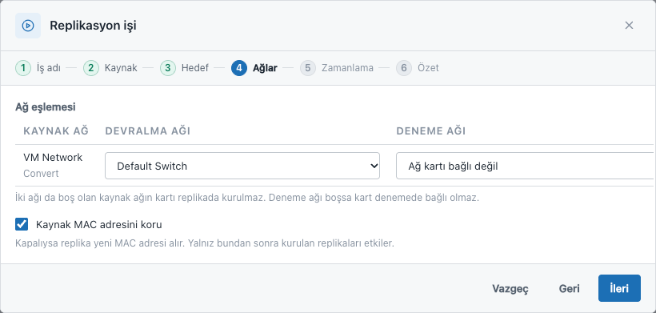
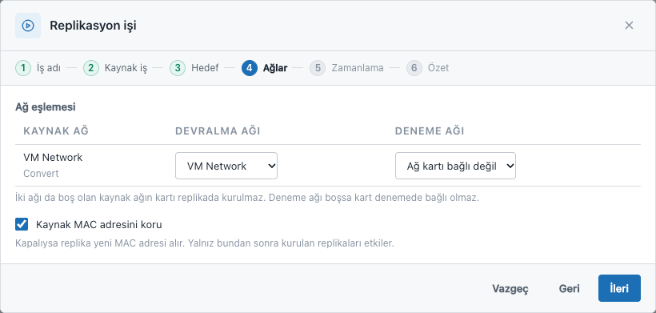
D:\Replikalar). Common fields: replica name suffix (db01→db01-replika) and number of restore points (including the current state, 1–30). - Networks — for each network in the source backup, a failover network and a test network (a bridge on Proxmox, a port group on VMware, a virtual switch on Hyper-V); below them, Keep source MAC address.
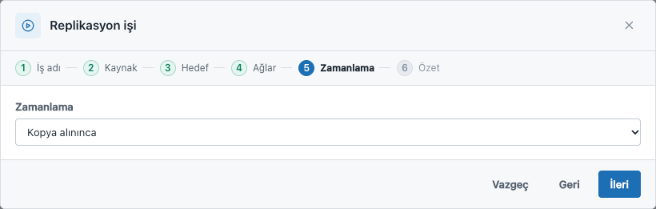
- Schedule — its own schedule, or After this job to run when the source job finishes (recommended). The parent job can also be a manually run job (When another job finishes). If the source is backups in a repository, On copy received can also be selected.
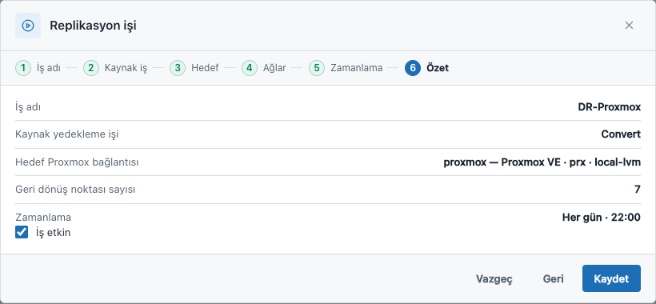
- Summary and Save.
| Field | Description |
|---|---|
| Disk storage | Only storages that support snapshots are listed: thin LVM, ZFS, Btrfs. Failover, test and undo rely on snapshots. A job with thick LVM or a directory / NFS / CIFS storage selected is not saved; it is also not saved if the target cannot be reached while the target is being changed. |
| Number of restore points | The number of restore points kept on the replica, including the current state (1–30). |
| Disk storage / Datastore (VMware) | On VMware, every datastore supports snapshots; there is no storage type restriction. On vCenter, a Folder is also selected (empty = root). With Thick provision disks off (default), disks are thin provisioned. If the selected datastore or pool cannot be found on the target, the job is not saved. |
| Target directory (Hyper-V) | The directory on the host for the replica disks; a full path starting with a drive letter (e.g. D:\Replikalar). Each replica is kept in its own folder in this directory. |
| Failover network | The bridge (Proxmox), port group (VMware, standard or distributed switch) or virtual switch (Hyper-V) the adapter connects to during a real failover. The adapter of a source network with both networks empty is not created on the replica, and the job issues a warning. |
| Test network | The isolated network for test failover. If empty, the adapter boots unconnected during a test. |
| Keep source MAC address | When on (default), the replica carries the source's MAC address; DHCP reservations and MAC-bound licenses keep working after failover. Turn it off if the replica and the source will be powered on at the same time on the same network: the replica gets a new MAC. Affects only replicas created afterwards. |
| Network list empty | The source job has not taken a backup yet; do the mapping after the first backup. |
| After this job | Only scheduled jobs are listed. If all of them run manually, it says No job available to chain…. |
- A replication job has no repository; it reads data from the source job's repository.
- A replica that is failed over, under test, or permanently failed over is not updated; the job issues a warning for that machine (e.g. …: the replica was permanently failed over; this machine is no longer replicated. To replicate it again, delete the replica record.), and the others are updated.
- A backup job that is the source of a replication or copy job cannot be deleted; delete the dependent job first.
- Do not start or modify the replica machine manually on the target hypervisor.
Hyper-V target
- Disks are created as fixed-size VHDX: each disk takes up its full size from the start. The drive of the target directory needs free space equal to the machine's disk size.
- Each replica is kept in its own folder in the target directory.
- Restore points are Hyper-V checkpoints.
- On each update, the changed blocks are transferred to the host in chunks and written to the disk on the host. The host needs temporary space for the transfer, and the appliance needs SMB (445) access to the host. Chunk size: Hyper-V replica chunk size (default 256 MB).
- The replica disk is written without being attached to the host: no disk number, volume or drive letter appears on the host. If the host cannot open this path and writing has not started yet, the disk is attached offline to the host and written; the reason is recorded in the job log. The path can be forced with Hyper-V replica write path.
- No additional software is installed on the host: during the update the appliance runs a temporary helper on the host and removes it when the job finishes.
- Network mapping is done to a virtual switch; the adapter of a source network with neither network selected is not created.
- If the source machine's disk grows on a replica that has checkpoints, the replica cannot be updated: on the Replicas page, delete the record with Also delete replica machine checked; the job recreates the replica on its next run.
Hyper-V screenshots of the Target and Networks steps are above, in the Replication job section.
Replication from a received copy (two sites)
The replica can be created on the hypervisor next to the appliance that receives the copy, not the one that takes the backup:
- The replication job on B selects A's job under Backups in repository as its source; it creates the replica on the hypervisor next to B and updates it with each new copy.
- On a VMware target, updates are incremental if appliance B is a virtual machine on that vSphere; otherwise the replica is uploaded from scratch on every update.
- Encrypted copy: the backup of a job without a password is unlocked automatically. The copy of a password-protected job is locked on B; first unlock it with the password or recovery key on the Restore page. While it is locked, the job fails and does not touch the replicas; in the wizard, a warning appears on this copy's row.
- On copy received schedule: the job starts automatically when a new restore point arrives at the source. With copies arriving back to back, it does not restart for each one; after the last copy it waits for things to settle for the wait time (default 5 minutes). A copy that arrives while the job is running is processed once more when the run finishes.
- Daily, weekly, interval, manual and After this job (after any job on this appliance) can also be used.
- A source repository cannot be deleted while a replication job uses it.
| Message | Meaning |
|---|---|
| The "On copy received" schedule can be used only in a replication job whose source is a received copy. | On copy received was selected in a job with a local source. |
Two modes on a VMware target
Which mode is used depends on where the appliance runs:
| Appliance | Update | Restore points |
|---|---|---|
| A virtual machine on the target vSphere | The replica's disks are attached to the appliance via HotAdd; on each run only the changed blocks are written. | Multiple restore points using vSphere snapshots. |
| Elsewhere (physical appliance or another environment) | The replica is uploaded from scratch on every update: a new machine is uploaded, then swapped with the old replica machine. | Only a single restore point; Number of restore points must be 1, otherwise the job is not saved. |
- If the source machine's disk grows or the backup chain breaks (e.g. a new full backup chain), the VMware replica is uploaded from scratch and its old restore points are deleted.
- During an upload from scratch, two copies sit on the datastore for a short time (while the new machine is uploaded, the old one has not been deleted yet); leave room for this on the datastore.
- With a free ESXi license the API is read-only; such a server cannot be a target.
- Network mapping is done to a port group (standard or distributed switch).
Replicas page
Left menu › Protection › Replicas. Each row is a replica: the machine and its source, the replication job, the target (connection, node, VMID), status, restore point count, last update and last error.

| Status | Meaning |
|---|---|
| Ready | Waiting powered off; the job updates it on every run. |
| Test in progress | Powered on by a test failover; replication waits for this machine. |
| Failed over | Running in place of the production machine; replication stops. |
| Permanently failed over | Now an ordinary machine; the record is kept only for history. |
| Error | The last operation or replication failed; the reason is in the Last error column. It is retried on the next run. |
Operations run on the target hypervisor and can take minutes. The row shows Operation in progress, and the page refreshes automatically when it finishes. Every operation is written to the audit log.
- Partially written replica (the last replication was interrupted): failover opens the last complete restore point instead of the current state.
- A ZFS storage can only roll back to its newest snapshot: for a replica on ZFS, failover and test failover are only possible from the current state; the window shows an info box saying so, and older restore points are kept for retention only.
- On VMware, a replica that is uploaded from scratch stays on the target under a temporary name until the old machine is deleted: the row shows Hedefteki geçici adı: … (temporary name on the target) under the actual name. An old machine that could not be deleted is shown with the line Silinmeyi bekleyen eski makine: … (sonraki çalışmada yeniden denenir) (old machine awaiting deletion; retried on the next run).
Failover operations
| Operation | What it does | Caution |
|---|---|---|
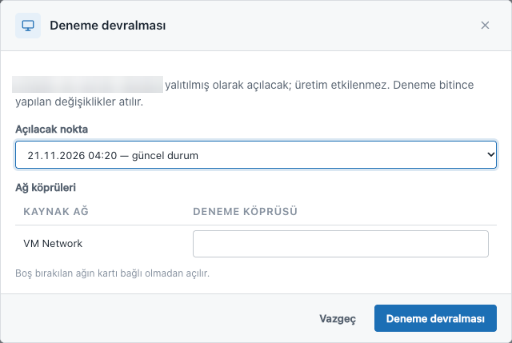
| Test failover | The replica boots isolated: adapters connect to the test network, and an adapter with an empty test network stays unconnected. Production is not affected. | Do it regularly: it proves the replica actually boots. |
| End test | Stops the machine and discards all changes made during the test; replication continues. | |
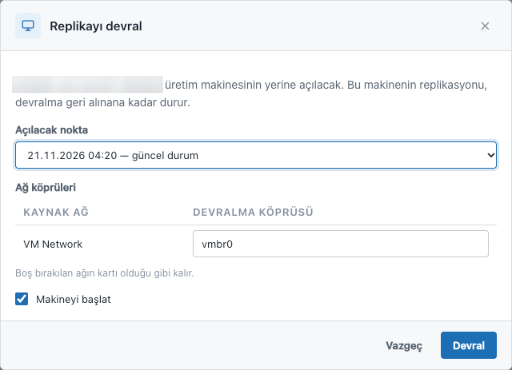
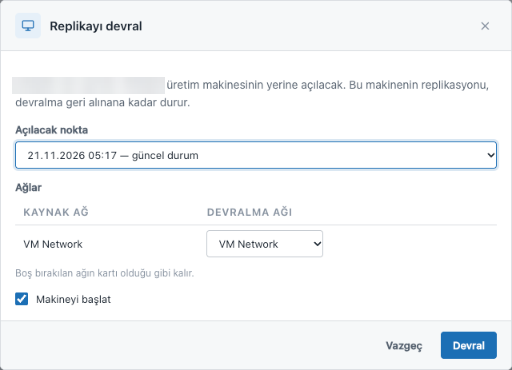
| Failover | The restore point to boot is selected (current or an older one). Adapters connect to the failover network (bridge, port group or virtual switch); the networks can be changed in the dialog for this operation, and the list is read from the target. If Start machine is checked, it is powered on. | Make sure the production machine is powered off so addresses do not conflict. Replication stops for this machine. |
| Undo failover | The replica is stopped and returns to its pre-failover state; replication continues. | After failover, all changes made on the replica are lost. |
| Permanent failover | Snapshots are consolidated and the replica note is removed; the replica becomes the primary machine. | Cannot be undone. Replication stops permanently; add the machine to a backup job. |
| Delete | Removes the record. If Also delete replica machine is checked, the machine is deleted with its disks (it must be powered off). | If the job is still active, a new replica is created on the next run. For a permanently failed over replica, only the record is deleted. |
Networks
- While waiting powered off, adapters are connected to the failover network (or the test network if there is none). The target network is a bridge on Proxmox, a port group on VMware and a virtual switch on Hyper-V.
- Before a test or failover, the adapters' original settings are saved; they are written back when the test ends or the failover is undone.
- The adapter model is kept. The MAC address matches the source's if Keep source MAC address is on in the job; if off, a new MAC is generated when the replica is created.
Permissions
Failover, test and undoing them: Administrator and Operator. Permanent failover and deletion: Administrator only. Other roles can only view.
Verification status
Frequently asked questions
Does replication slow down the production machine?
No. The replica is fed from existing backups; the machine is not touched a second time.
Can I keep the replica on the appliance at the disaster recovery site?
Yes: the copy job on A sends the backup to appliance B, and the replication job on B selects it from Backups in repository as its source.
What if the latest backup contains corrupted data?
Select an older restore point in the Failover dialog.
What happens to replicas if the license expires?
They are kept and can be failed over; only new updates are not made.
Why am I asked to set the restore point count to 1 on a VMware target?
If the appliance is not a virtual machine on the target vSphere, the replica is uploaded from scratch on every update and only a single restore point can be kept. For multiple restore points, run the appliance as a virtual machine on the target vSphere.
My target storage is not in the list (Proxmox).
Only snapshot-capable storages (thin LVM, ZFS, Btrfs) appear in the list. Replicas cannot be kept on thick LVM, directory, NFS or CIFS storage; create a storage of one of the supported types on the node.
The replica and the source machine will be powered on at the same time on the same network.
Turn off Keep source MAC address in the job; a newly created replica gets a new MAC. Existing replicas do not change.