The checks run before every backup, their thresholds, and the VMware read path (HotAdd / network).
- Menu path: Left menu › System › Settings › Backup › Backup pre-checks (
?grup=ondenetim) - Who uses it: Administrator only
Purpose
A series of checks runs before each machine is backed up: to protect production (so a snapshot does not fill the datastore and stop the machine) and to avoid showing something as "protected" when it is not. If a check fails, only that machine is skipped; the other machines in the job are backed up. The job finishes with "Warning", and the reasons are listed per machine in Tasks.
The same category also determines which path VMware data is read through (transport preference). By default, if the appliance is a virtual machine in vSphere, disks are attached to the appliance read-only via HotAdd.
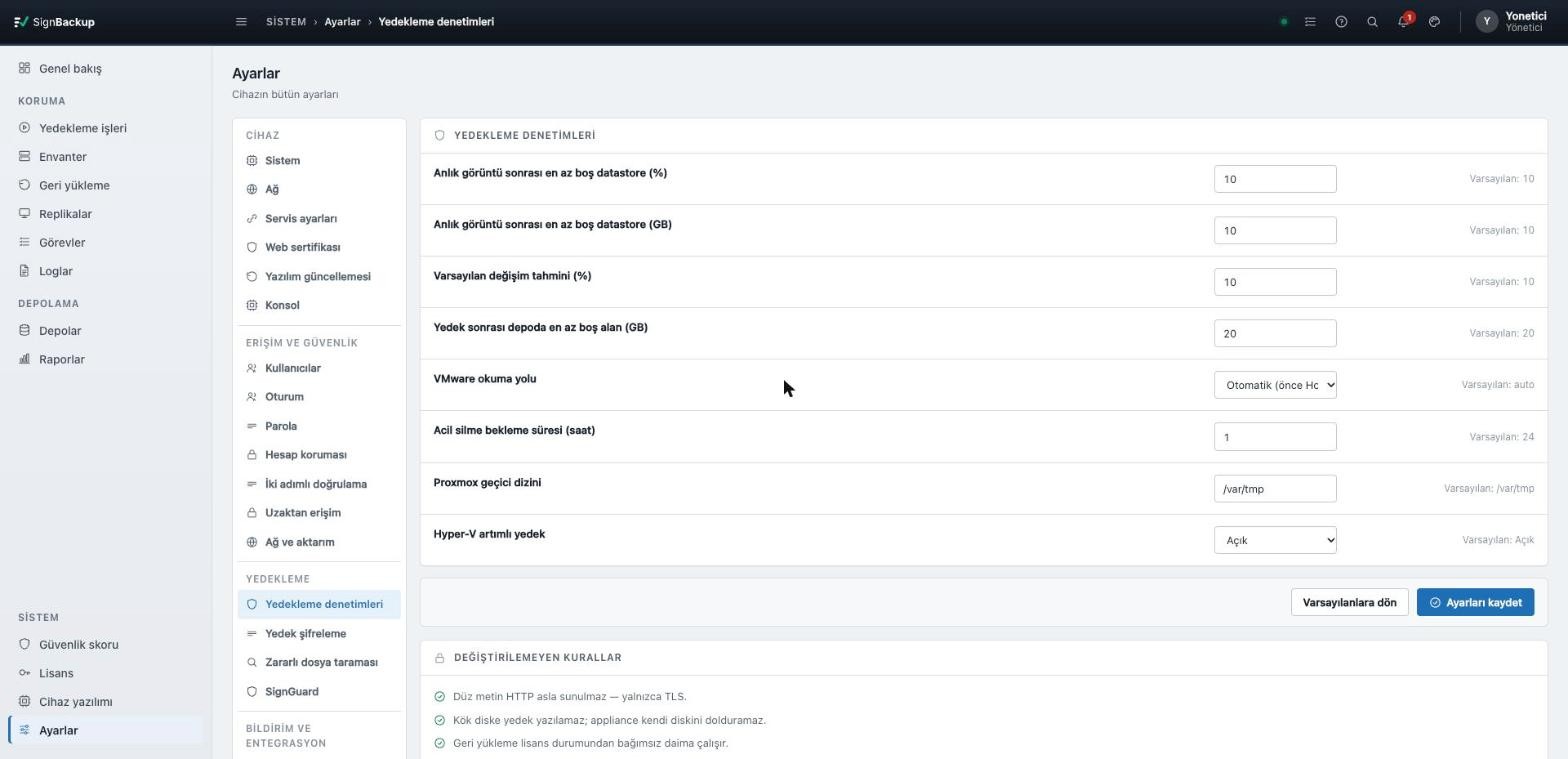
Thresholds
The calculation made before the backup:
gereken = disk toplamı × değişim oranı + en az boş alan (required = total disk size × change rate + minimum free space)
| Setting | Default | Range | Behavior |
|---|---|---|---|
| Minimum free datastore space after snapshot (%) | 10 | 1–50 | Minimum free space = the larger of the percentage and GB thresholds. |
| Minimum free datastore space after snapshot (GB) | 10 | 0–10000 | The snapshot is written to the datastore of the machine's working directory (or to the configured snapshot directory). |
| Default change estimate (%) | 10 | 1–100 | Used for machines with no history; if there is history, the highest change rate among the most recent incrementals is used. Increase it for database/log servers. |
| Minimum free repository space after backup (GB) | 20 | 0–100000 | If this much space would not remain after subtracting the estimated data to be written (the size of the last restore point; for the first backup, half of the disks), the machine is skipped. |
If the free space on the datastore is less than required, the machine is skipped; the warning shows the datastore name, the free space and the required space.
Checks without thresholds
| Condition | What happens |
|---|---|
| A snapshot from other software or an administrator exists | The machine is skipped; a consistent backup cannot be taken until the snapshots are deleted. |
Our own snapshot (signbackup-…) left over from a previous incomplete backup | It is consolidated and deleted, and the backup continues; this is recorded in the audit log. |
A leftover temporary reader VM (signbackup-okuyucu-…) | It is removed in a safe order (the disk file is detached without being deleted), and the backup continues. |
| Machine with VMware encryption enabled | Skipped: the data cannot be read without the key server. |
| Machine with Fault Tolerance enabled | Skipped: a snapshot cannot be taken. |
| Independent disk, physical RDM, multi-writer shared disk | That disk is skipped, the other disks are backed up; a warning is issued. |
| vSphere "disk consolidation is needed" | The backup is taken with a warning: run Consolidate from the vSphere client. |
| Free ESXi license | Skipped: snapshots via the API are not allowed. |
| Full backup taken when an incremental was expected | A warning with the reason (change ID invalid, disk grew, CBT reset…). |
Emergency deletion waiting period
An emergency deletion request opened for an immutable backup is carried out after waiting this many hours.
| Setting | Default | Range |
|---|---|---|
| Emergency deletion waiting period (hours) | 24 | 1–720 |
- During the wait, the request is visible to everyone on the Restore page and can be canceled.
- The same period also applies to the "age" of the immutability officer account: an account that was just created, or whose password / second factor was reset, cannot open a request until this period has passed.
- Shortening the setting does not speed up pending requests.
- A long period is safer; a short period frees up space faster in an emergency.
Details: Immutable backups and emergency deletion.
Proxmox temporary directory
When a running Proxmox machine is backed up, a temporary fleecing image is opened on the node for each disk. If the guest overwrites a block while the backup is running, the old version of that block is first copied here, so the backup is an image of a single moment. The files are deleted when the backup finishes.
| Setting | Default | Rule |
|---|---|---|
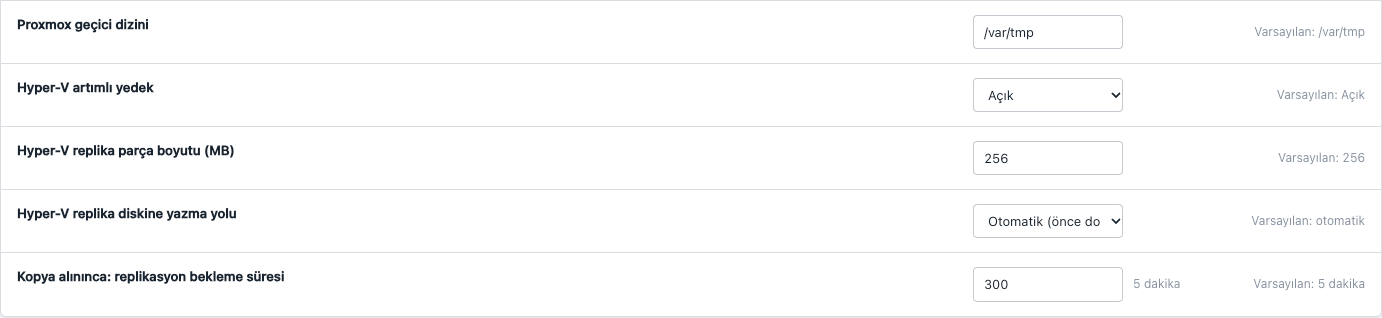
| Proxmox temporary directory | /var/tmp | Absolute path only (letters, digits, / . _ -). The directory is on the Proxmox node, not on the appliance. |
- The space required equals the amount of data the machine overwrites during the backup. For write-heavy machines, choose a directory on the node with enough free space.
- If the directory fills up, that machine's backup fails; the machine itself is not affected.
Hyper-V incremental backup
When on (default), backups of running Hyper-V machines read only the blocks changed since the last backup, using Hyper-V's own change tracking (RCT).
| Setting | Default | Behavior |
|---|---|---|
| Hyper-V incremental backup | On | When off, every Hyper-V backup reads the disk from start to end. Turn it off only for troubleshooting. |
- Requires a Windows Server 2016 or later host. On an older host (e.g. 2012 R2), the disk is read from start to end on every backup and only allocated regions are transferred; this does not produce a warning, and the reason is recorded in the restore point's disk record.
- The first backup is always full; subsequent ones are incremental according to the job's chain setting.
- When the machine is powered off, change tracking is not queried; the disk is read from start to end.
- If the changed blocks cannot be read (the disk changed, tracking was reset), the backup is automatically taken in full and a warning is written to the job result. An incremental backup is never taken with an incomplete change list.
- A reference point for the machine and
.rct/.mrtfiles next to the disks remain on the host. These belong to Hyper-V; do not delete them. SignBackup removes the previous reference point.
Hyper-V replica chunk size
When a replica with a Hyper-V target is updated, the changed blocks are transferred to the host in chunks of this size and written to the disk on the host; at most this much space is used temporarily on the host. Details: Hyper-V target.
| Setting | Default | Range |
|---|---|---|
| Hyper-V replica chunk size (MB) | 256 | 16–4096 |

Hyper-V replica write path
Selects how an update is written to the Hyper-V replica disk. Details: Hyper-V target.
| Option | Behavior |
|---|---|
| Automatic (direct first) — default | The disk is written without being attached to the host (no disk number, volume or drive letter appears). If the host cannot open this path and writing has not started, the disk is attached offline and written; the reason is written to the job log. |
| Direct only (without attaching to the host) | If the direct path cannot be opened, the update fails. |
| Attach only | The direct path is never attempted. |
On copy received: replication wait time
A replication job scheduled On copy received starts this long after the last copy arrives at its source. Copies arriving back to back do not start the job one by one. Details: Replication from a received copy.
| Setting | Default | Range |
|---|---|---|
| On copy received: replication wait time | 5 minutes (300 s) | 1 minute – 6 hours |
Clock safeguards, received copies and S3
The common purpose of these four settings: backups must not be deletable by moving the appliance clock forward or by a sending appliance pushing fake restore points.
| Setting | Default | Range | Behavior |
|---|---|---|---|
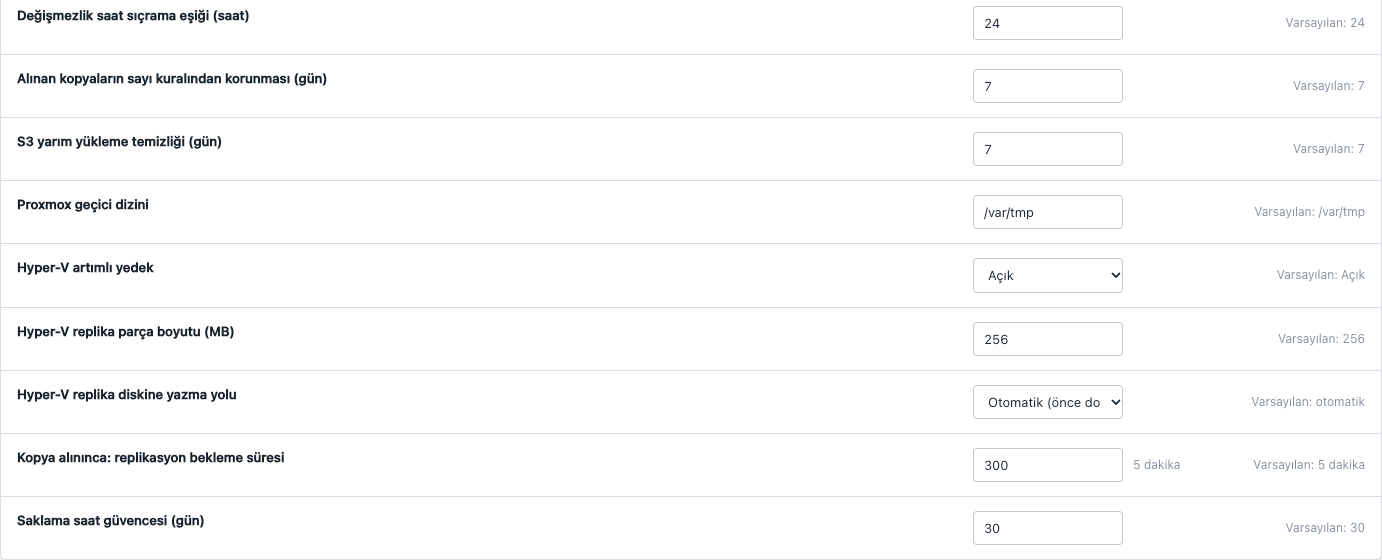
| Immutability clock-jump threshold (hours) | 24 | 1–168 | If the system clock moves forward by more than this, the safe time used for immutability does not advance; immutable backups whose period has expired stay locked until the immutability officer confirms the clock jump warning. Backups continue. Lowering the value takes effect immediately; raising it takes effect after the old threshold has passed. |
| Protect received copies from the count rule (days) | 7 | 1–365 | On the receiving appliance, the restore-point count rule does not delete copies received within this many days, measured by this appliance's clock. The day rule and immutability are not affected. Retention |
| S3 incomplete upload cleanup (days) | 7 | 1–365 | Interrupted multipart uploads in an S3 repository are deleted after staying idle for this many days. A very short period can cut off a long upload that is still running. |
| Retention clock guard (days) | 30 | 1–3650 | With day-based retention, a gap longer than this between two backups (or since the last backup) is not counted toward the age of the backups; if the clock jumps forward or back by this much, the job ends with a warning. In a job that is backed up rarely, old restore points may be kept longer than the day limit. |
VMware read path and HotAdd
| Option | Behavior |
|---|---|
| Automatic (HotAdd first) default | Uses HotAdd if it can be set up; otherwise the network paths. If HotAdd was attempted and failed, the job result shows a warning with the reason. If the appliance is not a virtual machine (physical installation or a different vSphere), it goes straight to the network path without a warning. |
| HotAdd only | A machine for which HotAdd cannot be set up is skipped; the reason is in the job result. For environments where traffic must not cross the network. |
| Network only | HotAdd is never attempted. |
How HotAdd works
If the appliance is a virtual machine inside vSphere, the disks of the machine being backed up, as of the snapshot, are attached to the appliance itself and read directly. For incrementals, only changed blocks are read; data arrives at datastore speed. No separate installation is required.
| Requirement | Description |
|---|---|
| The appliance is a virtual machine on the same vSphere connection | It must be visible on the job's ESXi/vCenter connection; the appliance identifies itself by its BIOS UUID and MAC addresses. |
| The host must see the datastore | The appliance's host must have access to the datastore of the source disks. |
| Free SCSI slot | One slot per disk on a non-shared controller; at most 15. |
| Flat VMDK | Physical RDM is not supported. |
| Not its own backup | The appliance does not back itself up via HotAdd. |
Security
- Disks are attached as independent_nonpersistent (read-only) and are also opened read-only in the operating system: not a single byte is written to the source disk.
- When reading finishes, the disks are detached without deleting their files, and the detachment is verified; then the snapshot is deleted.
- Disks left attached by an incomplete job are detached under the same rule before the next HotAdd.
- The appliance does not activate LVM volumes on the attached disks and does not mount file systems.
Network paths
| Path | When |
|---|---|
| 1. Datastore HTTPS | If the machine is powered off; only changed blocks are read. |
| 2. Snapshot export | If the machine is powered on and the server supports it (vCenter); HTTPS 443. |
| 3. Temporary reader VM | If the machine is powered on and the server does not support export (ESXi 6.0). A powered-off signbackup-okuyucu-… (reader) machine is registered, the base disk is attached read-only, and when finished the disk file is detached without being deleted and the reader is removed. Do not power on or delete the reader. |
The path used is recorded on every restore point (the Transport column in the Restore tree). SSH and VDDK are not used; no services are started or stopped on ESXi.
Warnings and error messages
| Message | Meaning | What to do |
|---|---|---|
| … skipped: "HotAdd only" is selected but HotAdd could not be set up (…) | One of the requirements was not met. | Fix the reason given in parentheses or switch to Automatic. |
| …: HotAdd could not be used, read over the network (…) | Fallback in Automatic mode. | The backup is valid; fix the cause (e.g. SCSI slot). |
| …: HotAdd disks could not be safely detached from the appliance; … detach the remaining attached disk WITHOUT DELETING ITS FILE. | Detachment could not be verified. | In vSphere, check the appliance VM's disks; use Remove from virtual machine, Delete files from datastore unchecked. |
| Machine skipped: insufficient free datastore space | Required > free space. | Free up space and review the thresholds. |
| Machine skipped: no space in repository | The minimum free space would not remain in the repository after the backup. | Shorten retention or free up space in the repository. |
Frequently asked questions
Does HotAdd write to the source disk?
No. During backup, disks are attached read-only. Only the "original location — write back changed blocks only" restore attaches disks writable, on purpose.
The appliance runs on a physical server; will I get a HotAdd warning?
No. If the appliance is not a virtual machine, no warning is issued and the network path is used directly.
Can I set the thresholds to zero?
The GB thresholds can be 0; the percentage threshold is at least 1. A low threshold increases the risk that vSphere stops the machine when the snapshot grows and fills the datastore.