Jobs define which machines are backed up, to which repository, and how often.
- Menu path: Left menu › Protection › Backup jobs (
/isler) - Who uses it: Definition: Administrator · Run/Stop: Administrator, Operator
Purpose
A job defines which machines are backed up to which repository, how often, and how long restore points are kept. On this page you list, add, edit, run manually, stop and delete jobs.
Scheduled jobs run on the appliance's own scheduler. A schedule missed while the service was down is caught up when the service starts again.
| Role | What they can do |
|---|---|
| Administrator | Adds, edits, deletes, runs and stops jobs. |
| Operator | Runs and stops jobs manually; cannot define or delete jobs. |
| Other roles | Can view the list. |

Job list: tabs and filter
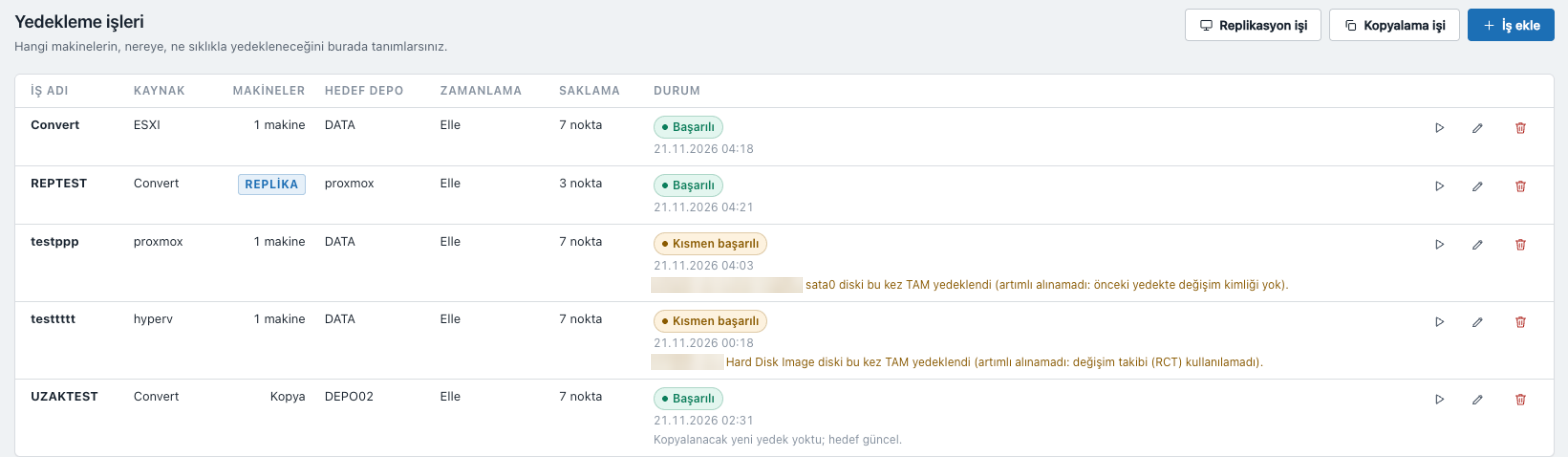
Jobs are listed in three tabs by type: Backup, Copy, Replication; the number next to a tab name is the number of jobs of that type. The tabs are shown even when there are no jobs. Only the open tab's add button appears at the top right: Add backup job, Add copy job or Add replication job. After a new job is saved, its tab opens.
| Item | Description |
|---|---|
| Search box | Filters jobs by name, source, repository and schedule. |
| Status filter | All statuses, Running, Successful, Partially successful, Failed, Cancelled, Not run yet, Disabled. While a filter is active, the shown / total job count appears on the right. |
| Remembering | The selected tab and filter are remembered for the browser session; they are not lost when the page refreshes itself. |
Step-by-step: new job
At least one hypervisor must first be added and scanned (Inventory), and at least one repository must be defined (Repositories).
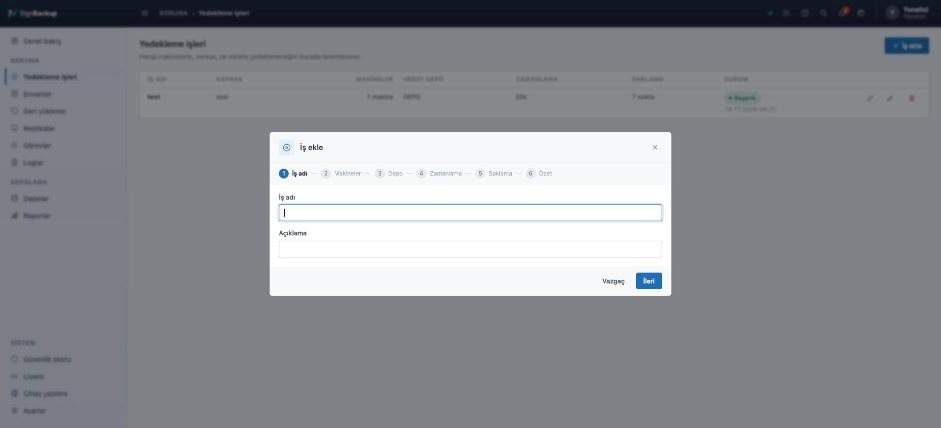
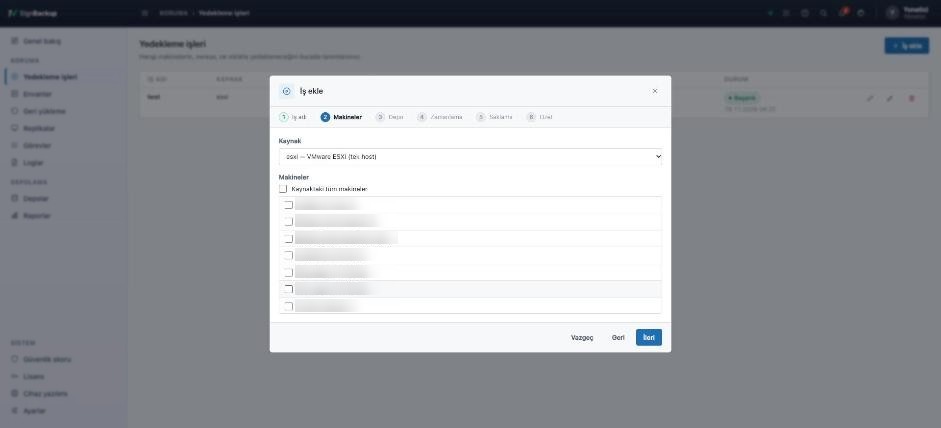
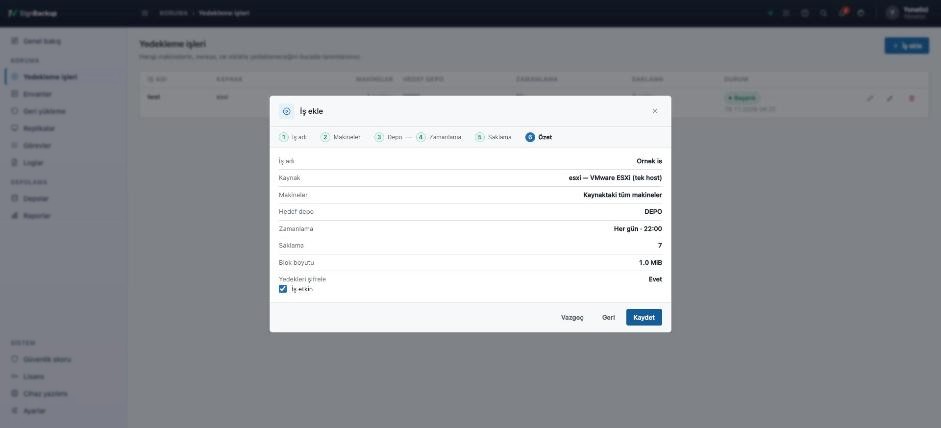
- On the Backup tab, click Add backup job. The wizard opens; Next validates each step before moving on, and Back returns to the previous step.
- In the Job name step, enter a name and an optional description.
- In the Machines step, select the source; either check All machines in source or select machines individually.
- In the Repository step, select the target repository.
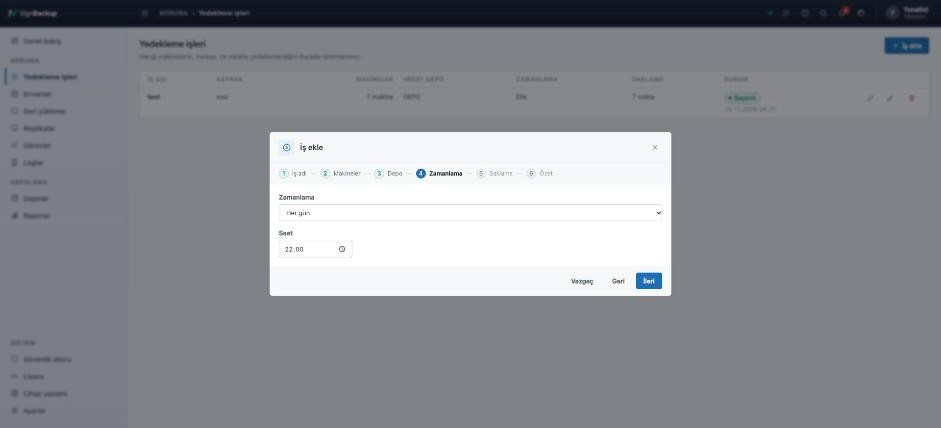
- In the Schedule step, choose how the job runs (daily, weekly, at intervals, after another job, manually).
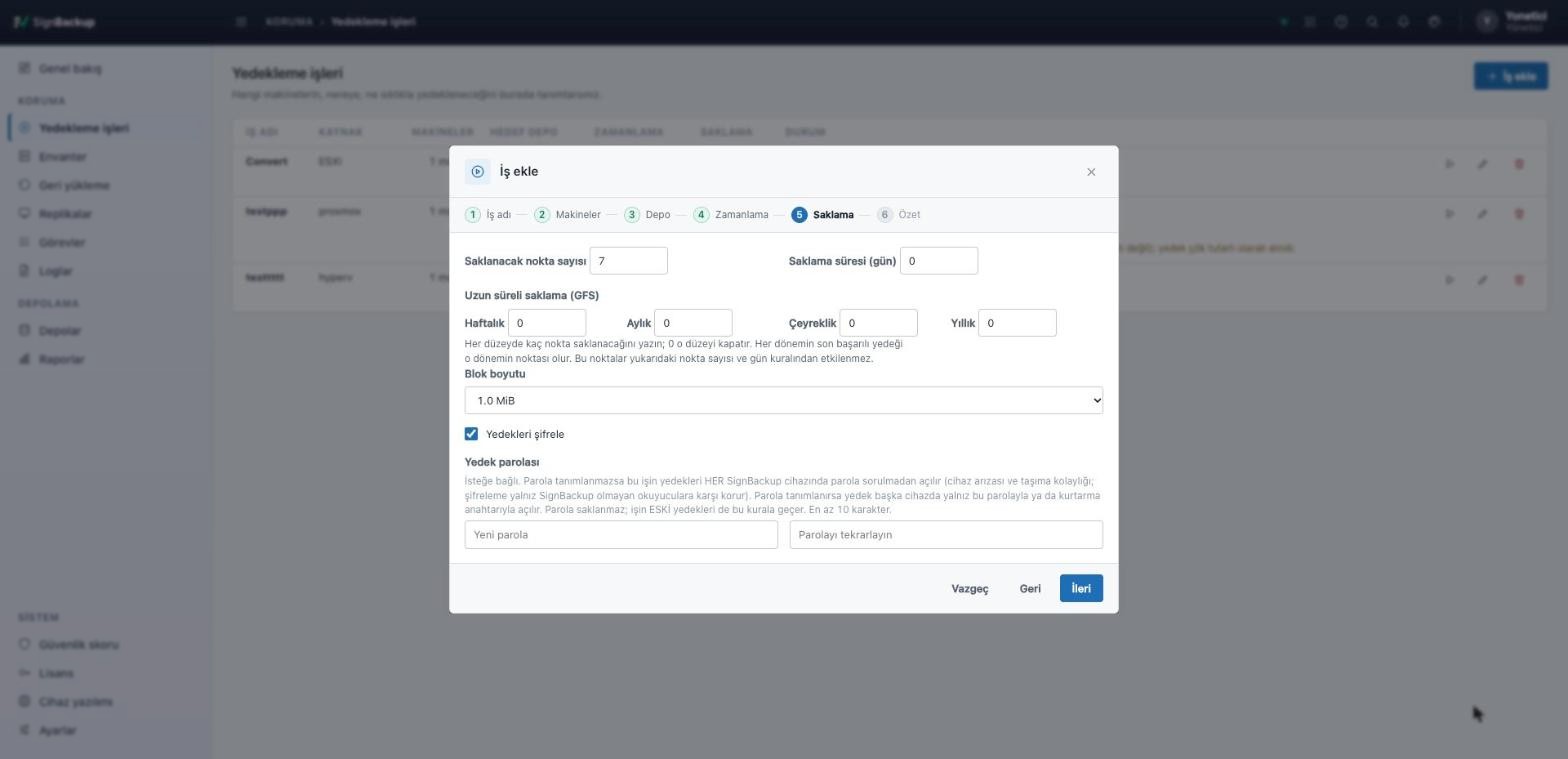
- In the Retention step, enter the number of restore points / retention period, optional long-term retention (GFS), block size, encryption and an optional backup password.
- In the Summary step, review everything, leave the Job enabled box checked and click Save. The save is recorded in the audit log.
If a recipient group is defined, a Notification section also appears in the last step: when Custom rule for this job is on, this job's backup events go only to the groups selected here (Per-job rule).
Running and stopping manually
- Click the Run button (▶ play icon) in the job's row. If the job is already running, it is not started again.
- While the job runs, the Status column shows the number of machines and the data read and written, updated live.
- To stop it, click Stop, which appears in the same place. Partially written data is cleaned up from the repository and the result is Cancelled.
The page refreshes automatically when a job starts and when it finishes; you do not need to refresh it manually.
Fields and options
Job name
| Field | Rule |
|---|---|
| Job name | 1–128 characters; two jobs cannot have the same name. |
| Description | Optional, up to 512 characters. |
Machines
| Field | What it does |
|---|---|
| Source | The hypervisor to back up. Only enabled hypervisors are listed. |
| All machines in source | If checked, machines added to the source later are included automatically. |
| Machine list | If all machines is not checked, at least one machine must be selected. Machines that cannot be backed up for reasons such as physical RDM or independent disks are disabled. |
Repository
Target repository: backups are written to this repository; only enabled repositories are listed.
Schedule
| Option | Behavior |
|---|---|
| Daily | At the time in the Time field, in server time. 22:00 for a new job. |
| Weekly | On the selected Days, at the specified time. At least one day is required. |
| At set intervals | Interval (minutes): 15–10080 (7 days). The lower limit prevents a new run from starting before the previous one has finished and leaving stacked snapshots. |
| After job | Starts when the selected job finishes successfully or partially successfully; does not run if the upstream job fails. A manual job can also be the upstream job; loops cannot be created. Details: Running after another job finishes below. |
| Manual | Only when Run is clicked. |
Fields that do not belong to the selected type are not saved.
Retention and encryption
| Field | Rule and effect |
|---|---|
| Restore points to keep | 0–9999. 7 for a new job. |
| Retention period (days) | 0–36500. If both are set, both apply. If both are 0, no restore points are ever deleted and the repository fills up. |
| Long-term retention (GFS): Weekly, Monthly, Quarterly, Yearly | How many restore points to keep for each level; 0 turns that level off. Details below. |
| Block size | 256 KiB, 512 KiB, 1 MiB (default), 4 MiB. Locked once the job has run: changing it would make existing restore points unreadable. |
| Encrypt backups | Data written to the repository is encrypted. On for a new job. |
| Backup password / confirm | Optional, at least 10 characters, not stored. A backup without a password can be opened on any SignBackup without a password prompt; a password-protected backup can be opened on another appliance only with this password or the recovery key. Once a password is set, the job's older backups can also be opened with it. If left empty when editing, the current password is kept; it is removed with Remove backup password. |
| Job enabled (Summary) | When off, the job does not run on its schedule. |
Long-term retention (GFS)
- GFS requires a license; without a license, License required appears next to the heading and only the restore point count and day limit are applied (When the license expires).
- The last successful backup of each period (week, month, quarter, year) becomes that period's restore point. The day the backup was taken does not matter; no day is selected.
- The count covers the most recent periods that have a backup. Weekly 4 → the newest restore point from each of the last four weeks that have a backup is kept.
- GFS restore points are not affected by the restore point count and day rule and are not included in that count: "7 restore points + 4 weekly" does not reduce the daily restore points.
- One restore point can serve several levels (the last backup of the month is also the last backup of its week); only one copy is kept.
- When an old GFS restore point is deleted, the incremental backup that depends on it is automatically converted into a full backup; the chain is not broken.
- The Retention column of the job list shows an abbreviation:
14 nokta + GFS 4H 12A 3Y(14 restore points + GFS: 4 weekly, 12 monthly, 3 yearly; H weekly, A monthly, Ç quarterly, Y yearly). - In the restore tree and in the wizard's restore point list, GFS restore points carry a Weekly / Monthly / Quarterly / Yearly label.
Incremental backup on Hyper-V
On running Hyper-V machines, only changed blocks are read (RCT); this requires a Windows Server 2016 or later host. On older hosts (2012 R2), the disk is read end to end on every backup. The first backup is full; if the changes cannot be read, a full backup is taken automatically and a warning is logged. Do not delete the .rct / .mrt files on the host. Details and test status: Hyper-V incremental backup.
Proxmox VE machines
- Running machine: QEMU establishes a single consistent point in time for all disks at once (fleecing); if the guest agent (QEMU Guest Agent) is enabled, the file systems are frozen for that moment. From the second backup onward, only changed blocks are read.
- Powered-off machine: locked for the duration of the backup (it cannot be started) and backed up in full every time; only used space is read.
- For raw, LVM, ZFS and Ceph disks, the change map is kept in memory; if the machine is shut down and started again or moved to another node, the next backup is full and the reason is shown in the job result.
- LXC containers are not backed up and cannot be selected in a job.
- Backup access (SSH) is set up automatically on the first scan or the first backup; see Inventory.
Row buttons
| Button | What it does |
|---|---|
| Run (▶ play icon) | Starts the job immediately. Disabled if the engine for this source type is not ready; hover over it to see the reason. |
| Stop | Visible while the job is running; sends a stop request. |
| Edit | Opens the wizard with the current values. |
| Delete | Asks for confirmation. Only the job definition is removed; backups already taken are not deleted, and the run history remains in Tasks under the job's name. |
Status column
| Status | Meaning |
|---|---|
| Not run yet | The job has never run; it is not shown as successful. |
| Disabled | The job is turned off and has not run yet. Disabled jobs are shown dimmed. |
| Running | Number of machines and data read and written, live. |
| Successful | The last run completed without issues. |
| Partially successful | Completed with warnings; the reason is shown in yellow (e.g. an application-consistent backup could not be taken, so a crash-consistent one was taken). |
| Failed | The error is shown in red. |
| Interrupted | Interrupted because the backup service stopped. This is not a backup error; restart the job. |
| Cancelled | The run was stopped; partial data was cleaned up. |
Backup copy job
A copy job moves backups that have already been taken to a second repository (the second copy of the 3-2-1 rule). Its source is the finished backup files in the first repository; it does not touch the running machine or the production network.

Step-by-step
- On the Copy tab, click Add copy job (
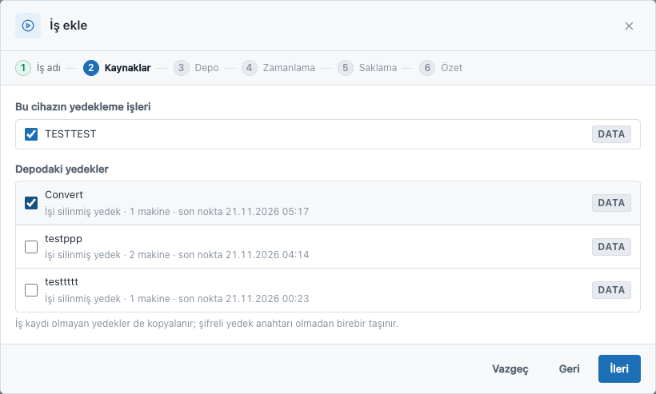
/isler?yeni=1&tur=kopya). - In the Sources step, check one or more sources; both sections can be selected together: Backup jobs on this appliance and Backups in repositories (backups without a job record, see below). Each row shows the repository where the backups are stored.
- In the Repository step, select the second repository the copy will be written to; repositories holding the selected sources are not listed. The list has two groups: Remote repositories (SFTP, S3, second SignBackup appliance; shown as name — type · address) and Repositories on this appliance (local disk, NFS, SMB).
- In the Schedule step, give it its own schedule or use After job so that it starts when the source backup job finishes (a manual job can also be selected; see below).
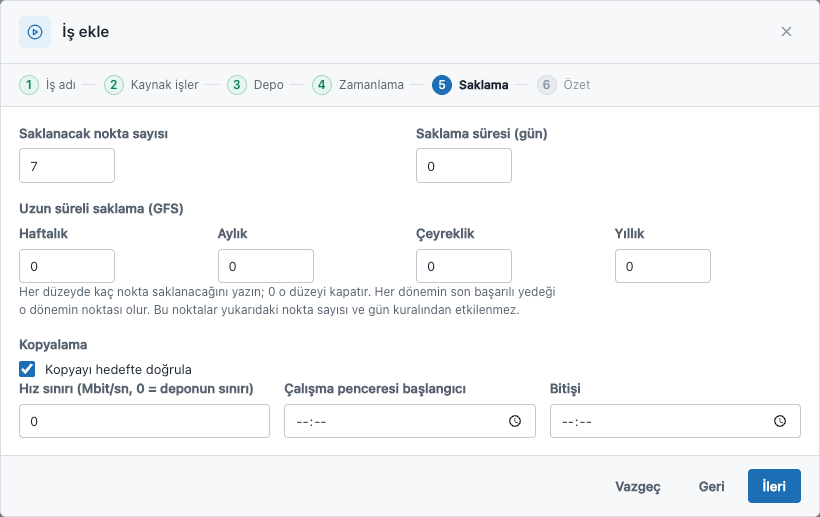
- In the Retention step, enter the copy's own rule and the Copy options below it.
- Review everything in Summary and click Save.
Copying backups in repositories
The Backups in repositories list shows backups without a job record in the repositories attached to the appliance (local disk, NFS, SMB); each row shows the type, number of machines, last restore point and repository:
| Type | What it is |
|---|---|
| Copy received from another appliance | Backups another SignBackup sent to this appliance; they can be copied on to a third target. |
| Copy written by a copy job | What a copy job on this appliance wrote to the second repository. |
| Backup of a deleted job | The backup job was deleted, but its backups remain in the repository. |
| Backup left in the job's old repository | The job's target repository was changed later. |
- Backups in an active job's own repository do not appear in this list; select the job itself for those.
- Copying does not decrypt the data: an encrypted backup is moved byte for byte without the key, and the key envelope is written to the target as is. A locked backup is also copied; the copy is opened with the password or recovery key that opens the original backup.
- When copying a locked backup to a local target, retention cannot delete a base in that run: old restore points remain and the job gives a warning; it is applied once the lock is opened from the Restore page. There is no such restriction on a remote target (SFTP, S3, second appliance).
- A source repository cannot be deleted while a copy job uses it as a source. If the selected backups are entirely deleted from the repository and there is no other source, the job ends with the error "no backups to copy".
Copy options
| Field | What it does |
|---|---|
| Verify copy on target | Every copied file is read back on the target and its checksum is compared with the source. A file that does not match is deleted and the job reports an error. On for a new job. |
| Speed limit (Mbit/s) | The job's own limit. 0 = the target repository's limit applies; if both are set, the smaller one wins. The repository's limit: Location and bandwidth. |
| Run window start / End | The job runs only within this time range. A job started while the window is closed does not fail; it waits in the Waiting for run window (time) state and starts automatically when the window opens. It stops when the window ends; a partially copied file resumes where it left off on the next run. Empty = any time. |
How it works
- Each run copies only the restore points that are not on the target yet; full and incremental restore points are moved as they are. If there is nothing to send, the job finishes successfully and There were no new backups to copy; the target is up to date. is shown under the status.
- An incremental restore point is copied together with the restore point it depends on, if that one is not on the target.
- On the first copy, the retention rule is applied only once all restore points have reached the target; a partial first copy is not pruned.
- If the copy chain on the target is broken (e.g. the base is missing), the job repairs itself: the base is sent again and the job ends with a warning.
- A second copy job from the same source to the same target repository cannot be saved; the same job also cannot be selected both as a job and as a backup in a repository.
- The copy has its own retention rule: a backup deleted at the source is not deleted from the copy. Example: 14 days in the primary repository, 12 months of backups in the second repository.
- If an immutability period is defined on the target repository, the copies are also protected for that period (Immutable backup).
- Encrypted backups are copied encrypted; the key information is also written to the target.
Restoring from a copy
On the Restore page, copies appear in a separate row under the source job's name, with the Copy label and the name of the second repository; the steps are the same as for the original backup. A copy in an SFTP or S3 repository is not restored directly: it is first downloaded to a repository attached to the appliance with Restore › Fetch from remote repository.

Limits
- The target can be a local disk, NFS or SMB; an NFS/SMB share at a remote site reached over VPN can also be used.
- The target can also be an SFTP server or S3-compatible object storage; in that case retention is chain-based and the copy must first be fetched back manually for a restore (SFTP and S3).
- Copying to a remote target (SFTP, S3, second SignBackup appliance) requires a license; copying to a second repository attached to the appliance does not (Advanced features). On an unlicensed appliance, a warning appears in advance in the Repository step: Copying to a remote target requires a license; this appliance is unlicensed. Copying to another repository on this appliance is available.
- Copy jobs run only toward the remote repository; fetching back from a remote repository is not a job but an operation started manually from the Restore page.
- The target can also be a second SignBackup appliance: the copies appear directly on that appliance's Restore page, and that appliance applies the retention rule (this job's retention rule does not apply there). Appliance-to-appliance copy
Running after another job finishes
The After job schedule can be selected for every job type (backup, copy, replication); any job other than itself can be selected as the upstream job. In the list, each job's schedule is shown next to it (e.g. TESTTEST — Manual).
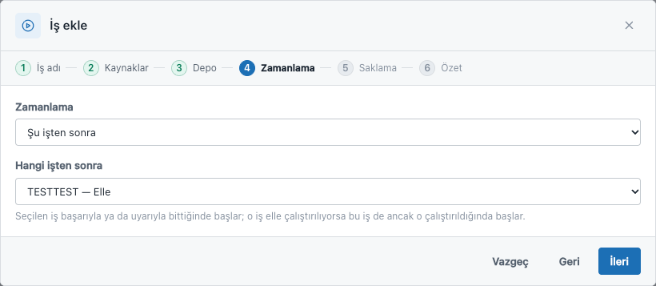
- This job starts when the upstream job finishes successfully or with warnings; it does not start if the upstream job fails or is stopped.
- However the upstream job starts (schedule, after another job, manually), this job starts when it finishes. If the upstream job has a Manual schedule, this job also starts only when that one is run.
- This job starts once for each finish of the upstream job; if it is still running at that time, it starts once more when it finishes.
- A newly created job, or one whose upstream job was changed, starts only with an upstream run that finishes from then on; runs that finished earlier do not start it.
- A job that is the upstream job (or source) of other jobs cannot be deleted: Bu iş başka işlerin kaynağı ya da üst işidir ve silinemez: … (this job is the source or upstream job of other jobs and cannot be deleted). Delete those jobs first or change their schedules.
- Jobs that trigger each other (loops) and chains longer than 16 jobs are not saved.
This lets you set up copy when backup X finishes or update the replica when backup X finishes.
Replication job
A replication job keeps the machines of a backup job as powered-off replicas, ready to start, on a target Proxmox VE, VMware (ESXi / vCenter) or Hyper-V host; it is fed from backups already taken. It is set up with the Add replication job button on the Replication tab and is listed on that tab with the REPLICA badge. It requires a license. Details, wizard and failover: Replication.

Warnings and error messages
| Message | Meaning | What to do |
|---|---|---|
| Select at least one source job. | No source job was checked in the copy job. | Select at least one job in the source jobs step. |
| There is no backup job to copy. | No backup job that could serve as a source is defined. | Create a backup job first. |
| …: source job could not be copied (…) | The source job was not found, its repository could not be opened, or the source and target are the same repository. | Read the reason in parentheses; select a different repository as the target. |
| Waiting for run window (…) | The job was started outside the window; this is not an error. | Nothing needs to be done; it starts automatically when the window opens. |
| …: run window ended; the remaining backups will be copied on the next run. | The copy did not finish before the window closed. | Nothing needs to be done; if necessary, widen the window or raise the speed limit. |
| …: restore point … could not be copied; the restore point it depends on is missing at the source. | The restore point that the incremental restore point depends on was deleted at the source. | The copy resumes normally from the source's next full backup. |
| Scheduler is not ready yet | The backup engine is not running; scheduled jobs will not run. The warning is intentionally never hidden. | Check the status of the services (Overview › Services); if the problem persists, contact support. |
| Run button disabled | The backup engine for this source type is not ready. | Hover over the button to read the reason. |
| The block size can no longer be changed because this job has already run. | The backup chain has been established. | Create a new job for a different block size. |
| … skipped: "HotAdd only" is selected but HotAdd could not be set up (…) | The transport preference is HotAdd only and the requirements were not met. | Check the HotAdd requirements or set the preference to Automatic. |
| …: HotAdd unavailable, read over the network (…) | In Automatic mode, HotAdd was tried and failed; the backup was taken over the network. | The backup is valid. Read the reason (e.g. no free SCSI slot) and fix it. |
| …: HotAdd disks could not be safely detached from the appliance … | The source disks may still be attached to the appliance VM. | In vSphere, check the appliance VM's disks; detach any disk left attached without deleting its file (Delete files from datastore unchecked). |
| …: an application-consistent backup could not be taken (…); the backup was taken as crash-consistent. | The in-guest tool (VMware Tools, Integration Services, QEMU Guest Agent on Proxmox) is missing or did not respond. | The backup is valid; on Proxmox this warning is normal if the guest agent is not installed. If application consistency is required, install and enable the agent. |
| …: backup access to the Proxmox node is not set up, machine skipped. … | Automatic SSH setup could not be done (the connection user is not root@pam, or root SSH with a password is disabled), or the node was not confirmed. | Set it up manually from Inventory › Proxmox card › Backup access window. |
| …: the temporary backup setup on the Proxmox node could not be fully removed; … | Cleanup after the backup did not complete. | On the node, manually check the machine's lock (qm unlock) and the temporary files starting with sb-. |
| Partially successful · "… backed up in FULL this time" | A full backup was taken when an incremental one was expected (change ID invalid, disk grew, CBT reset…). | No action needed; the next backup will be incremental again. |
| Partially successful · machine skipped | A pre-check failed (no space for the snapshot, another snapshot exists…). | Read the reason in Tasks; the Backup pre-checks page explains each reason. |
| Source list empty | There is no enabled hypervisor, or the inventory has not been scanned. | Add the hypervisor in Inventory and click Scan inventory. |
Related settings
- Settings › Backup pre-checks: datastore and repository free-space thresholds, change estimate, VMware read path (HotAdd). Details
- Settings › Backup encryption: recovery key and the warning about jobs without a password. Details
- Settings › Malware scanning: Scan after every backup. Details
- Settings › System: time zone; daily and weekly times are based on server time.
Frequently asked questions
I changed the job's hypervisor connection; why is the next backup a full one?
For a job whose connection has changed, the old chain does not belong to the new server; the next backup is taken as a full backup automatically. The old restore points remain available for restores.
If I delete a job, are its backups lost?
No. Only the job definition is removed; the restore points remain in the repository. However, once the job is deleted, restoring to the "original location" is no longer available (the source server is read from the job link); restoring to a "new location" is still available.
What is the difference between a job with a password and one without?
A backup from a job without a password can be opened by any SignBackup through the product lock; the encryption only protects against readers that are not SignBackup. A backup from a password-protected job can be opened on another appliance only with the password or the recovery key.
What if I forget the backup password?
The password is not stored. This appliance can always open its own backups; on another appliance, only the recovery key can open them. If neither is available and the appliance is not working, the backup cannot be opened.
Why is the shortest interval 15 minutes?
To prevent a new run from starting before the previous one has finished and leaving stacked snapshots on the hypervisor.
What happens to the job after a restore to the original location?
The source of the jobs backing up this machine is automatically moved to the new machine; the new machine's first backup is a full backup, and the old chain is kept for restores.
Is a copy job the same as replication?
No. It moves backup files already taken to a second repository; it does not keep a machine copy ready to start. The copy has its own retention rule.
Does a copy job slow down the production network?
It does not touch the machine; it only moves data between repositories. To protect the link, use the job's speed limit, the repository's business-hours / off-hours limit and the run window.
Can jobs be defined with JavaScript disabled?
Yes. The wizard is shown as a single-page form.