Defining hypervisors, establishing trust and scanning virtual machines.
- Menu path: Left menu › Protection › Inventory (
/envanter) - Who uses it: Definitions: Administrator · Scanning: Administrator, Operator
Purpose
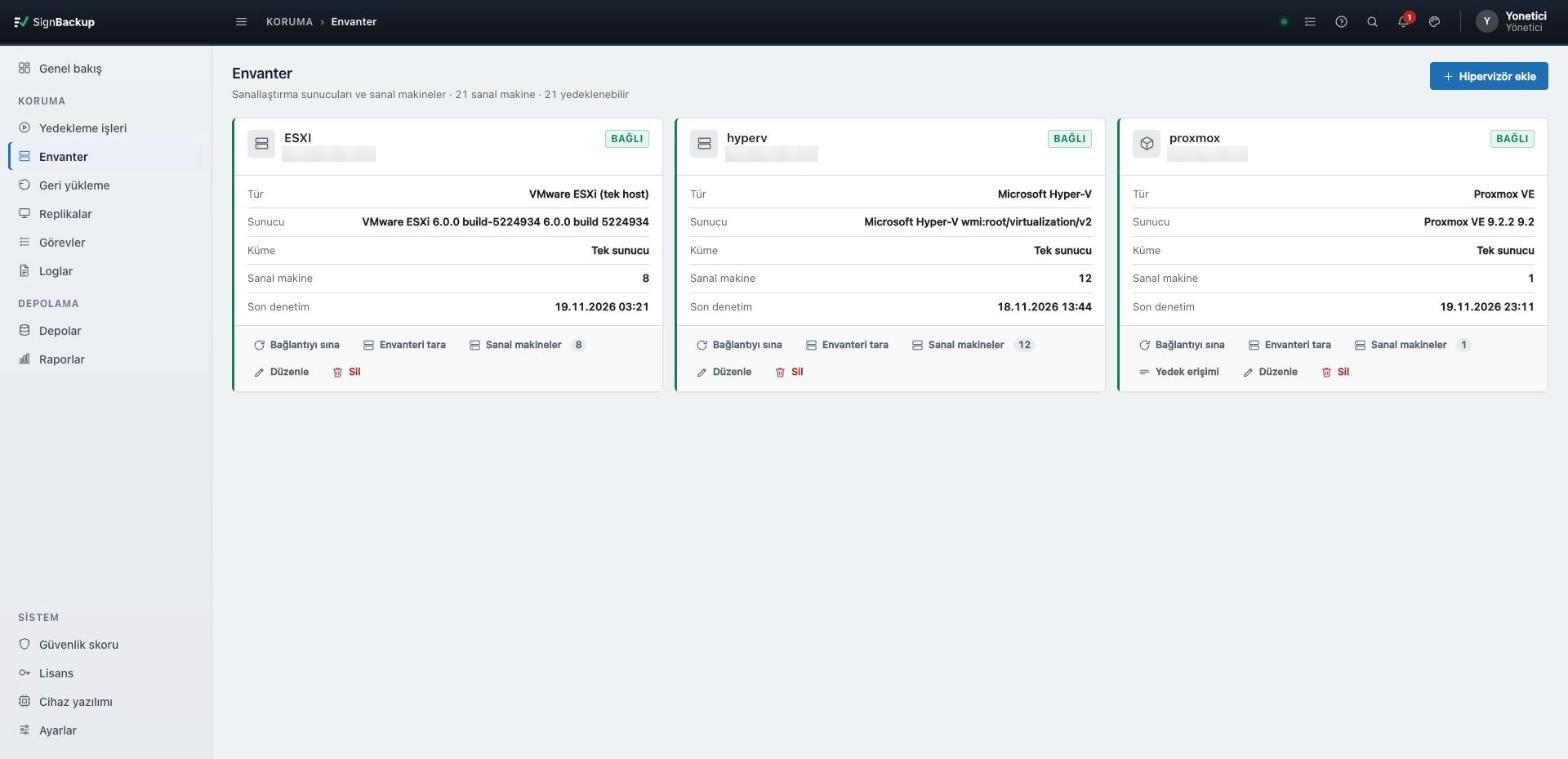
Inventory is the page where you define the virtualization servers (hypervisors) to be backed up, test the connection and scan the virtual machines running on them. At least one hypervisor must be added and scanned before you create a job. The total number of machines and the number that can be backed up are shown next to the heading.
| Role | Can do |
|---|---|
| Administrator | Adds, edits, tests, scans and deletes hypervisors. |
| Operator | Rescans the inventory. |
| Other roles | View only. |
Step-by-step
Adding a hypervisor
- Click Add hypervisor and select the type.
- Enter the name, server address, port (for VMware), username and password. For Proxmox, the address and the root password are enough. Leave Enabled on.
- Click Save. The connection is tested immediately.
- If a certificate confirmation dialog opens, compare the fingerprint with the value shown in the server's own interface and click Confirm and trust.
- Click Scan inventory on the card; when it finishes, it reports how many machines were found and how many can be backed up.
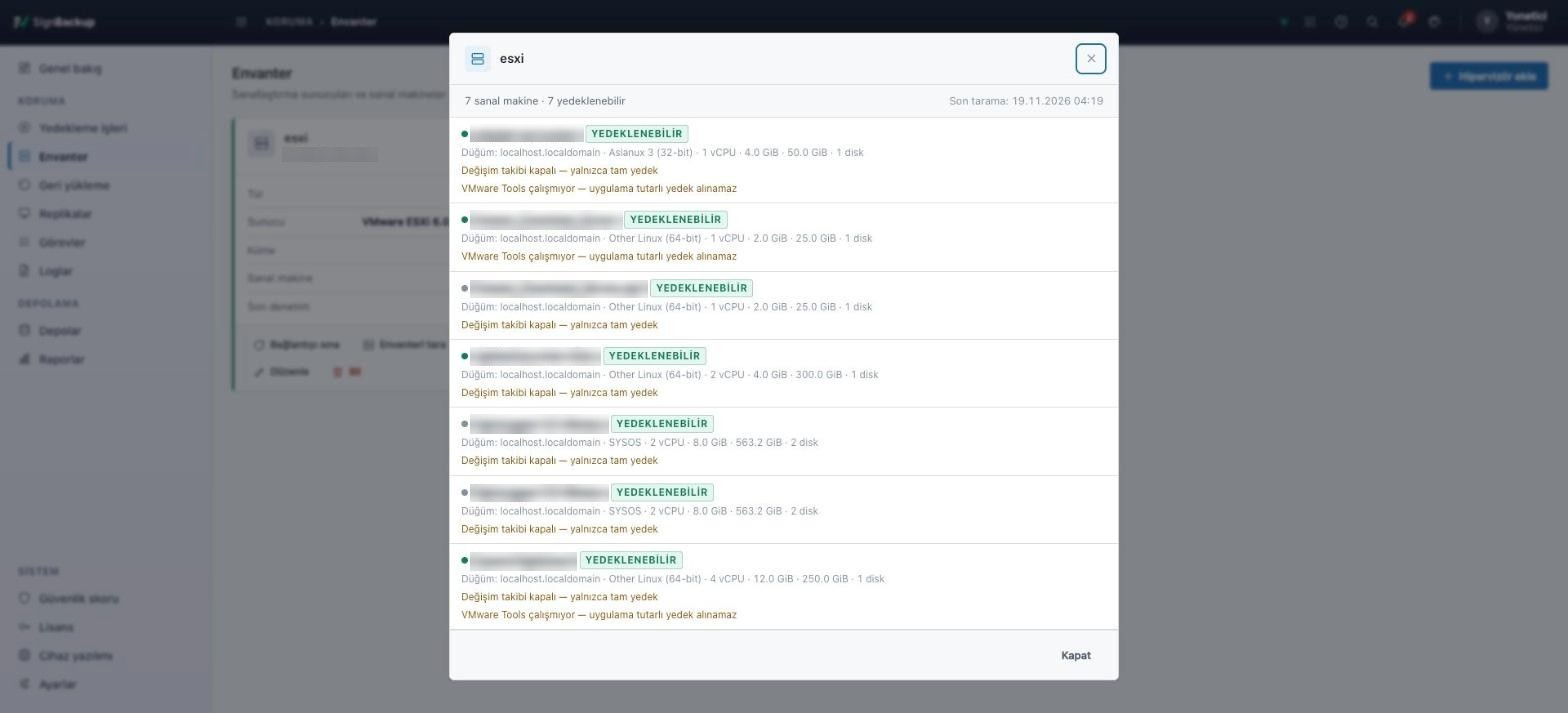
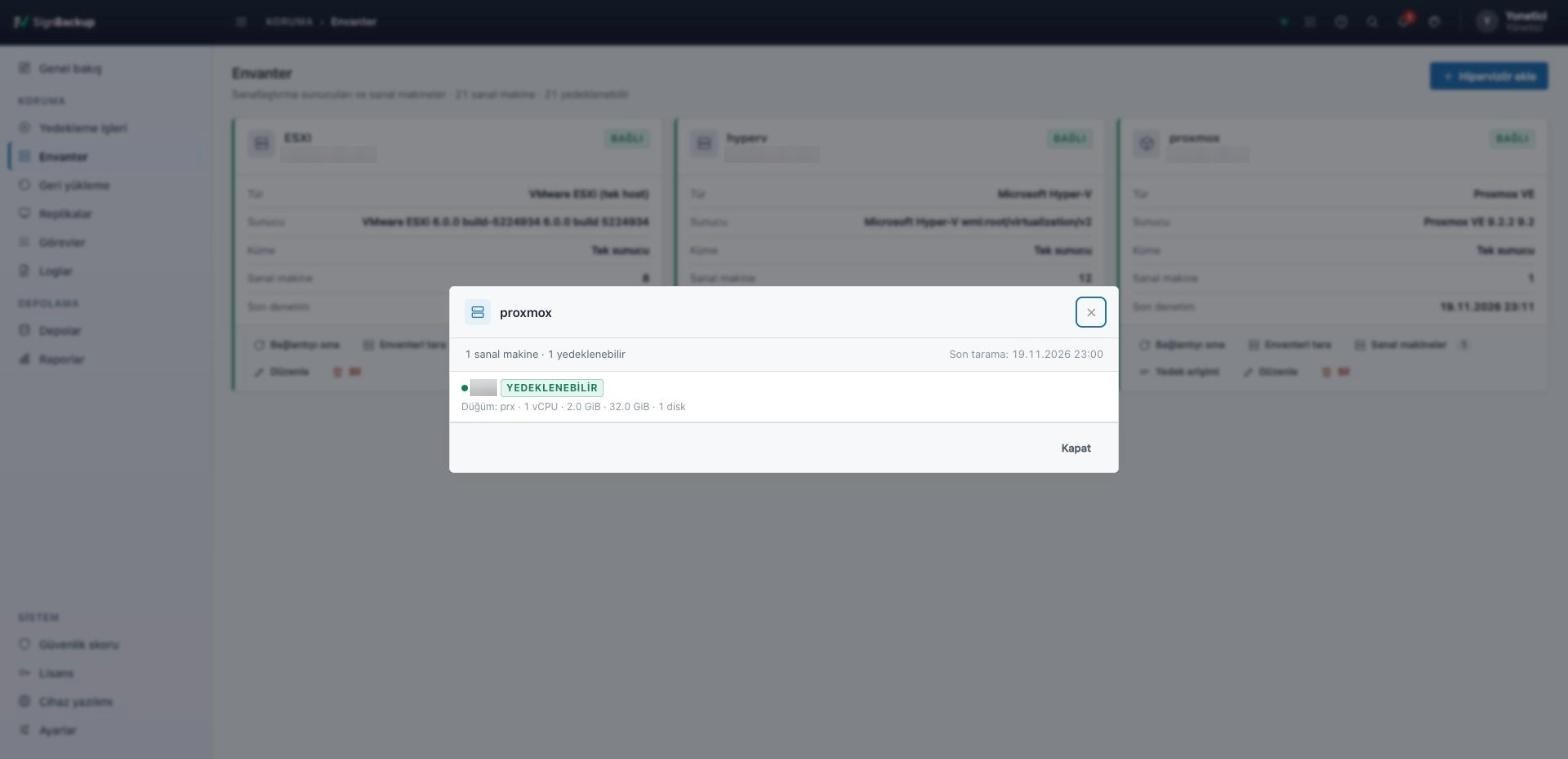
- Open the list with Virtual machines and read the notes for each machine.
Fields and options
Hypervisor form
| Field | Description |
|---|---|
| Type | VMware vCenter, VMware ESXi (single host), Microsoft Hyper-V, Proxmox VE. |
| Name | Required, at most 128 characters, unique. |
| Server address | IP or name. The same address and port cannot be used in two connections. |
| Port | vCenter/ESXi only; 443 if empty. |
| Username | For vSphere, e.g. administrator@vsphere.local. For Hyper-V, a domain user is entered without the domain. For Proxmox, a user who can see the machines. |
| Domain (Hyper-V) | If the server is a domain member. |
| Authentication realm (Proxmox) | Local accounts if empty. |
| Password | Required for a new connection; kept if left empty when editing. |
| Enabled | A disabled hypervisor is not scanned or backed up and is not listed in the job wizard. |
The connection is always encrypted; there is no unencrypted option.
Card
| Item | Description |
|---|---|
| Status | Connected Attention Error Unknown |
| Type / Server / Cluster | Product, version; cluster name and node count, or Single server. |
| Test connection | Checks reachability and credentials; opens the certificate confirmation if needed. |
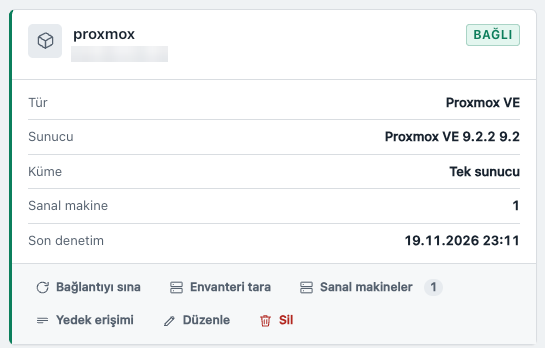
| Backup access (Proxmox) | Shows the status of Proxmox SSH access; used for manual setup when automatic setup cannot be done. See the Proxmox section below. |
| Scan inventory | Shown when trust is established and the status is not Error. The page waits until the scan finishes; this can take a while on a large vCenter. |
| Virtual machines | Opens the scanned list. With more than 10 machines, a Search machines… box appears. |
| Edit / Delete | Delete asks for confirmation; existing backups are not deleted. |
Machine notes
| Note | Meaning |
|---|---|
| Reason preventing backup | Physical RDM, independent disk, pass-through disk or LXC container. These machines cannot be selected in a job. |
| Change tracking off — full backups only | CBT is off; every backup is read in full. |
| VMware Tools not running / Integration Services not running | An application-consistent backup cannot be taken of a powered-on machine (a crash-consistent one is taken). |
| Snapshot count | The machine has other snapshots; they can fill the datastore and cause the backup to be skipped (see pre-checks). |
| Not seen in last scan | The machine may have been deleted from the hypervisor. The record is not deleted; its backups remain restorable. |
Warnings and error messages
| Message | Meaning | What to do |
|---|---|---|
| Confirm certificate | The server was reached; the certificate is awaiting trust. It cannot be scanned while confirmation is pending. | Open the confirmation dialog with Test connection and compare the fingerprint. |
| Confirmation dialog with a red warning | The certificate or SSH host key changed after it was trusted. This may be a reconfiguration or an interception. | If you were not expecting the change, do not confirm; verify with the server administrator. |
| The saved password cannot be decrypted for this connection | The address, user or domain changed; for security reasons the password was not carried over. | Re-enter the password under Edit and save. |
| No inventory record — rescan | It was scanned before but the machine list cannot be found (e.g. after a software rollback). | Scan inventory. |
| Cannot connect to server …. Make sure the server is powered on and reachable over the network. (Hyper-V) | There is no management channel on the Hyper-V host. A host with only SSH open does not count as connected; DCOM or WinRM is required. | Enable WinRM on the host (PowerShell: Enable-PSRemoting -Force) or grant the DCOM remote activation permission. |
| This server does not allow API write operations | E.g. a free ESXi license does not allow snapshots. | A paid license is required; backups cannot be taken as it is. |
Proxmox backup access
The disks of Proxmox machines are read on the node over SSH. The Proxmox web API provides the inventory but does not expose disk blocks or change tracking, so the data path is SSH. No port is opened on the host and nothing is permanently installed.
If a node's host key changes later, the appliance does not connect and asks for your confirmation.
Backup access dialog (fallback path)
The card's Backup access button is for viewing the setup status and for setting it up manually when automatic setup cannot be done (if the connection user is not root@pam, or root SSH login with a password is disabled on the node):
- Appliance SSH public key — get it with Copy and add it to the root user's
authorized_keysfile on each node. In a cluster,/etc/pve/priv/authorized_keysis propagated to all nodes. - SSH user (default
root) and SSH port (default 22); if you changed them, click Save. - In the Nodes table, compare each node's host key fingerprint with the output of
ssh-keygen -lf /etc/ssh/ssh_host_ed25519_key.pubon the node and click Confirm. Unconfirmed nodes are not connected to; if you see Key CHANGED, do not confirm until you know why. - Test access checks the connection and the required tools (
qm,qemu-img,qemu-nbd) on each confirmed node.
How the backup is taken (fleecing, changed blocks, full backup of a powered-off machine) is described on the Backup jobs page. LXC containers are not backed up.
Related settings
Inventory has no settings group of its own. How machines are read (HotAdd / network), the skip thresholds and the Proxmox temporary directory are covered on the Backup pre-checks and HotAdd page.
Frequently asked questions
Can I turn off certificate verification?
No. Instead of turning verification off, the appliance shows the SHA-256 fingerprint and accepts only a certificate you have confirmed.
Does editing a hypervisor reset the confirmation?
No. The confirmed fingerprint is kept when editing.
Do I need to add an SSH key to the node manually for Proxmox?
No. For Proxmox added with the root password, the appliance adds its key itself on the first scan/first backup. Manual addition is needed only if the user is not root@pam or root SSH with a password is disabled.
Do I need to enable SSH on ESXi?
No. VMware data is read through the vSphere API and HTTPS; the product does not start or stop any service on ESXi.
What happens to the backups of a deleted machine?
The machine is marked "Not seen in last scan"; its record and backups remain and can be restored to a "new location".