All running and finished backup and restore operations in a single list.
- Menu path: Left menu › Protection › Tasks (
/gorevler) - Who uses it: Everyone can view; removing records: Administrator
Purpose
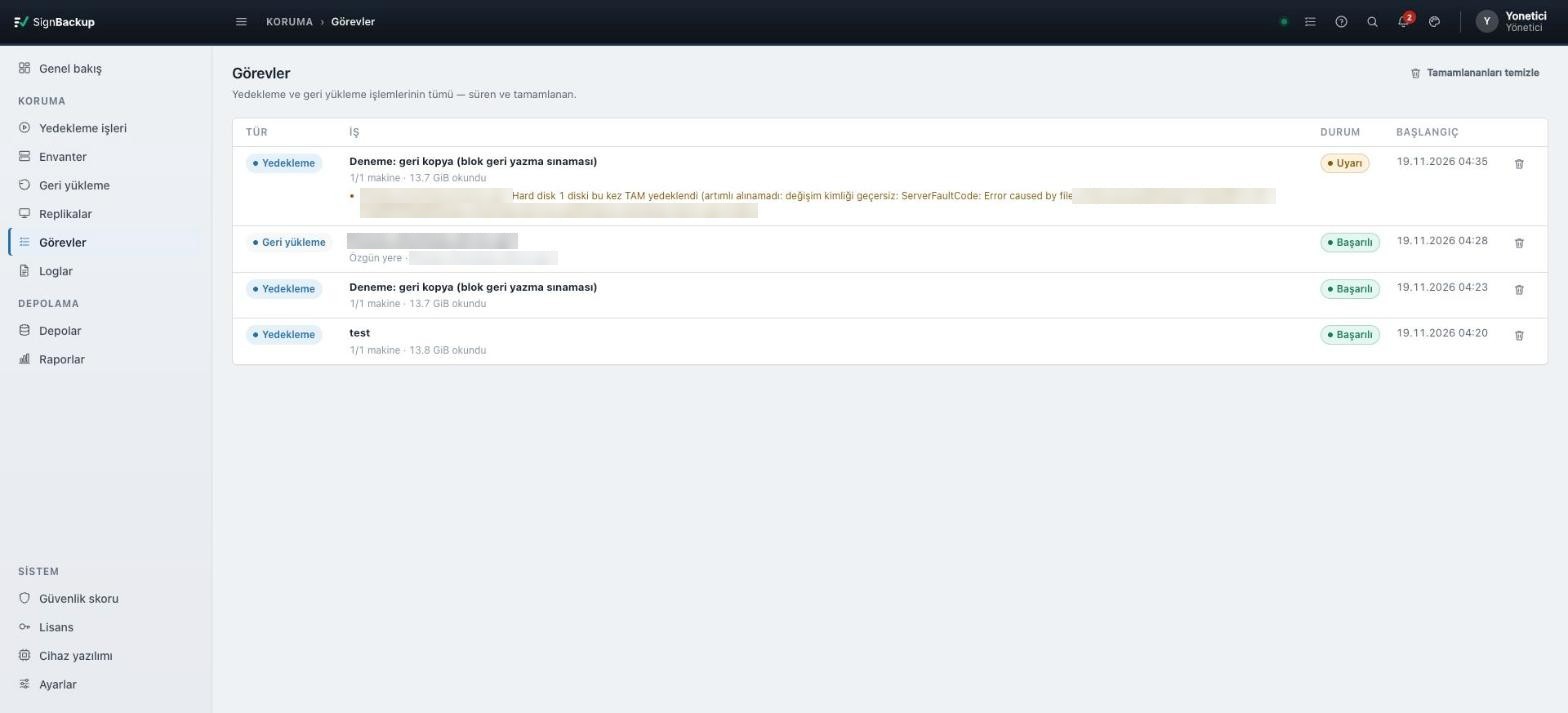
Tasks gathers all backup and restore operations, both running and finished, in a single list. The Restore page only shows the running operation; this is where you see what happened to a finished one.
The list is sorted by start time, newest first; the last 100 backup runs are shown. If there are no operations, it says "No operations yet". The page refreshes automatically when a job starts and finishes; you do not need to refresh it manually.
Step-by-step
- Open Tasks from the left menu. For running operations, the progress bar updates live.
- Read the text under any row that finished with a warning or error: skipped machines and the reason, disks that were not backed up, disks backed up in full instead of incrementally.
- To remove a single finished record, click the trash can (Remove from list) on the row (Administrator).
- To remove all finished records, click Clear completed at the top right and confirm (Administrator).
Columns and statuses
| Column | Contents |
|---|---|
| Type | Backup or Restore. |
| Job | For backups, the job name; below it başarılı/toplam makine (successful/total machines) and the data read. If the job was deleted, (deleted job). For restores, the machine name; below it the operation type (Restore as machine, Disk restore, Overwrite, Integrity check, Original location, File restore, Retrieve from remote repository) and the output path, if any. |
| Status | The result; a progress bar for running operations. |
| Started | Date and time. |
| Status | Meaning |
|---|---|
| Running | The operation is in progress. |
| Succeeded | Completed without problems. |
| Warning | Completed, but something needs attention. |
| Failed | Could not be completed; the error text is under the row. |
| Interrupted | The service restarted. This is not an error; start it again. |
| Stopped | Stopped by a user. |
| Unknown | The status could not be read. |
Warnings and what to do
| Message under the row | What to do |
|---|---|
| Machine skipped: no space for snapshot | Free up space on the datastore or review the threshold (Backup pre-checks). |
| Machine skipped: another snapshot exists | Consolidate and delete the snapshots in vSphere. |
| Machine skipped: encrypted machine / Fault Tolerance / free ESXi | These machines cannot be backed up in their current state. |
| Disk not backed up (independent disk, physical RDM, multi-writer) | Only that disk is skipped; the others are backed up. |
| … backed up in FULL this time (change ID invalid …) | For information only; the next backup will be incremental. |
| HotAdd could not be used, read over the network | Read the reason; the backup is valid. |
Related settings
Settings › Audit and history › Run history retention (days): default 365, range 30–3650. Details
Frequently asked questions
Does clearing completed records break the "after this job" chain?
No. The job's last run is kept separately.
Can I delete a running operation from here?
No. Running operations have no remove button; to stop one, use the Jobs or Restore page.
Why are only 100 backups shown?
The list is limited to the last 100 backup runs; the full history stays on the appliance for the run history retention period.