User accounts, the six roles and their permissions, a second factor via authenticator app or SMS, and recovery codes.
- Menu path: Left menu › System › Settings › Access and security / Integration
- Who uses it: Administrator; My account: every user
Purpose
This page covers the accounts that sign in to the web interface, their roles, and the second factor added to sign-in (authenticator app or SMS). Categories: Settings › Users, Two-factor authentication, SMS providers; on the user's own side, My account and Change my password.
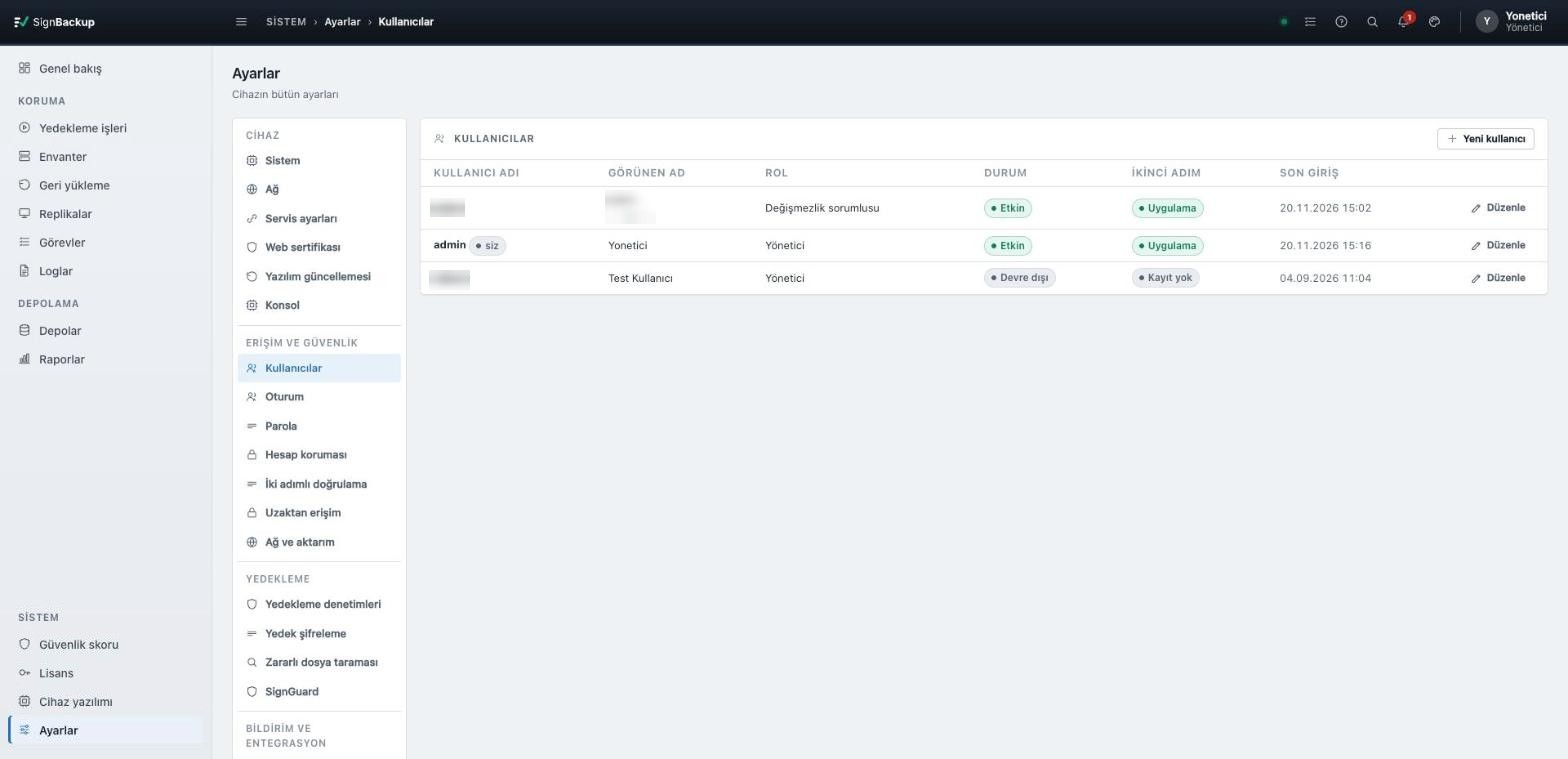
Roles
Give each user the lowest role that lets them do their job. The default role for a new user is Read-only. Actions open to roles other than Administrator are checked on the server against a permission table; any action not in the table is refused and written to the audit log as "denied".
| Role | Can do | Cannot do |
|---|---|---|
| Administrator | Everything: settings, users, repositories, hypervisors, license, firmware, power, job definitions, deleting restore points. | — |
| Operator | Runs/stops jobs manually; restores, verifies integrity, scans, unlocks; rescans the inventory. | Cannot define jobs/repositories/hypervisors, delete restore points or delete history records, and cannot open Settings. |
| Restore only | Restores, verifies integrity, scans, unlocks. | Cannot change backup jobs or the inventory. |
| Immutability officer | Enables/changes the immutability period of repositories; opens and cancels emergency deletion requests for immutable restore points. Every action requires an authenticator app (TOTP) code; TOTP enrollment on the account is mandatory. | Cannot change anything else. Administrators cannot perform these actions either (an administrator can only cancel an emergency deletion request). |
| Auditor | Views (including logs). | No changes at all. |
| Read-only | Views. | No changes at all. |
Users
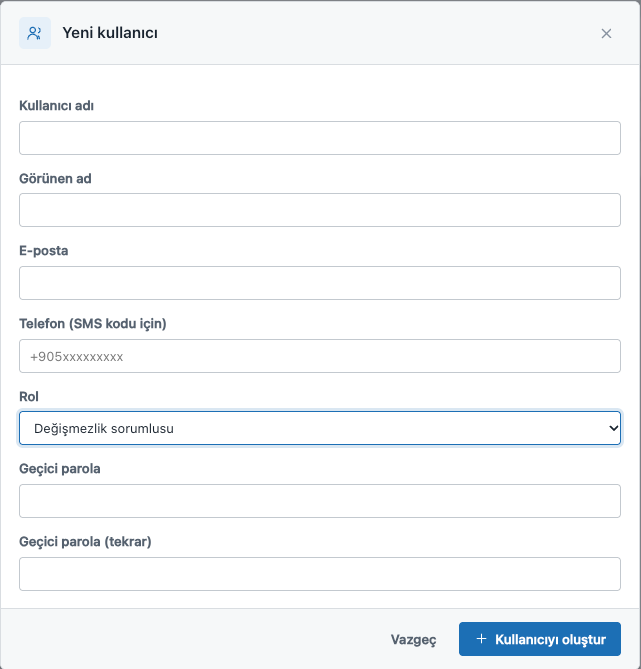
New user
- Click New user.
- Enter a Username (3–64 characters; letters, digits, dot, underscore, hyphen; cannot be changed later), and optionally a Display name and Email.
- Select a Role.
- Enter a Temporary password and confirm it (length as set in the Password category, at least 12, at most 256).
- Create user. The user must change the password at first sign-in.
| Action | Effect |
|---|---|
| Edit | Display name, email, role, Account enabled. Sessions of a user who is disabled or whose role changes are closed immediately. |
| Unlock | Shown only on a locked account; removes the lock without waiting for it to expire. |
| Set temporary password | New temporary password; the lock is also removed and open sessions are closed. |
| Reset second factor | Deletes the user's second-factor enrollment; the user enrolls again at next sign-in. |
| Delete | Does not work until the "I confirm deletion of the … account" box is ticked. The name remains in audit records. |
| Status | Meaning |
|---|---|
| Enabled | Can sign in. |
| Disabled | Cannot sign in. |
| Locked | Too many failed sign-ins; temporary. |
| Password change pending | Will set their own password at first sign-in. |
Two-factor authentication
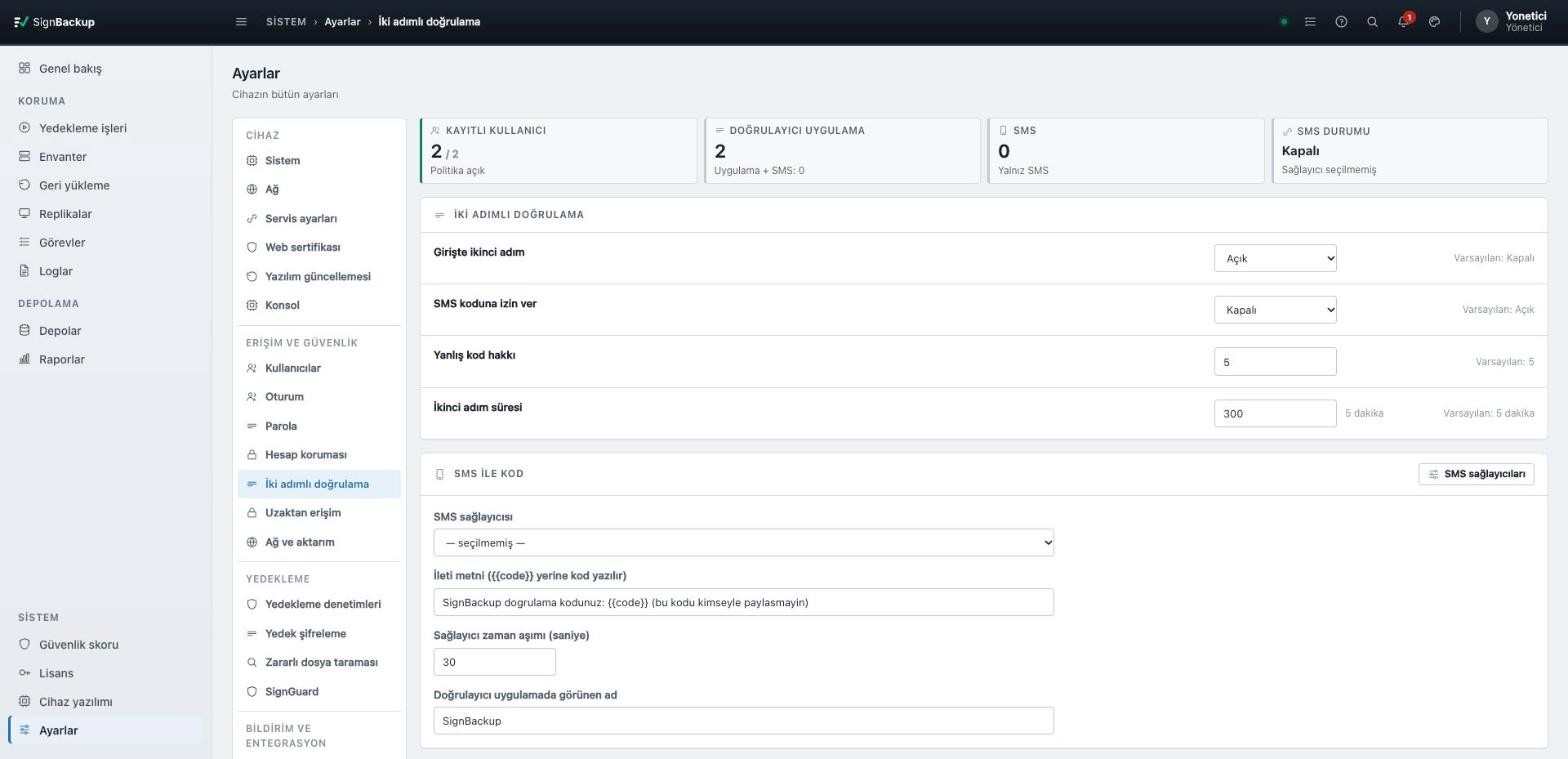
There are two methods: Authenticator app (TOTP) (Google/Microsoft Authenticator, FreeOTP, Aegis; a 6-digit code every 30 seconds, no internet needed, only the clocks must be correct; recommended for isolated networks) and SMS (through the configured provider).
| Setting | Default | Range | Behavior |
|---|---|---|---|
| Second factor at sign-in | Off | — | When on, a code is required at web and SSH menu sign-in; the physical/serial console deliberately does not ask for one. A user without an enrollment is forced to enroll at next sign-in; at the end, 10 single-use recovery codes are shown once. |
| Allow SMS codes | On | — | Turning it off leaves only the app; SMS is weaker because it passes through the carrier network. |
| Wrong code attempts | 5 | 1–10 | When exceeded, the password is asked for again; wrong codes also count toward the account lockout counter. |
| Second factor timeout | 300 s | 60–900 | Time allowed to enter the code after the password. |
| SMS provider | not selected | — | The definition that sends the codes. |
| Message text | SignBackup dogrulama kodunuz: {{code}} … (Your SignBackup verification code) | — | {{code}} is replaced with the code; avoid Turkish-specific letters (the message may be split in two). |
| Provider timeout | — | 5–120 s | If no response arrives, sending fails. |
| Name shown in the authenticator app | — | — | The account title in the app (e.g. "SignBackup Merkez"). |
SMS providers
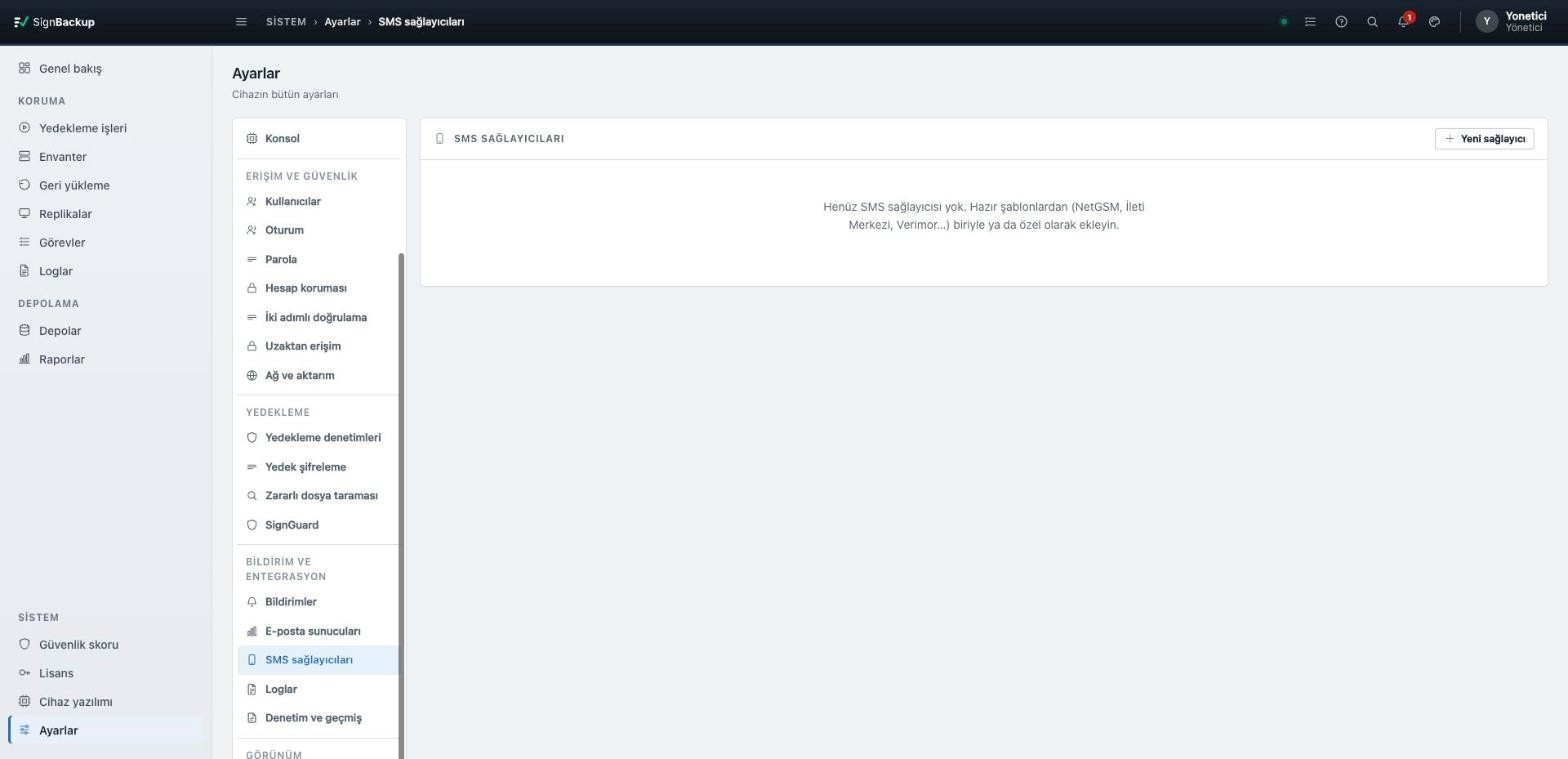
- Click New provider; choose one of the ready-made templates (NetGSM, Teknomart, İleti Merkezi, Verimor, Vatan SMS, Posta Güvercini, Masgsm, SMS Vitrini, TTMesaj, Mobildev) or Custom (blank).
- Fill in the URL, method (GET/POST), body format and the field/header table. Templates with a check mark have been tested live; test the others before saving.
- Use Preview to see the request and Send for real to send a test to your own number, then save.
- Select this provider in the Two-factor authentication category.
| Placeholder | Meaning |
|---|---|
{{phone}}, {{message}} | Phone number and message (the older {{token}} also works). |
{{int:1}}, {{bool:true}}, {{null}} | Typed value in a JSON body. |
{{base64:…}}, {{urlencode:…}}, {{phone_base64}}, {{message_base64}} | Encoded values. |
Dotted name (messages.0.no) | Nested structure in JSON. |
username/password headers marked secret | Sent as HTTP Basic credentials. |
- Secret values are stored encrypted on disk and masked on screen and in the preview; a secret value left blank when editing is kept.
- The HTTPS certificate is verified by default; turning verification off exposes the codes to anyone on the path.
- Redirects are not followed; the response is limited to 8 KB. A provider in use cannot be deleted. If the provider restricts by IP, add the appliance's outbound address to its allowlist.
My account and changing your password
My account (user menu › My account)
- Choose a Method: App, SMS or App + SMS (the SMS options appear only if SMS is allowed and a provider is ready).
- For the app, scan the QR code or enter the key manually, then type the code from the app. For SMS, enter the number and click Send code.
- Enter your password and, if any, the current code, then click Save. 10 new recovery codes are shown once; the old ones become invalid.
With the My notification subscriptions card in My account, each user chooses the events they will receive (User subscriptions).
If you cannot reach your phone, choose Use a recovery code at sign-in; each code works once, and when you are running low, use Generate new codes. If the second factor is not mandatory, the enrollment can be removed; when it is mandatory, only an administrator can reset it. An administrator who has lost their phone can delete their own enrollment on the physical console with i) Reset my second-factor enrollment.
Change my password
Current password, new password and confirmation. The new password cannot be the same as the old one, a common password, contain the username, or be a single repeated character. After the change, all your sessions other than this one are closed. For an account opened with the default password, this page is mandatory at first sign-in; the menu is not shown.
Warnings and error messages
| Message | Meaning | What to do |
|---|---|---|
| Invalid code / wrong code attempts exhausted | Clock drift or a wrong code. | Check the phone and appliance clocks (NTP on the appliance); use a recovery code. |
| Wait one minute before requesting a new SMS. | SMS resend limit. | Wait one minute. |
| SMS could not be sent. Use the app or a recovery code. | The provider did not respond or returned an error. | Test the provider with Send for real; check the IP allowlist. |
| A provider in use cannot be deleted | It is selected under Two-factor authentication. | Select another provider first. |
| The last enabled administrator cannot be removed | Lock-out protection. | Create another administrator first. |
| Temporary passwords do not match / too short | Confirmation differs, or length rule. | Enter the same, sufficiently long password. |
Frequently asked questions
Does two-factor authentication work in an installation without internet?
Yes. The authenticator app does not need internet; the appliance and phone clocks must be correct.
Does the SSH menu ask for a code?
Yes, if the policy is on. The physical and serial consoles deliberately do not.
Can I change a username?
No. Create a new account and delete the old one; the old name remains in audit records.