A/B slot updates, verification report, trial boot, confirmation and rollback.
- Menu path: Left menu › System › Firmware (
/firmware) - Who uses it: Viewing: everyone · all actions: Administrator
Purpose
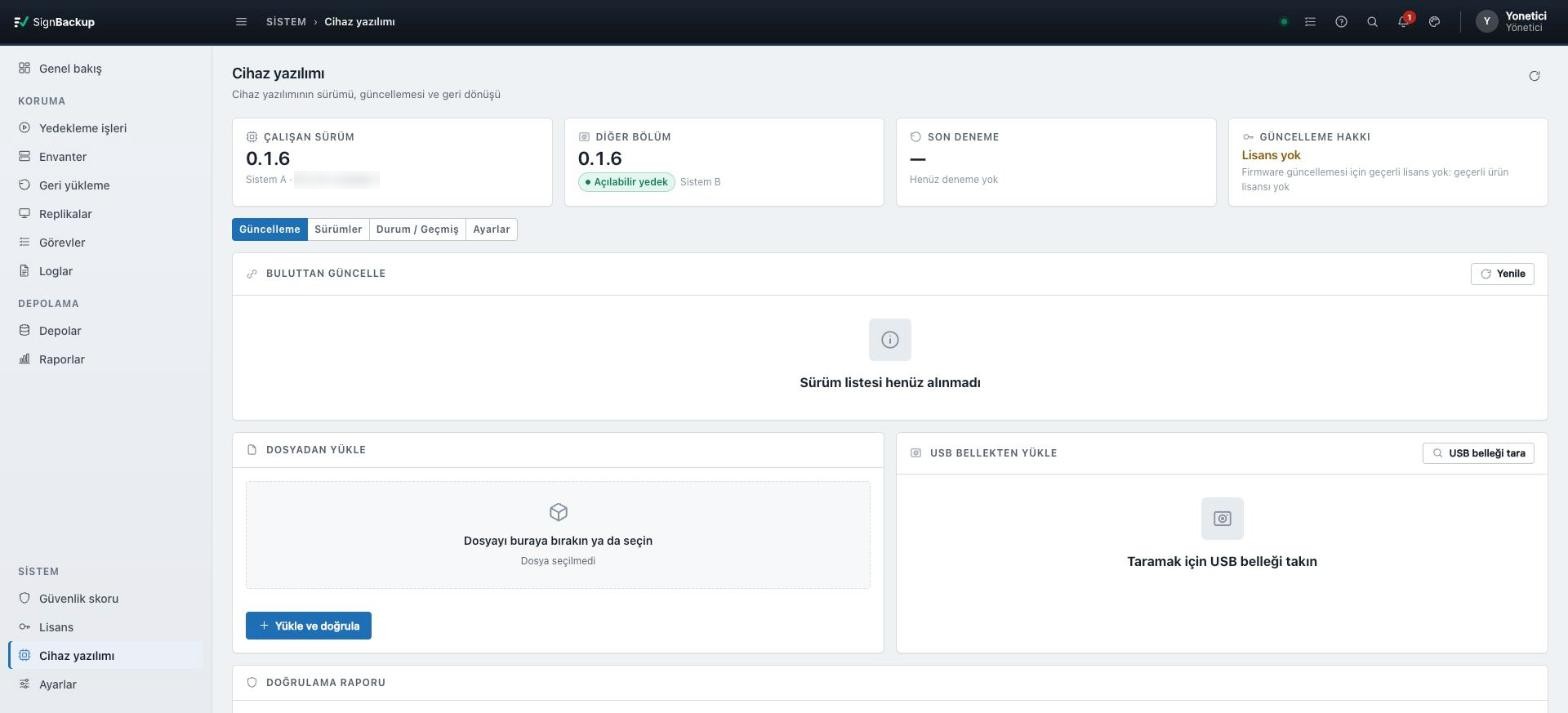
The Firmware page manages the version, updates and rollback. The appliance has two system slots (A and B): one is running while the other stands by. An update is always written to the other slot; the running system is never touched. The new version is tried once; if it fails to boot or does not pass the health check, the appliance automatically returns to the previous version.
Step-by-step: updating
- On the Update tab, choose the image source: Update from cloud (Download or Download and install), Upload from file (
.sbfw, up to 1 GB, Upload and verify) or Load from USB drive (Scan USB drive › Load). - Read the Verification report: the summary at the top tells you whether the image can be installed, and the Checks table reports each rule as Passed / Warning / Info / Failed.
- Click Write to other slot. The running system does not change and the appliance does not restart. When downgrading, the Downgrade dialog asks for explicit confirmation. Cancel deletes the image from the appliance.
- A Next step appears in the top card: Restart and try or (if a maintenance window is defined) In maintenance window. A scheduled restart is removed with Cancel.
- If manual confirmation is enabled in Settings, New version awaiting confirmation appears after the boot; if Confirm is not clicked before the deadline, the appliance returns to the previous version.
Rollback
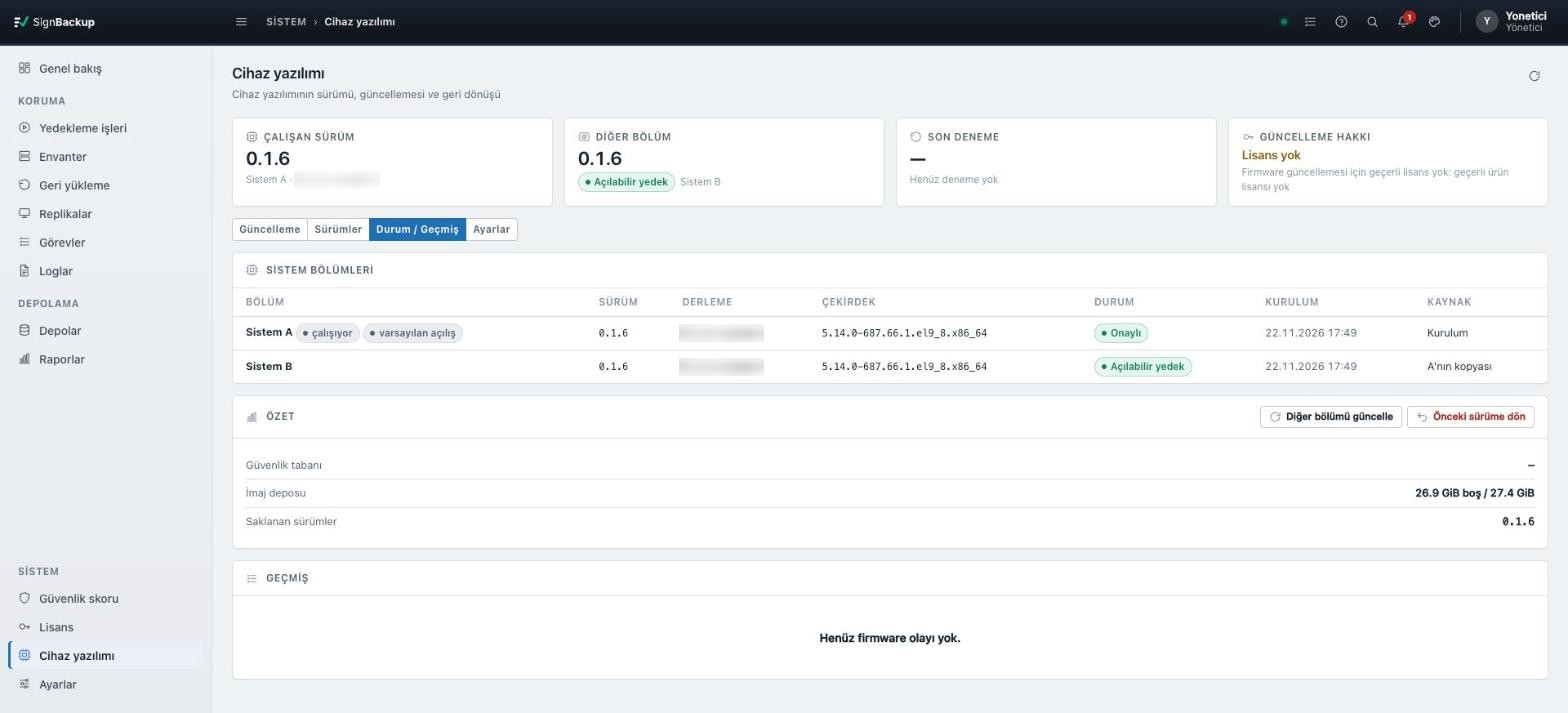
- On the Status / History tab, click Roll back to previous version: the appliance restarts from the other slot, with that slot's configuration from before the update. Configuration changes made after the update are not carried back.
- Alternatively, on the Versions tab, click Roll back to this version for a suitable older version (you cannot go below the security baseline). The older version is tried once with a copy of the current configuration.
Tabs and fields
| Item | Description |
|---|---|
| Running version / Other slot / Last attempt / Update entitlement | Top card. The update entitlement is the license's support end date. |
| Operation box | Stage and progress while writing, repairing or downloading; Stop operation aborts the write (the other slot is left empty) or stops the download (the downloaded part is kept and the download resumes where it left off). |
| Update › Status column | Tells you whether the version is suitable for this appliance, and why (e.g. "Upgrade to version 1.2.0 first"). Refresh queries the server (every 5 minutes). |
| Verification report | File, version (Upgrade, Same version (repair), Downgrade), build, type, models, minimum source version, release date, signer, signing time. |
| Versions | Versions available on the server, grouped by major branch; download, or Roll back to this version. |
| Status / History | Last update, Release notes for this version, system slots, security baseline, free space in the image store, stored versions, Update other slot (rewrites the other slot with the running version), Roll back to previous version, history. Clear history does not delete the records; it only removes them from the list. |
| Settings | Summary of automatic checks, interval, download/install, manual confirmation and maintenance window; Edit in Settings. |
Warnings and error messages
| Message | Meaning | What to do |
|---|---|---|
| The firmware service is not running on this appliance | Image updates are only available on appliances installed from the installation ISO. | Install the appliance from the ISO. |
| This appliance was not installed with the image-based layout | Updates are unavailable; only the running version is shown. | — |
| Could not read firmware status | The appliance could not communicate with the service. | Read the details shown below the message; reload the page. |
| This image trusts development signatures. It is not a release image and must not be used in customer environments. | A development image. | Install a release image at customer sites. |
| This image cannot be installed / The image was uploaded but cannot be installed; see the verification report for the reason. | The signature passed but a rule Failed (e.g. a different base, upgrade path). Such an image is not kept on the appliance. | Read the Checks table in the report; use the correct package (e.g. -el9.sbfw for an EL9 appliance). |
| No license (Update entitlement) | There is no valid product license. | Activate the license. |
| Confirmation period expired | Manual confirmation was enabled and the version was not confirmed; the appliance returned to the previous version. | Try again and click Confirm in time. |
Related settings
Settings › Software update (/ayarlar?grup=guncelleme):
| Setting | Default |
|---|---|
| Check for updates automatically | Off |
| Check interval (hours) | 4 (1–168) |
| Download and verify available version | On |
| Install automatically in maintenance window | Off |
| Maintenance window | Empty; format sun 03:00-05:00, mon,thu 01:30-02:30, daily 02:00-04:00 |
| Require administrator confirmation of new version | Off |
With factory settings, the appliance does not install anything automatically. Software update settings in detail
Frequently asked questions
Are backups affected during an update?
Writing to the other slot does not touch the running system. The restart interrupts running jobs, so leave it to the maintenance window.
Can an EL10 package be installed on an appliance installed from the EL9 ISO?
No. A package carries its own base layer, and the appliance rejects packages with a different base. An EL9 appliance only installs -el9.sbfw.
What happens if the new version fails to boot?
The appliance automatically returns to the previous version.