Grouping physical machines: individually, by CSV or with dynamic membership from an Active Directory OU / security group; automatic or one-click agent installation from a group; AD connections and DC certificate approval.
- Menu path: Protection › Agents › Groups · Settings › Active Directory
- Who uses it: Managing groups and AD connections: administrator.
Purpose
A protection group gathers physical machines under one name. In a physical machine backup job, one or more groups are selected instead of (or alongside) agents: each time the job starts, the current members of the group that have a registered agent are backed up. A machine that joins the group is included in the job automatically; a machine that leaves the group drops out. Scheduling, retention, encryption and backup type stay in the job. The group can install the agent on machines without one, automatically or with one click.
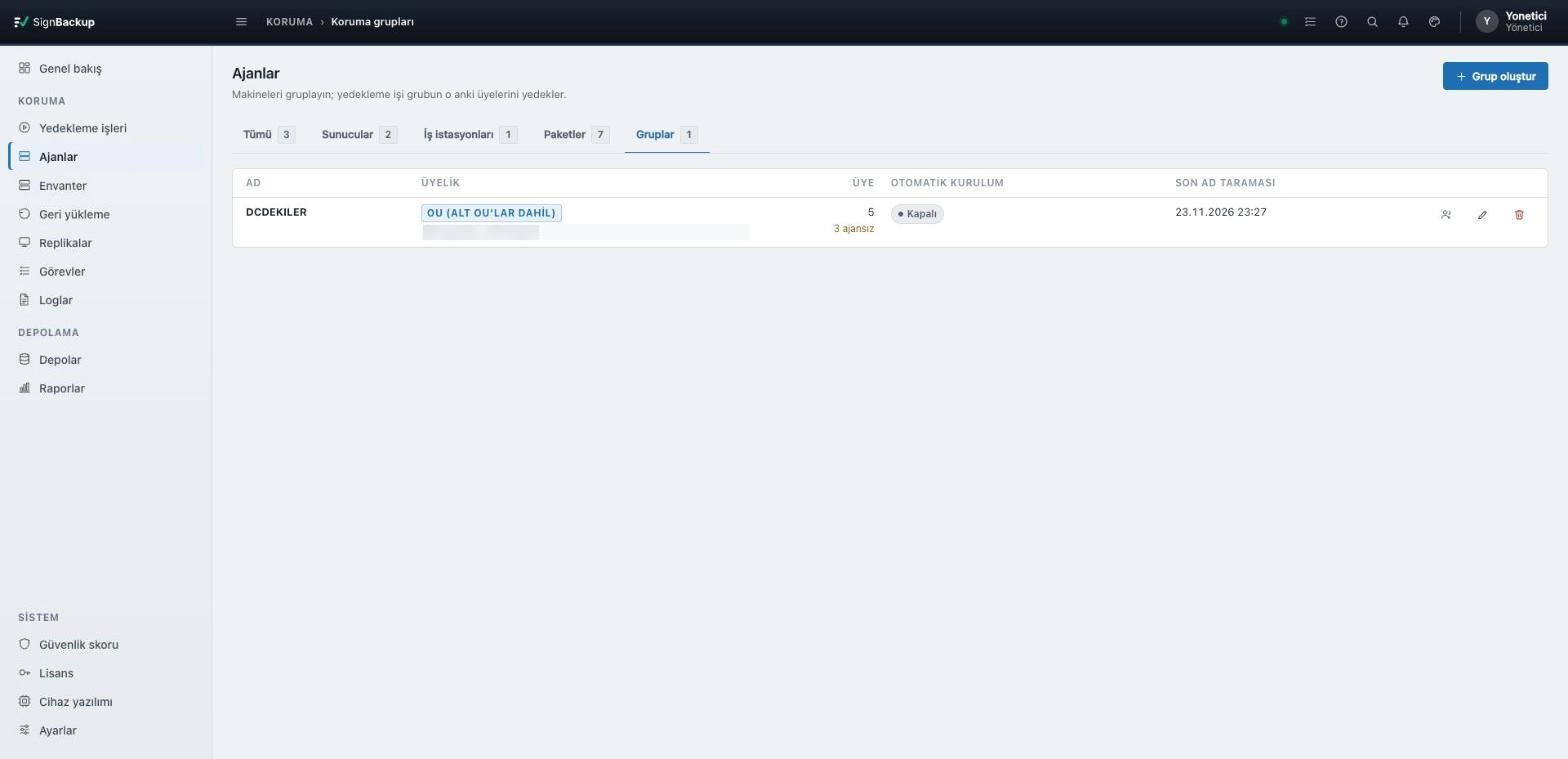
Creating and editing a group
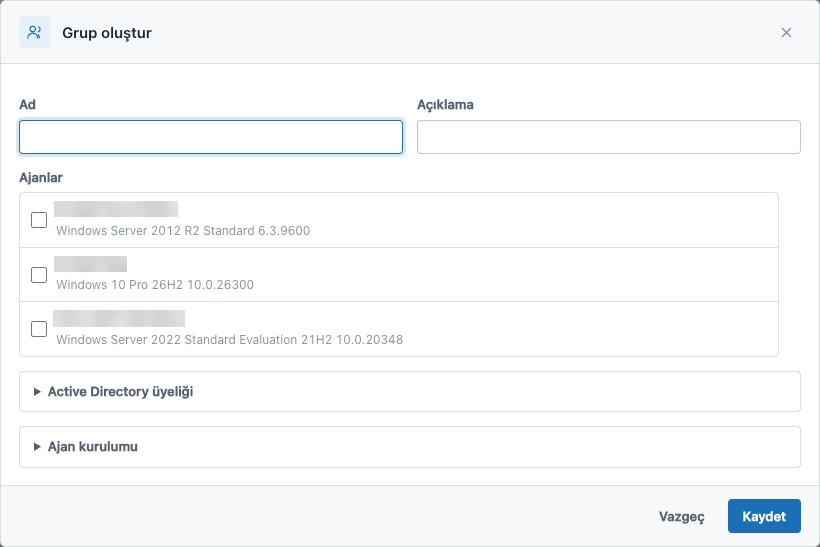
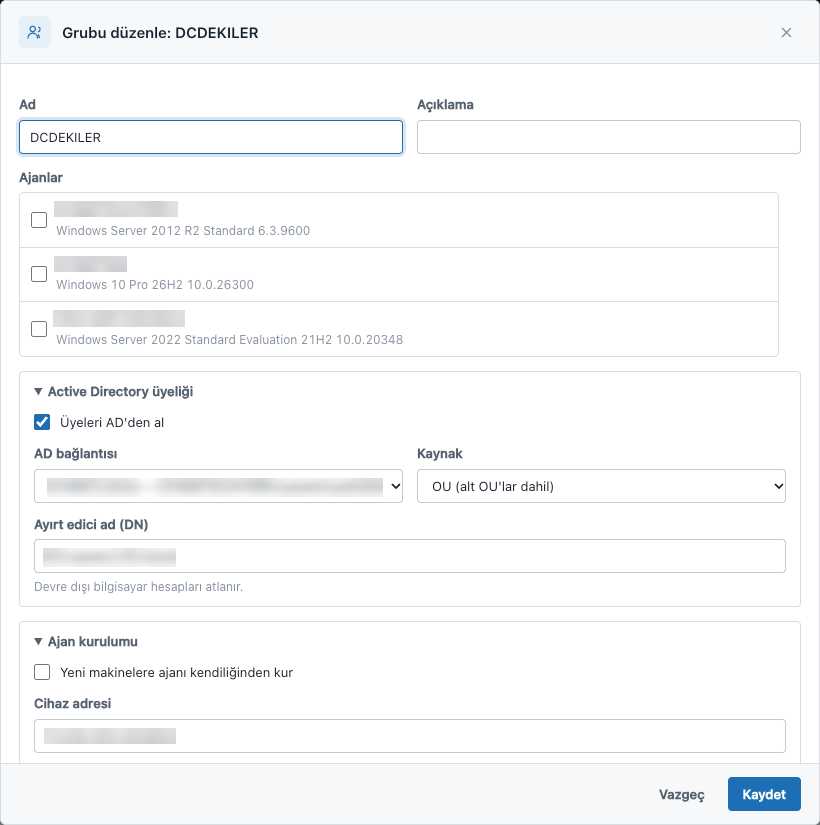
The Create group dialog (or the pencil in the row) has three sections:
| Section | Fields |
|---|---|
| General | Name, description and Agents: registered agents are checked individually. |
| Active Directory membership | Get members from AD, AD connection (defined in Settings › Active Directory), Source: OU (including child OUs) or Security group (including nested membership), Distinguished name (DN). Disabled computer accounts are skipped. |
| Agent installation | Install the agent automatically on new machines, Appliance address (the address the machines use to reach the appliance), Windows installation credentials (administrator, domain, password; Remove these credentials), Linux installation credentials (SSH) (user, port, password, sudo password, private key, key passphrase) and Accept and pin the host key on first connection. |
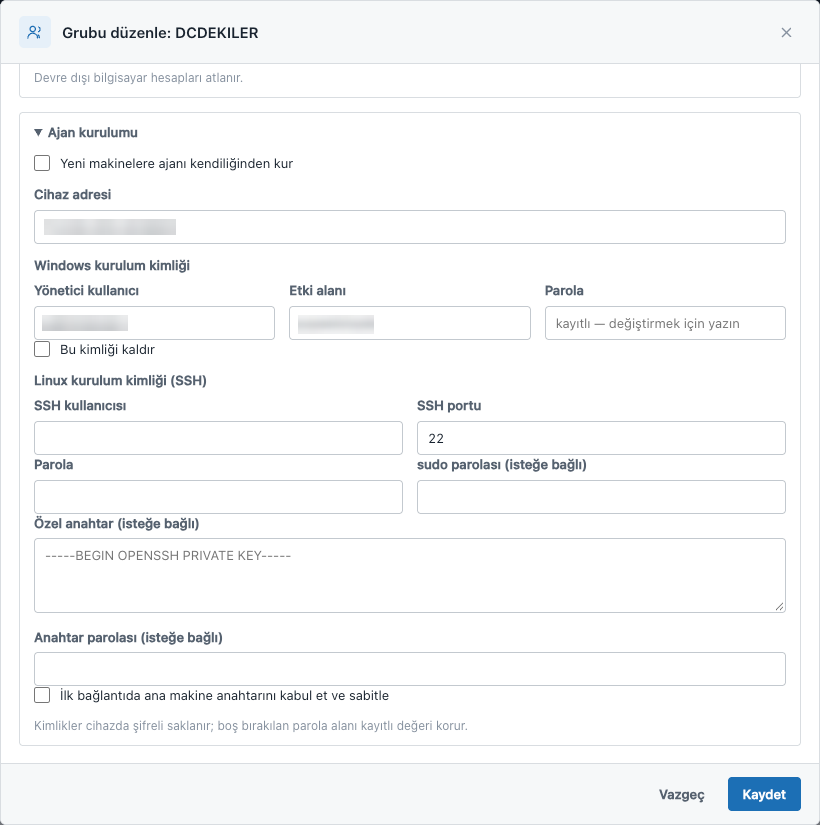
Credentials are stored encrypted on the appliance (AES-256-GCM, with a key separate from the master key). If the user name or domain changes, the saved password cannot be used and must be entered again. A group selected as a source in a job cannot be deleted; remove it from the job first.
Membership and the Members dialog
| Method | How |
|---|---|
| Individually | Registered agents are selected in the group dialog. |
| CSV import | Upload a file in the Members dialog. One ad, adres, işletim sistemi (name, address, operating system) per line; only the name is required, the separator is a comma or semicolon, and a header line and # comments are skipped. A name with dots is treated as a fully qualified DNS name. The operating system is windows / linux or empty. Replace the CSV list entirely removes the machines from the previous CSV. |
| Dynamic Active Directory | OU (including child OUs) or security group (nested). Only dNSHostName, name, operatingSystem, operatingSystemVersion, userAccountControl, lastLogonTimestamp are read. AD is scanned every hour by default; Scan now scans without waiting. If a scan fails, the previous members are kept. |
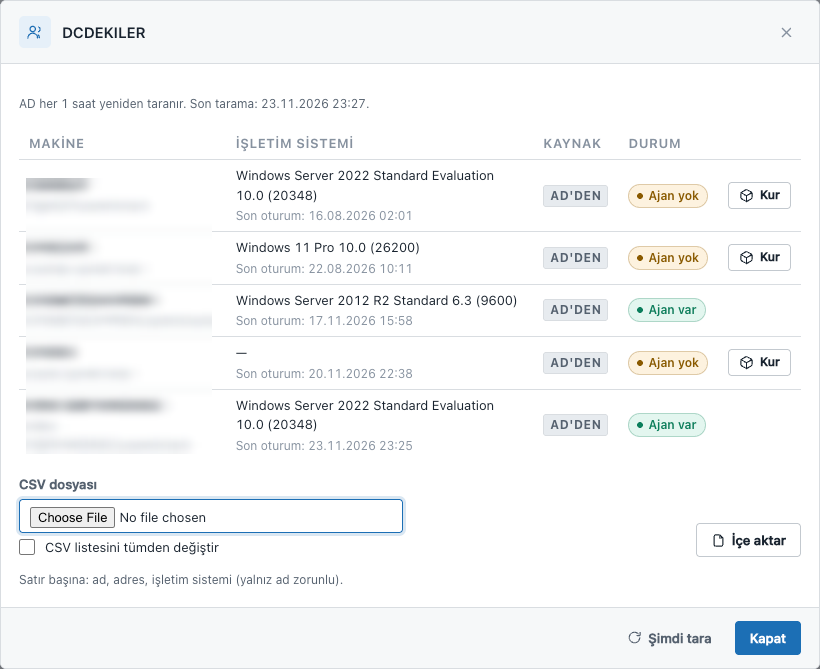
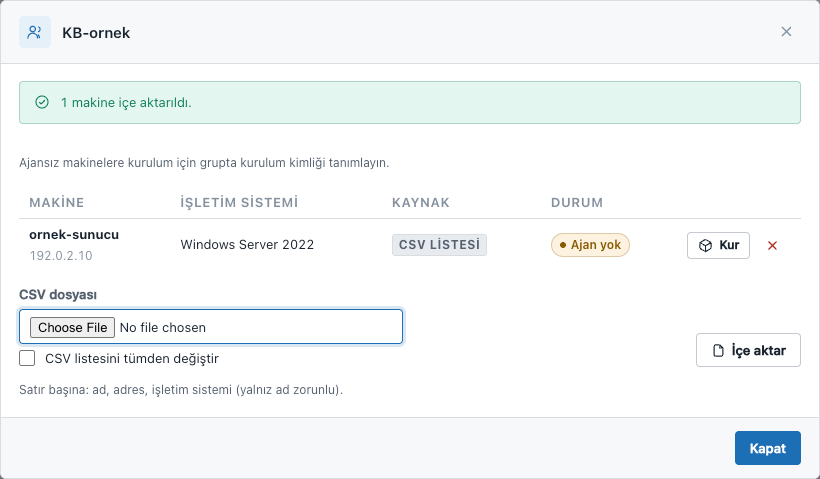
Matching. A CSV or AD machine is matched to a registered agent by machine name / DNS name (case-insensitive): the fully qualified DNS name, the short name and, for CSV, the IP address. An agent installed by the group stays bound to that machine even if it reports a different name. A machine without an agent shows No agent and is not backed up; a machine whose agent has been revoked is not backed up either.
Agent installation from a group
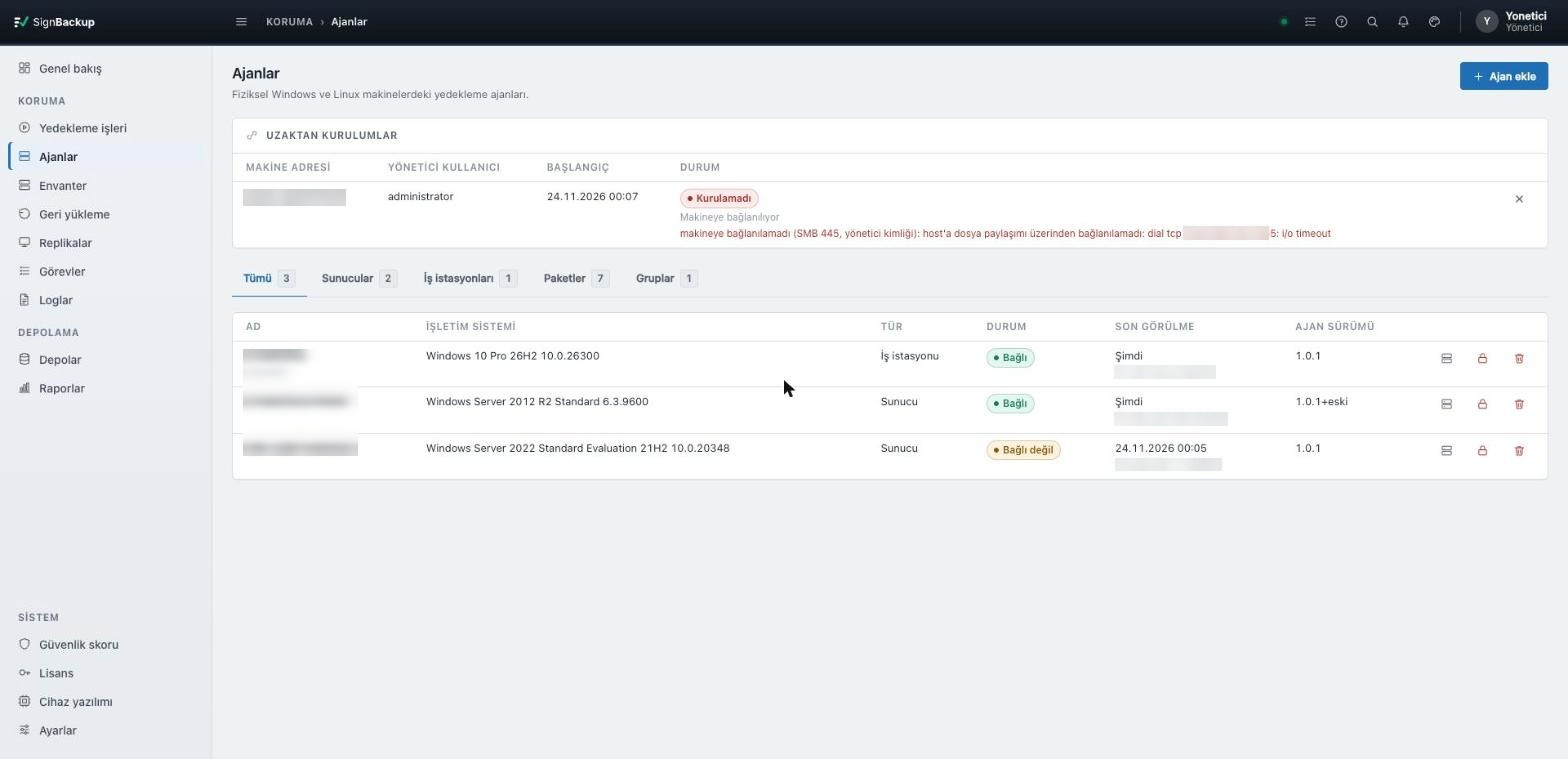
Installation uses the same path as remote installation in Agents › Add agent (Windows: SMB 445 + Task Scheduler + service manager; Linux: SSH) and also appears in the Remote installations table on the Agents page.
| Situation | What happens |
|---|---|
| Automatic installation on | The agent is installed automatically on a machine without an agent that joins the group. |
| Automatic installation off | Installed with one click using Install next to the machine in the Members dialog. |
| The group has matching credentials | Install starts the installation immediately (no dialog opens): Ajan kurulumu başlatıldı. (agent installation started) |
| The group has no matching credentials or no appliance address | Install asks for the credentials in a dialog: Windows or Linux fields depending on the machine's operating system (both if it is unknown). Save as the group's installation credentials is checked by default; if it is checked, the credentials are saved encrypted to the group and later installations (including automatic ones) use them. |
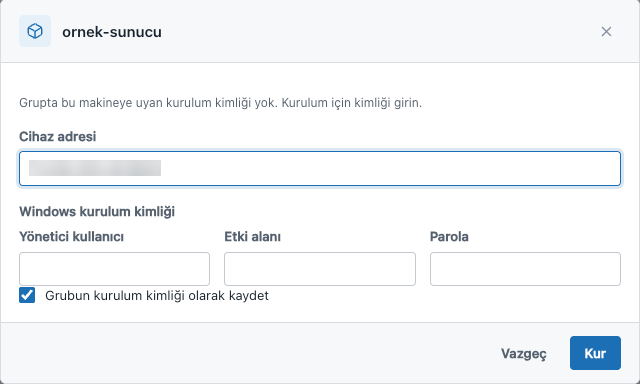
- Which credentials: if the machine's operating system is known (AD
operatingSystem, CSV column), the matching credentials; if it is unknown, the Windows credentials, or the Linux credentials if there are no Windows credentials. - Retry with backoff: a failed installation is retried after the initial wait (default 5 minutes); the wait doubles with each attempt and does not exceed the maximum wait (default 6 hours). The status, error and next attempt time are shown in the list.
- Concurrency: agents are installed on at most Concurrent group installations machines at a time (default 2).
- Earlier registration: if the machine has an agent registration that belongs to another appliance, it is not deleted automatically; the error appears in the list, and the machine is installed from the Add agent dialog with re-register.
- Linux host key: if the key is not pinned yet, Install first presents the fingerprint for approval; after approval, the passwords are entered again. With automatic installation, the machine stays in the Awaiting key approval status; turn on "Accept and pin … on first connection" only on a network you trust.
- Package: installation uses only a Windows package with a valid signature and an approved publisher; with an unapproved package the installation does not start (Agents › Publisher approval).
- License: if the agent limit is reached (including running installations), the machine stays in the License limit status; it is retried automatically once the limit allows. A Windows machine that is not a server requires a workstation entitlement.
Groups in a backup job
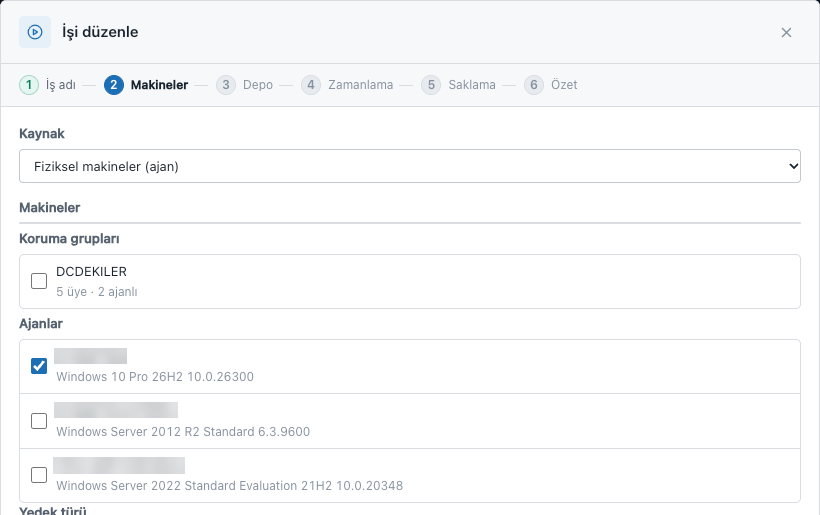
When Physical machines (agent) is selected as the Source in the Machines step of the backup job, Protection groups are listed above the agents (with the number of members and of machines with an agent). Groups and individual agents can be selected together.
Settings › Active Directory
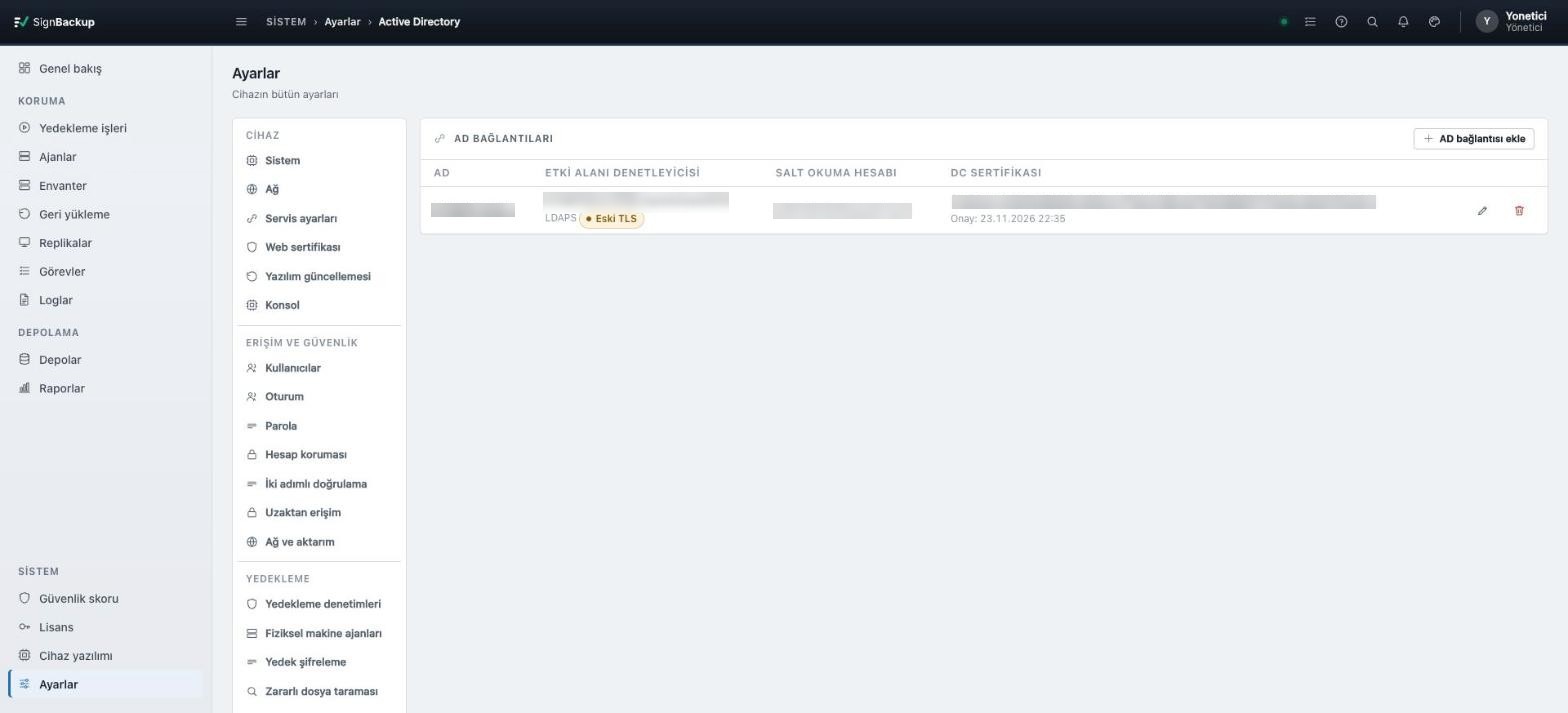
The AD membership of groups uses the domain controller connections on this page (previously in the Groups tab). The list shows the connection name, the DC address and security, the read-only account and the fingerprint of the approved DC certificate.
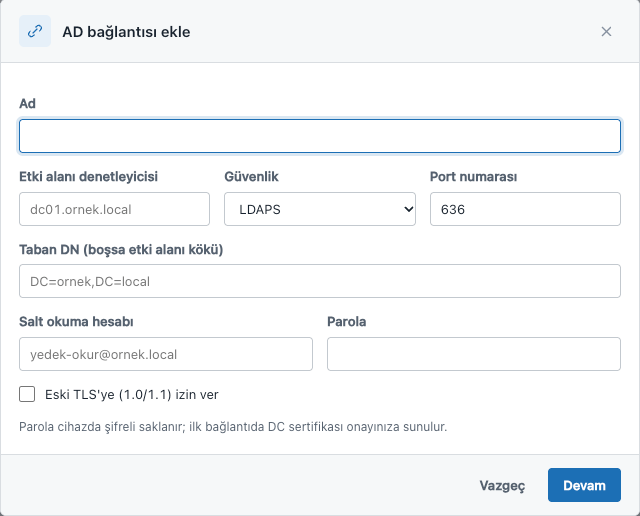
| Field | Description |
|---|---|
| Domain controller | Name or address of the DC. |
| Security / Port | LDAPS (636) or LDAP + StartTLS (389); the port is filled in automatically when you select one and can be changed if the DC listens on another port. |
| Base DN | If empty, the domain root. |
| Read-only account / Password | kullanici@alan or a DN; an ordinary domain user that can read computer objects is enough. The password is stored encrypted. |
| Allow legacy TLS (1.0/1.1) | Only for old DCs that speak only TLS 1.0/1.1 (2008 R2 / 2012, or with TLS 1.2 disabled). A normal connection is tried first; if it fails, legacy TLS is used for that DC only. A Legacy TLS badge appears in the list. |
DC certificate approval (trust on first use)
On Continue, the certificate is read without sending the password; the SHA-256 fingerprint is shown with the subject, issuer and validity dates. Compare the fingerprint with the SHA-256 fingerprint of the certificate on the DC and approve it (the Windows "Thumbprint" field is SHA-1). After approval, the appliance connects with the account and tests it, and the fingerprint is pinned: if a different certificate is seen, the connection is dropped without sending the password. When the certificate is renewed, edit the connection and select Re-read and approve certificate; approval is also requested again when the server, port or security changes. A connection used by a group cannot be deleted.
Protocols\TLS 1.2\Server and Client keys, set Enabled=1 and DisabledByDefault=0, then restart. After that, clear the checkbox.Related settings
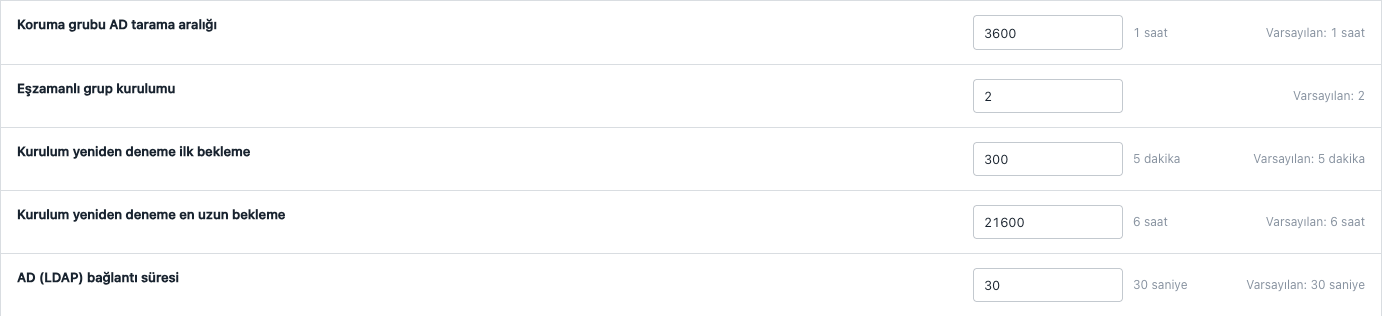
Settings › Backup › Physical machine agents:
| Setting | Default | What it does |
|---|---|---|
| Protection group AD scan interval | 1 hour | How often groups with AD membership are read again. |
| Concurrent group installations | 2 | The maximum number of machines that agents are installed on from groups at the same time. |
| Installation retry initial wait | 5 minutes | The first retry after a failed installation; doubles with each attempt. |
| Installation retry maximum wait | 6 hours | Upper limit for the wait. |
| AD (LDAP) connection timeout | 30 seconds | Maximum time for connecting to the DC, reading the certificate and each query. |