Protecting physical Windows and Linux machines with an agent: adding agents (registration code, Windows and Linux remote installation), packages, legacy Windows, agent details, backup and restore, troubleshooting.
- Menu path: Protection › Agents
- Who uses it: Adding agents, packages, revoking and deleting: administrator. List and details: all roles.
Purpose
The agent (signbackup-agent) is a small program that runs as a service on a physical Windows or Linux machine. It connects to the appliance itself (agent port 8444, mutual TLS); no inbound port is opened on the machine, so machines behind NAT and at remote branches can also be protected. Snapshots and disk reads are done by the agent; the data is written to the repository on the appliance in the same format as virtual machine backups.
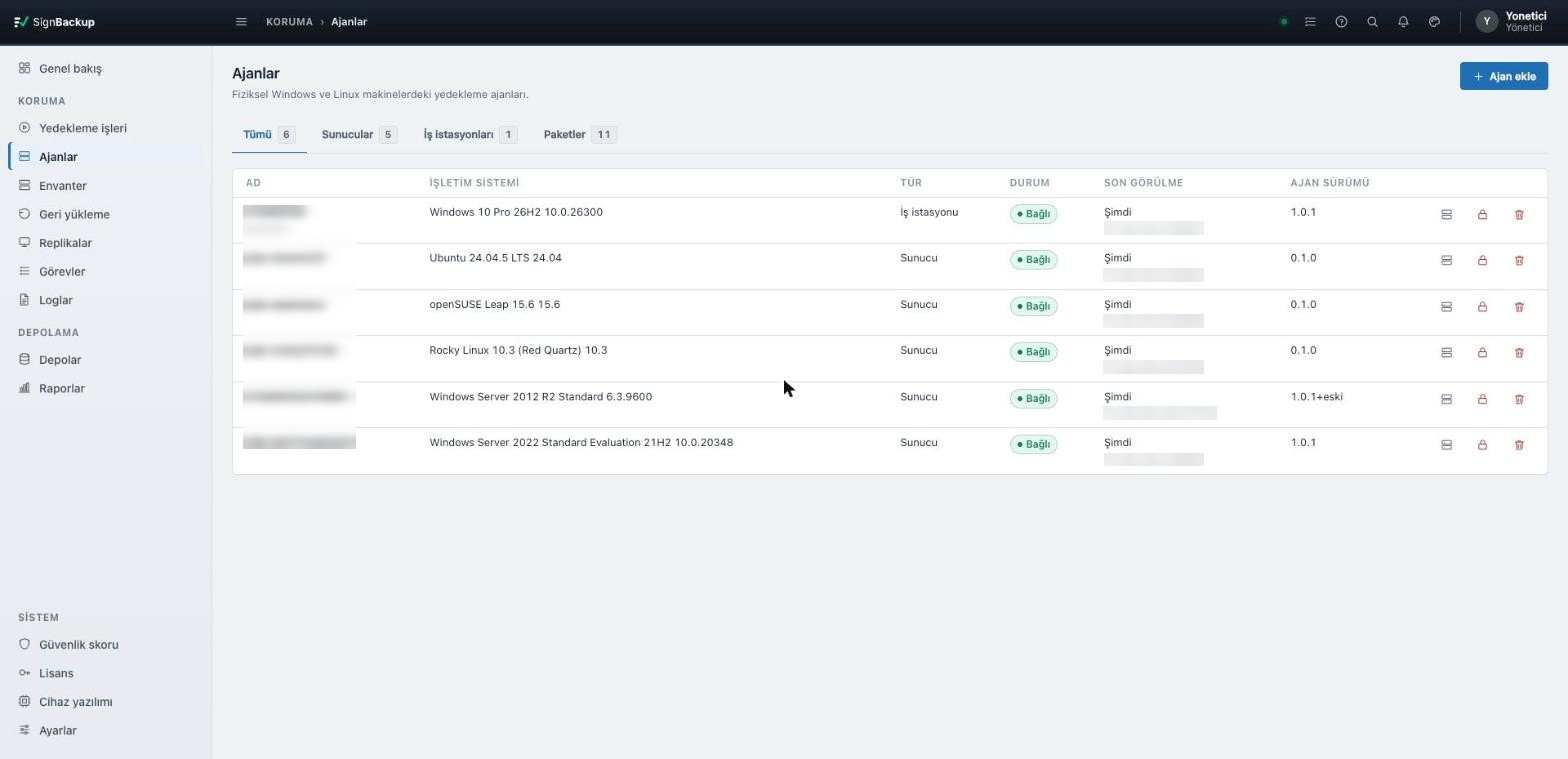
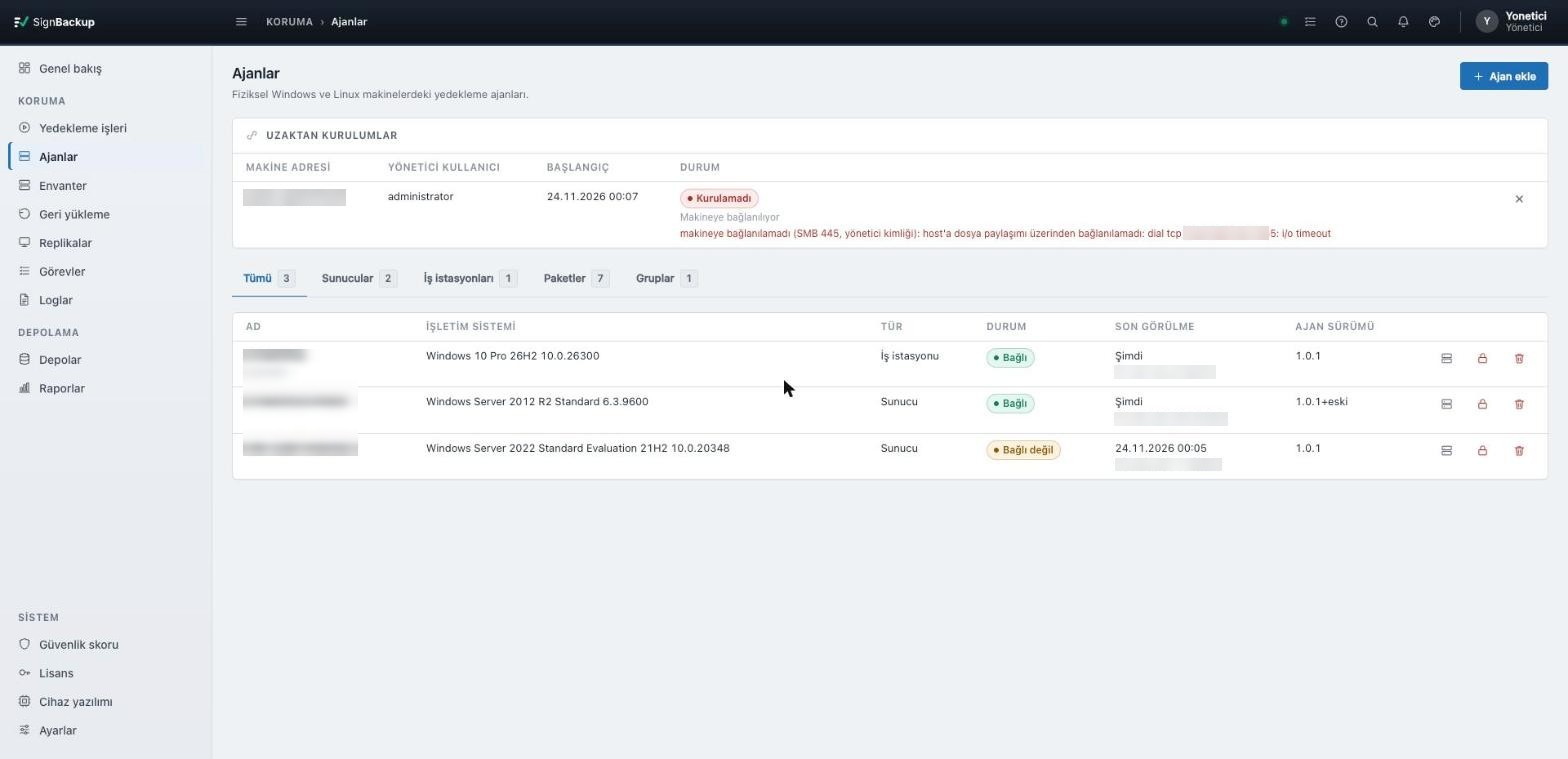
+eski suffix). At the end of the row: inventory, revoke and delete buttons.| Status | Meaning |
|---|---|
| Connected | The connection is open; a backup can start immediately. |
| Not connected | The machine is off, the network is down or the service has stopped. When a backup starts, the appliance waits for the agent for a while (Settings › Physical machine agents › Wait for agent connection). |
| Registration not completed | The agent received its certificate but has not connected to the appliance yet. |
| Revoked | Its certificate is invalid; it cannot connect. |
Required ports
| Direction | Port | Purpose |
|---|---|---|
| Machine → appliance | 8443 | Registration (web port) |
| Machine → appliance | 8444 | Agent connection, backup and restore |
| Appliance → Windows machine | 445 (SMB) and 135 (RPC) | Remote installation: file copy, Task Scheduler, service manager |
| Appliance → Linux machine | 22 (or the SSH port entered) | Remote installation |
The appliance's agent port is open only while there is a registered active agent or a valid registration code.
Enable-NetFirewallRule -DisplayGroup 'File and Printer Sharing'. On Turkish Windows the group name is localized (Dosya ve Yazıcı Paylaşımı).Adding an agent
The Add agent dialog has three tabs: Registration code (manual installation), Remote installation (Windows) and Remote installation (Linux, SSH). Agents cannot be added on an unlicensed appliance.
Registration code (manual installation)
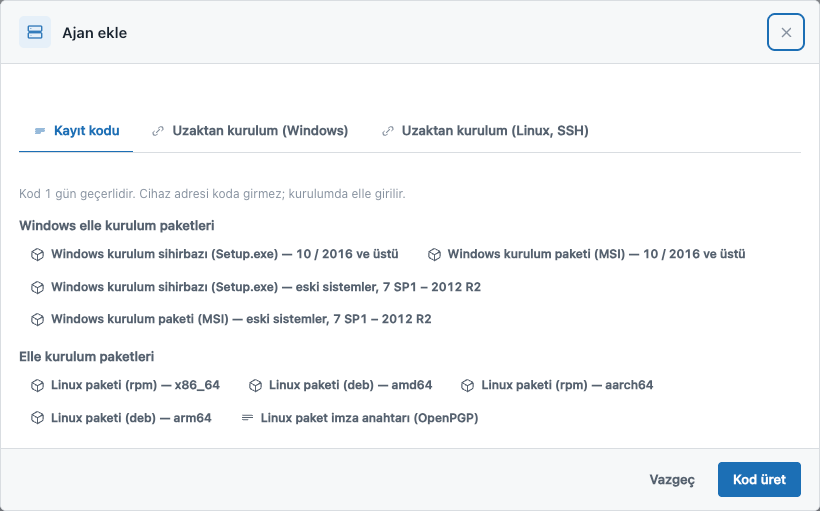
- Generate code: a single-use, time-limited code (default 1 day; Settings › Physical machine agents › Registration code validity). Only a hash of the code is stored on the appliance. The code contains the fingerprint of the appliance's web certificate; the agent does not send the code to any other appliance. The appliance address is not part of the code.
- Install the package on the machine and give it the code (see Manual installation below).
- The agent generates its own key (the private key never leaves the machine) and the appliance issues it a certificate; the agent appears in the list as Registration not completed.
- When the agent connects for the first time, registration completes and the code is consumed.
If registration is interrupted on the machine, the code is not used up; try again with the same code. A partial registration that expires without ever connecting is deleted automatically. The Appliance address is the name or IP address the machine uses to reach the appliance (8443 if no port is given); if there is NAT or a different name, enter that address; later connections also use this name.
Remote installation (Windows)
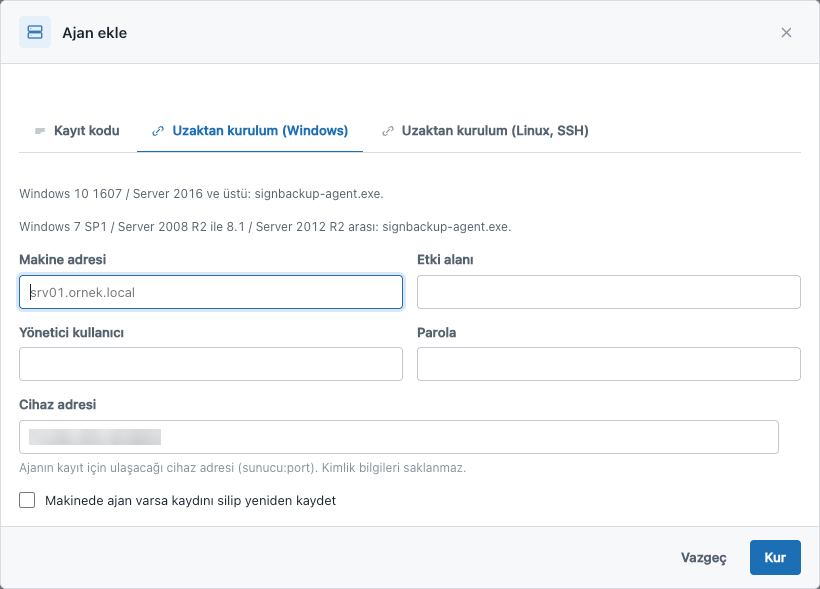
Enter the machine address and local administrator credentials (domain administrator in a domain). The credentials are held in memory only while the installation runs and are not stored. The appliance:
- Connects over SMB, reads the Windows version from
kernel32.dlland copies the matching agent (standard or legacy systems) toC:\Program Files\SignBackup Agent\. - Runs the agent once under the local system account via Task Scheduler and passes it the registration code.
- Installs the signbackup-agent service with automatic startup and starts it. If the machine's service manager cannot be reached remotely (
RPC_S_CANNOT_SUPPORTon some domain controllers), the service tasks are done automatically through Task Scheduler. - Waits for the agent to connect to the appliance (Settings › Physical machine agents › Remote installation timeout, default 10 minutes).
Remote installation (Linux, SSH)
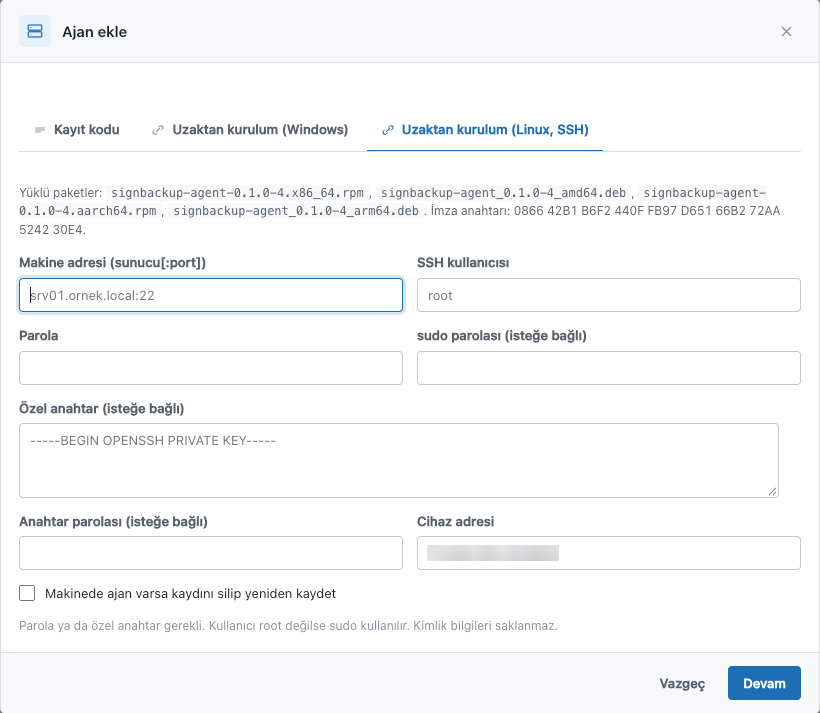
Supported distributions: RHEL / Rocky / AlmaLinux 8–10, Ubuntu LTS 20.04 / 22.04 / 24.04, Debian 11–13, SLES / openSUSE Leap 15 (x86_64 and aarch64; systemd). If the user is not root, commands run with sudo: if the sudo password is empty, the login password is used; if that is also empty, sudo -n is tried.
- Continue: the appliance reads the machine's SSH host key without sending any credentials and shows its fingerprint. Compare it on the machine with
ssh-keygen -lf /etc/ssh/ssh_host_ed25519_key.pub. - Enter the passwords again (they are not written back to the page) and click Install. Once the connection succeeds, the key is pinned on the appliance.
- The appliance reads the distribution and architecture, verifies the matching rpm or deb with the signing key, copies it to a temporary directory under
/tmp, checks the hash and installs the package (no repository access is needed). - The registration code is passed in a file with 0600 permissions (it does not appear on the command line); the service is started and the appliance waits for the 8444 connection. The temporary directory is deleted in every case.
If an agent exists on the machine, delete its registration and re-register
If the machine has an earlier registration (C:\ProgramData\SignBackup\agent\ajan.json on Windows, /etc/signbackup-agent/ajan.json on Linux), remote installation stops with makinede önceki bir ajan kaydı var (the machine has an earlier agent registration) without changing anything on the machine. If the option is checked: the service is stopped, the registration (key and ajan.json) is deleted, the package is installed or upgraded, and the machine registers again with the new code. If the earlier registration was on this appliance, the old entry is replaced by the new one: jobs that selected the old agent now select the new agent. Old backups stay in the repository; the new agent's first backup is a full backup. The change is recorded in the audit log.
Remote installations list
Running installations appear step by step in the Remote installations table on the Agents page. A successful installation leaves the table when the agent appears in the list; a failed installation stays with its error and is removed with the × in its row (details in the audit log). A second installation cannot be started on the same machine: Bu makineye kurulum zaten sürüyor (an installation is already running on this machine).
For bulk installation on many machines and automatic installation from Active Directory, use Protection groups.
Manual installation
Windows
| Method | How |
|---|---|
| Setup wizard (Setup.exe) | Fill in the Registration code and Appliance address fields in the wizard. |
| Installer package (MSI) | msiexec /i SignBackupAgent.msi KAYITKODU="<kod>" CIHAZADRESI="<cihaz>" /qn — the dialog provides this command ready to use, with the code filled in. |
| GPO (Group Policy) | The same signed MSI is distributed with Software Installation; KAYITKODU and CIHAZADRESI are passed with an .mst transform or with a Registry Preference to the HKLM\SOFTWARE\SYSNET\SignBackupAgent key. The code is single-use: each machine needs its own code. |
| Command line | signbackup-agent.exe kayit --kod <kod> --adres <cihaz>, then signbackup-agent.exe kur. |
A code passed through the MSI is used when the service's network is ready and is then deleted from the registry; even if the appliance is unreachable at installation time, registration completes later.
Linux
| Distribution | Command |
|---|---|
| RHEL / Rocky / Alma / SUSE | sudo SIGNBACKUP_KOD=<kod> SIGNBACKUP_ADRES=<cihaz> dnf install ./signbackup-agent-<sürüm>.x86_64.rpm (SUSE: zypper install) |
| Ubuntu / Debian | sudo SIGNBACKUP_KOD=<kod> SIGNBACKUP_ADRES=<cihaz> apt-get install ./signbackup-agent_<sürüm>_amd64.deb |
| If the environment variables are not passed through | Install the package first, then run sudo signbackup-agent kayit --kod <kod> --adres <cihaz> and sudo systemctl enable --now signbackup-agent. |
Verifying the signature without installing: rpm --import RPM-GPG-KEY-signbackup && rpm -K <paket> ("digests signatures OK"). The package installs /usr/sbin/signbackup-agent, signbackup-agent.service, /etc/signbackup-agent/ (including scripts) and the DKMS source of the sbsnap kernel module. Removal (dnf remove / apt-get remove) keeps the configuration; only apt-get purge deletes it. Revoke the registration on the appliance separately.
Agents › Packages
The Packages tab is available to administrators only. All agent packages ship with the firmware and are listed with the Shipped with firmware label; they cannot be deleted and are refreshed by firmware updates. This is why remote and manual installation are possible right after installation.
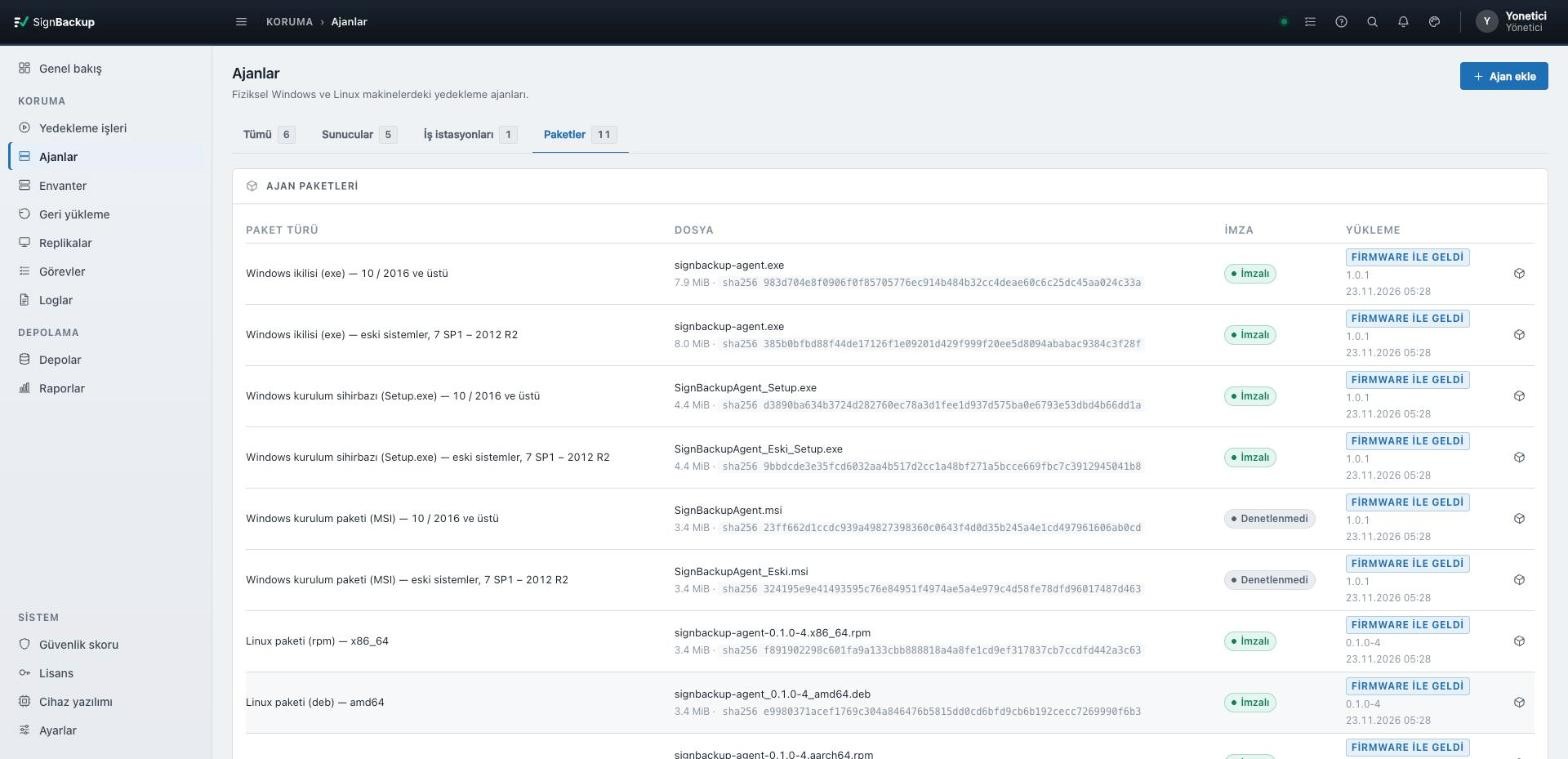
| Type | File | Use |
|---|---|---|
| Windows binary (exe) — standard / legacy systems | signbackup-agent.exe | Used by remote installation; one is selected according to the machine's version. |
| Setup wizard — standard / legacy | SignBackupAgent_Setup.exe, SignBackupAgent_Eski_Setup.exe | Interactive manual installation |
| Installer package (MSI) — standard / legacy | SignBackupAgent.msi, SignBackupAgent_Eski.msi | Silent installation, GPO |
| Linux rpm — x86_64 / aarch64 | signbackup-agent-<sürüm>.<mimari>.rpm | RHEL family and SUSE |
| Linux deb — amd64 / arm64 | signbackup-agent_<sürüm>_<mimari>.deb | Ubuntu and Debian |
| Linux package signing key | RPM-GPG-KEY-signbackup | Verification during SSH installation; listed with its fingerprint |
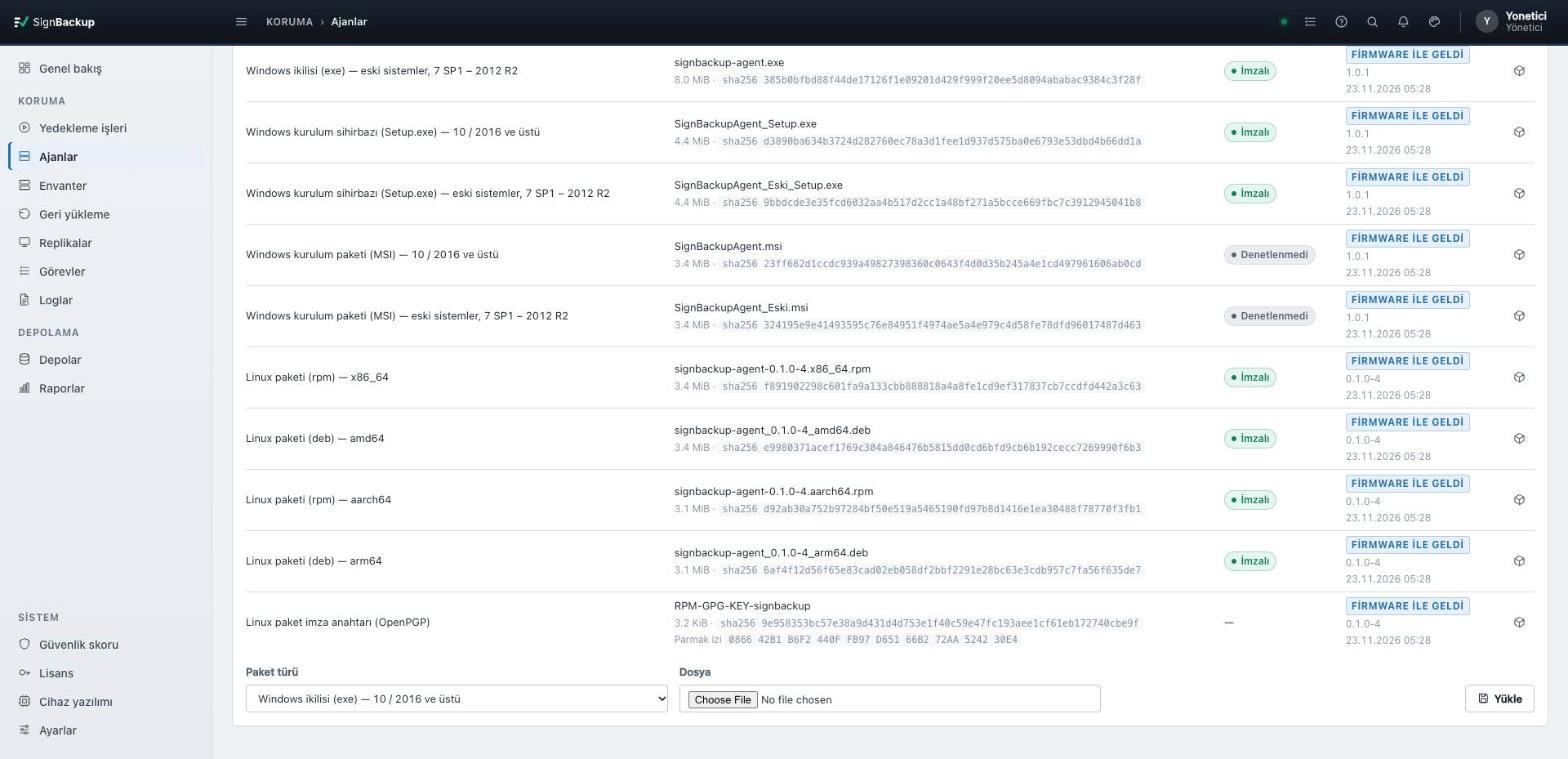
- Uploaded package: a newer signed package can be uploaded here. If a type has both a package shipped with the firmware and an uploaded one, the newer one is used; if the uploaded package is deleted, the package shipped with the firmware is used again.
- The appliance checks the type from the first bytes, shows the SHA-256 hash and verifies it again on use. For Linux packages, the presence of a signature is shown; Windows packages are fully verified as described below.
- The legacy systems binary can be uploaded only to the legacy systems type: Windows ikilisi seçilen derlemeye ait değil … (the Windows binary does not belong to the selected build …)
- File names on the website carry the version (since 0.2.1): under signbackup.com.tr › Downloads they are
SignBackupAgent_Setup-1.0.2.exe,SignBackupAgent-1.0.2.msi,signbackup-agent-1.0.2.exeand their_Eski/-eskicounterparts for legacy systems. Package names on the appliance (SignBackupAgent.msi…) have not changed; in manual installation commands use the name of the file you downloaded. - If you try to delete a package shipped with the firmware: Firmware ile gelen ajan paketi silinemez; firmware güncellemesiyle değişir (an agent package shipped with the firmware cannot be deleted; it changes with a firmware update).
Windows signature and publisher approval
Introduced in 0.2.1. The Authenticode signature of Windows packages (exe, Setup.exe, MSI; standard and legacy systems) is fully verified on the appliance: the hash is recomputed from the file (for MSI, including streams and directory metadata), the signature is verified with the certificate's key, and the certificate is checked for the Code signing usage and for validity at the time of the timestamp. MD5 / SHA-1 signatures are not accepted. An unsigned Windows package or one with an invalid signature cannot be uploaded.
- The appliance has no Windows root certificate store; trust is established by pinning the signing certificate.
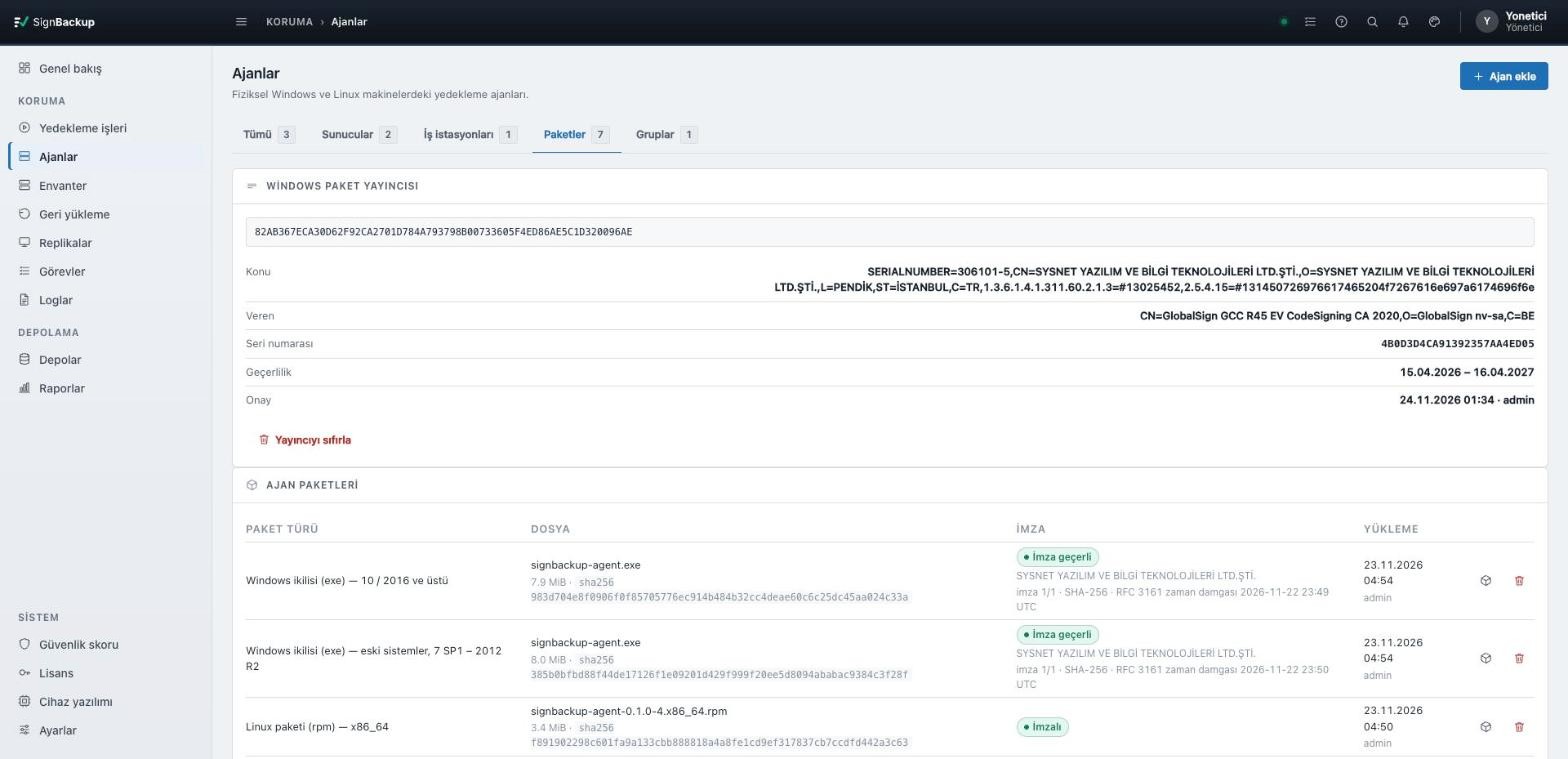
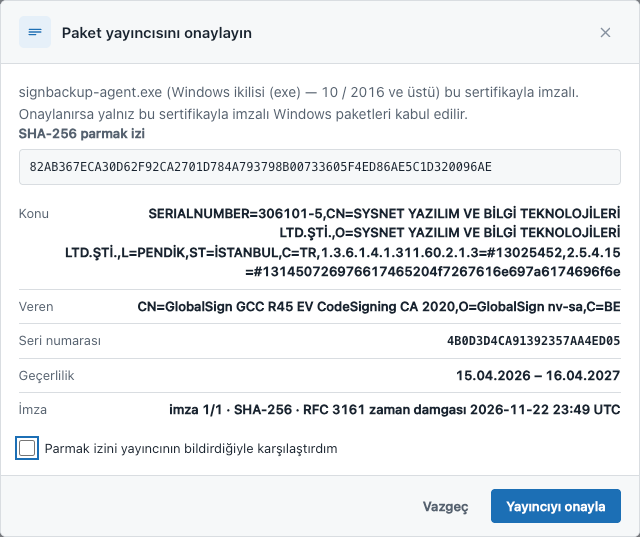
- When the first signed Windows package is uploaded (or when the package shipped with the appliance is about to be used for the first time), the publisher approval dialog opens: SHA-256 fingerprint, subject, issuer, serial number and validity dates.
- Compare the fingerprint with the one the publisher provided, check I compared the fingerprint and click Approve publisher. Reject package deletes the package; without approval the package is not saved.
- The publisher is pinned; later packages must be signed with the same certificate. When the certificate is renewed (even if the subject is the same), approval is requested again, and packages signed with the previous certificate are no longer used.
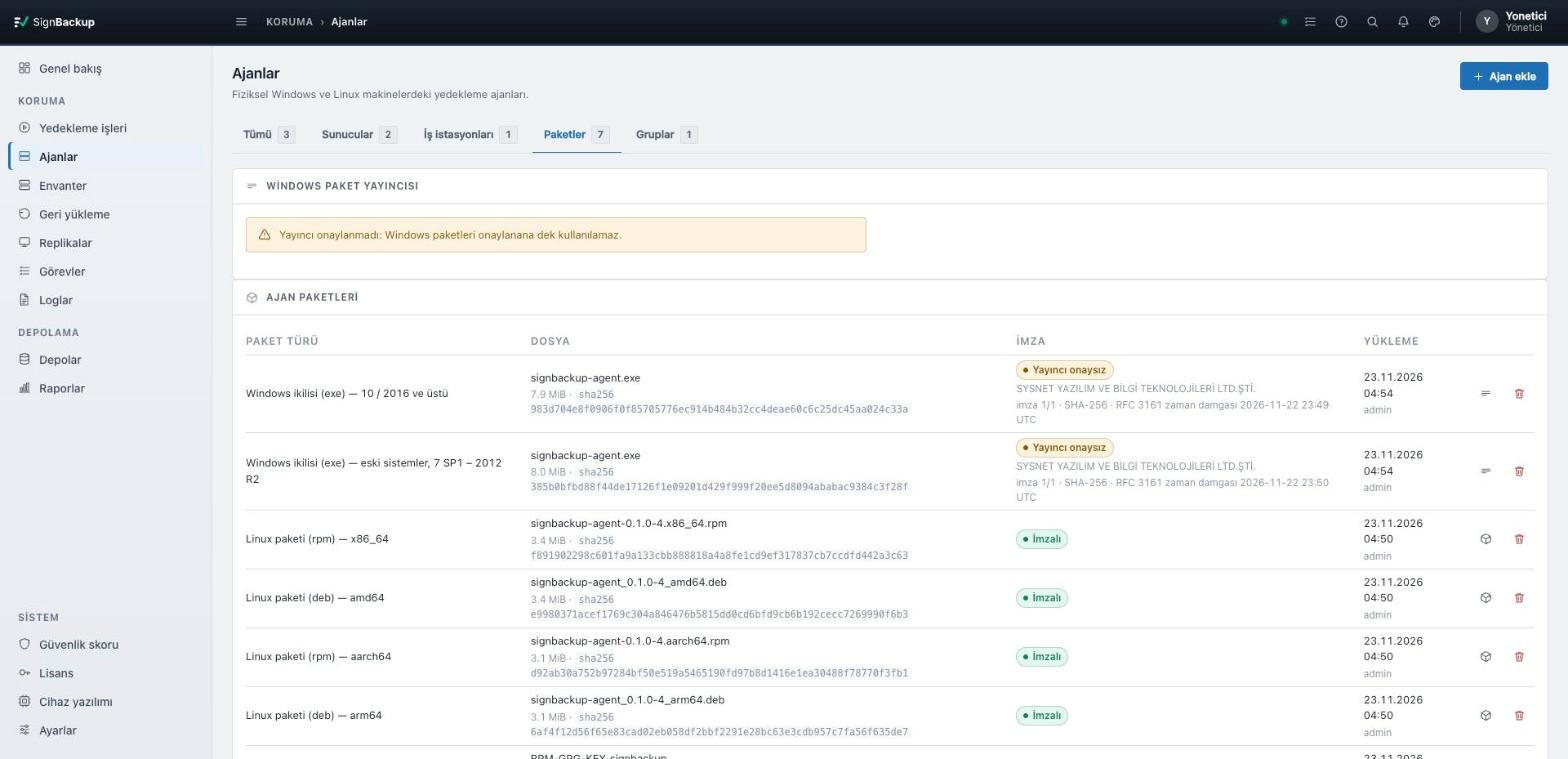
In the Signature column, the badge shows the status and the line below it shows the publisher name and the signature details:
| Badge | Meaning |
|---|---|
| Signature valid | The signature was verified and the publisher is the pinned publisher. The package is used. |
| Awaiting publisher approval | The signature is valid; the publisher has not been approved yet (first package). The key button in the row opens the approval dialog. |
| Publisher not approved | The signature is valid, but the certificate is not the pinned publisher (e.g. the certificate was renewed). Not used until approved. |
| Signature invalid | The file was changed after signing or the certificate is not suitable. Not used; upload the package again. |
An unapproved or invalid Windows package is not used for remote installation, group installation, agent updates or downloads. The pinned publisher appears on the Windows package publisher card in the Packages tab; Reset publisher removes the pinning (recorded in the audit log), and no Windows package can be used until a publisher is approved again.
Legacy Windows systems
| Package | Windows | Build |
|---|---|---|
| Standard | Windows 10 1607 / Server 2016 and later | Official Go |
| Legacy systems | Windows 7 SP1, Server 2008 R2, 8 / 8.1, Server 2012 / 2012 R2 (early Windows 10 1507, 1511) | Official Go source + open-source patches that add back legacy Windows support |
- Each installer package installs only within its own range; on the other range it stops and names the correct package.
- If the operating system was upgraded (e.g. 2012 R2 → 2019), the other package is removed first; the agent registration is kept.
- The legacy systems agent's version appears in the list with the
+eskisuffix (e.g.1.0.1+eski). - The legacy package is for systems that Microsoft no longer updates; move these machines to a supported Windows version.
Agent updates
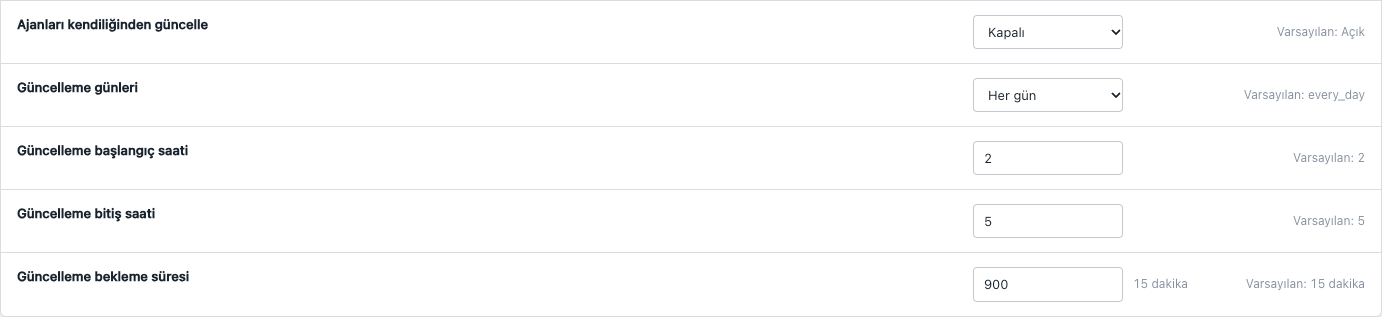
Introduced in 0.2.1. If the package on the appliance (the one shipped with the firmware or the one uploaded under Packages, whichever is newer) is newer than the agent's version, Update available appears next to the version in the list and Update now appears in the row (while the agent is connected). Automatic updates run in the maintenance window under Settings › Physical machine agents.
| Topic | Behavior |
|---|---|
| Which package | Matches how the agent was installed: an agent installed with the MSI is updated with the MSI, one installed with the wizard with the silent wizard, and a remotely installed one (single binary) by replacing the binary; on Linux, rpm -U or dpkg -i. The standard / legacy systems build and the architecture are selected according to the agent. |
| When | Not sent while a backup or restore of the machine is running (the agent also refuses while it has an open snapshot). The service restarts briefly. |
| Verification | The appliance sends only Windows packages whose signature is verified and whose publisher is approved (Publisher approval). The package is sent with its SHA-256 hash. On Windows it is checked against the Authenticode chain of trust; if the running agent is signed, the new package must be signed by the same signer. On Linux, the rpm / deb signature is verified with the GPG key on the machine. |
| Registration | The agent's key, certificate and registration are kept; no re-registration is needed. With the single binary, if the service does not run with the new binary, the old one is put back. |
| Result | Completes when the agent connects with the new version; otherwise the row shows Update failed. The same package is not sent again automatically to an agent on which it failed. |
Package version: the appliance reads the version from the file (the Linux header, the version resource of the Windows binary, the wizard's file version). The MSI version cannot be read: when uploading an MSI, enter it in the Version field (e.g. 1.0.2); if it is left empty, that package is not used for updates from the appliance.

0.1.0-5) does not count as an update.Uninstalling the agent
The Programs and Features entry and kaldir --tum arrived in 0.2.1.
| How it was installed | How to uninstall |
|---|---|
| Remote installation (single binary), Windows | SignBackup Agent (publisher SYSNET) appears in Programs and Features. Uninstall → UAC and confirmation → the service, the registration on the machine, the logs and the binary are deleted. From the command line: signbackup-agent kaldir --tum (silent: --sessiz). |
| Setup wizard / MSI | Programs and Features or msiexec /x SignBackupAgent.msi /qn (YAPILANDIRMAKORU=1 to keep the registration). |
| Linux package | dnf remove / apt-get remove keep the configuration; apt-get purge deletes it. |
Uninstalling does not delete backups: the backups stay on the appliance and can be restored. Also revoke or delete the agent in the Agents list.
Agent details dialog
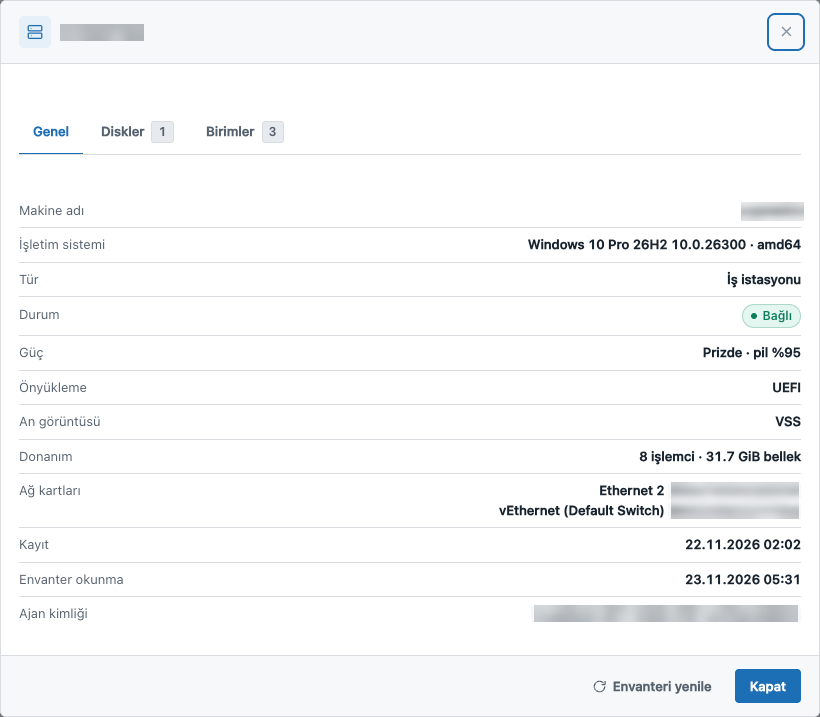
The inventory button in the row shows the information the agent last reported. If the agent is connected, Refresh inventory reads it immediately; the inventory is also read again each time the agent connects and at every backup.
| Tab | Contents |
|---|---|
| General | Machine name, operating system, type, status, power (mains / plugged in / on battery %), boot (UEFI / BIOS), snapshot (VSS, sbsnap, LVM), hardware (CPU, memory), network adapters and MAC, registration and inventory time, agent ID |
| Disks | Disk ID, model / serial number, size, partition table (GPT / MBR), number of partitions |
| Volumes | Volume, file system, size, free space, disk · partition; a label if BitLocker is on |
| Applications | Applications that support application consistency, and VSS writers (SQL Server, Active Directory, Exchange). Shown only if such an application is present. |
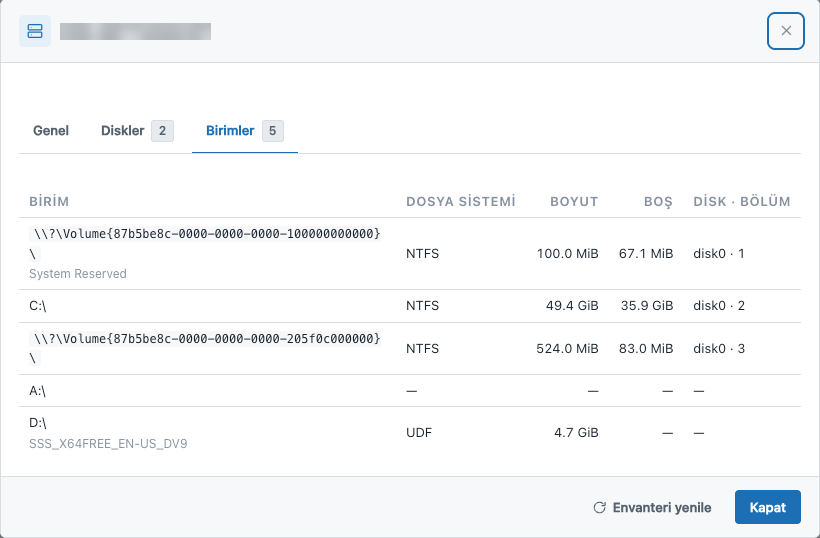
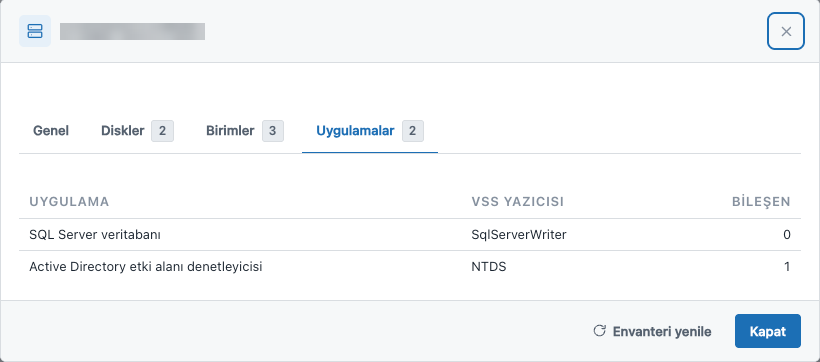
A machine that shows "No consistent snapshot" is not backed up. In a physical-to-virtual restore, the hardware information becomes the virtual machine's CPU, memory and network adapters.
Revoking and deleting
- Revoke: the certificate becomes invalid and the connection closes; the record stays in the list as "revoked".
- Delete: the record is removed completely. An agent selected in a job cannot be deleted: Ajan şu işlerde seçili, önce işlerden çıkarın: … (the agent is selected in these jobs; remove it from the jobs first: …)
- In both cases, the backups stay in the repository and can be restored.
Backing up with an agent
In the Machines step of the backup job, select Physical machines (agent) as the Source; the registered agents are listed. Several machines can be selected for one job.
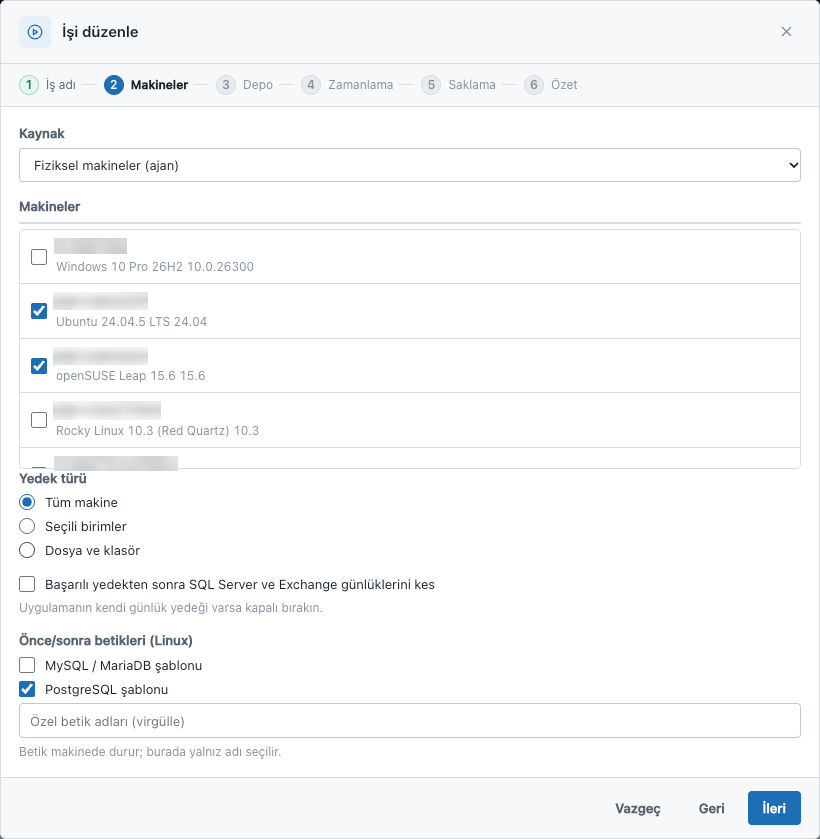
| Backup type | What is read |
|---|---|
| Entire machine | All disks at block level; used areas only. The disk layout is stored exactly. |
| Selected volumes | The selected volumes (e.g. C:\), the partition table and the boot area. If a volume whose partition cannot be interpreted, such as LVM / RAID, is selected, no backup is taken. |
| Files and folders | The files in the selected folders and the file system metadata; excluded patterns are not read. Filtering is done on NTFS, ext2/3/4 and XFS. |
- Windows: the backup is taken from a VSS snapshot; the SQL Server, AD and Exchange writers take part (application-consistent). Truncate logs is on by default for new jobs (since 0.2.1); turn it off if SQL Server or Exchange has another log backup (a maintenance plan, another backup product), otherwise that chain breaks.
- Linux: the SignBackup kernel module (sbsnap) is used first; if the module is not available, a thick LVM snapshot is used. MySQL / MariaDB and PostgreSQL templates and custom pre/post scripts (
/etc/signbackup-agent/betikler/). - The first backup is full; after that only changed blocks are transferred (change tracking in the module, otherwise block hash comparison).
- Scheduling, retention, GFS, immutability and copying work the same as for virtual machine jobs. A physical machine job cannot be the source of replication.
Details: Backup jobs.
Restoring with an agent
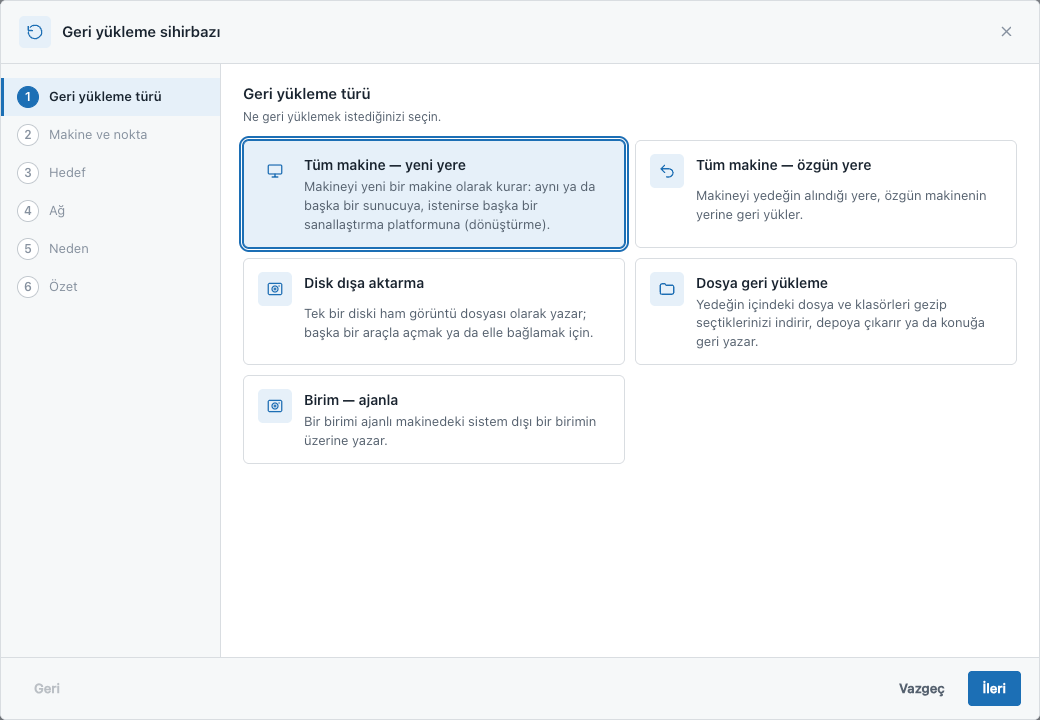
Files or volumes are restored through the agent to a machine that has the agent installed; these options appear only if at least one agent is registered.
| What | How |
|---|---|
| Files — original location | File restore › output To a machine with an agent › Original location: the files are written to their paths in the backup. Only for agent backups; another agent machine of the same family (NTFS → Windows, ext/XFS → Linux) can also be selected. |
| Files — another folder | Written under the selected folder in a "volume/path" structure; can also be used with virtual machine backups. |
| File with the same name | Keep the existing file and write the new one as ad (geri-yukleme-TARİH).uz (default), overwrite, or skip. |
| Volume — via agent | Overwrites a non-system volume on the target machine with the volume from the backup; the target must be at least as large as the source, and everything on it is erased. |
| Entire machine | Physical to virtual (VMware, Hyper-V, Proxmox, KVM) or to bare metal with the recovery ISO: Bare metal, P2V and V2P. |
- Permissions, timestamps, attributes, ADS (Windows) and owner, ACL, xattr, SELinux label (Linux) are preserved. Files encrypted with EFS are skipped.
- On Windows, a file in use is replaced at the next restart; a "restart required" warning appears in Tasks.
- The system, boot and page file volumes cannot be the target of Volume — via agent; on Linux, a mounted volume is rejected (run
umountfirst).
Troubleshooting
| Message / symptom | Cause | Solution |
|---|---|---|
| Publisher not approved / Awaiting publisher approval in the package list; remote installation cannot find a package | The publisher of the Windows package has not been approved (first time after an upgrade, or the certificate was renewed). | In the Packages tab, open the approval dialog with the key button in the row, compare the fingerprint with the one the publisher provided and approve (Publisher approval). |
| Signature invalid or upload rejected | The package is unsigned, was changed after signing, is signed with MD5/SHA-1, or the certificate lacks Code signing. | Download the original, SHA-256-signed package from the publisher again and upload it. |
makineye bağlanılamadı (SMB 445, yönetici kimliği) (could not connect to the machine (SMB 445, administrator credentials)) … i/o timeout | The appliance cannot reach port 445 on the machine; usually the Windows firewall (File and Printer Sharing is off by default on Server 2016+). With wrong credentials, an access error appears instead of a timeout. | On the machine: Enable-NetFirewallRule -DisplayGroup 'File and Printer Sharing'; if there is a network firewall in between, open 445 and 135 to the appliance. Use a local administrator or a domain administrator. |
servis yöneticisi açılamadı (could not open the service manager) … RPC_S_CANNOT_SUPPORT | On some domain controllers, remote RPC to the service manager is disabled. | No action needed: the service tasks are done automatically through Task Scheduler under the local system account (a warning in the log). Restart any installation that stopped with this error on an older version. |
| makinede önceki bir ajan kaydı var (the machine has an earlier agent registration) | The machine has an old ajan.json (an earlier installation, another appliance, or a registration that was deleted and added again). | Check the If an agent exists on the machine, delete its registration and re-register option and repeat the installation. |
| kimlik doğrulanamadı (kullanıcı adı, parola ya da anahtar yanlış) (authentication failed (wrong user name, password or key)) (SSH) | Wrong password or key; the browser may have autofilled the password box; password login is disabled on the machine (PasswordAuthentication no). | Type the password again manually (passwords are requested again after host key approval); use a private key if needed. If root login is disabled, try a user with sudo rights. |
| … için başka bir ana makine anahtarı sabitlenmiş … (a different host key is pinned for …) | The machine's SSH key changed after the first approval: the machine was reinstalled, or someone is intercepting the connection. | If the machine really was reinstalled, delete the old key with Forget in the dialog, verify the new fingerprint on the machine and approve it. Otherwise, do not approve. |
| ajan kuruldu ama cihaza bağlanmadı (the agent was installed but did not connect to the appliance) | The machine cannot reach port 8444 (and 8443 for registration) on the appliance, the appliance address cannot be resolved from the machine, or the service did not start. | From the machine: Test-NetConnection <cihaz> -Port 8444 (Linux: nc -vz <cihaz> 8444). Log: C:\ProgramData\SignBackup\agent\ajan.log, on Linux journalctl -u signbackup-agent. Enter the appliance address as the name the machine uses to reach it. |
ajan.key cannot be deleted | The agent key is accessible only to the SYSTEM account; even an administrator cannot delete it manually. | Do not try to delete it manually: run remote installation with the re-register option, or run signbackup-agent kaldir --yapilandirma-sil on the machine. |
| A remotely installed agent is missing from Programs and Features | The agent was installed remotely with a version that predates this feature (single binary, no uninstall entry). | Update the agent to the current version; SignBackup Agent then appears in the list (Uninstalling). To uninstall it right away, run signbackup-agent kaldir --tum in an administrator command prompt; if that is not available, run sc.exe stop signbackup-agent and sc.exe delete signbackup-agent, then delete the C:\Program Files\SignBackup Agent and C:\ProgramData\SignBackup\agent folders. Revoke the registration on the appliance. |
| Güncelleme başarısız (update failed) | The installation failed on the machine, or the agent did not connect with the new version within the wait time (default 15 minutes); or the signature or hash could not be verified. | Read the details in the agent's details dialog and in the audit log; on the machine, see the guncelleme folder in the agent's configuration directory. On Windows the new package must be signed by the same signer. Once the problem is fixed, click Update now. |
| Linux: machine without the module, backup stops with an explicit error | The sbsnap module is missing (DKMS / kernel headers missing, Secure Boot signature not enrolled), and an LVM snapshot is not possible in this layout either (ext4 on a plain partition, thin LVM, Btrfs). | Install the kernel headers (kernel-devel, linux-headers-$(uname -r), kernel-default-devel) and dkms, then reinstall the package. If Secure Boot is on, run mokutil --import /var/lib/dkms/mok.pub and confirm at reboot. |
| Yüklenmiş Windows ajan ikilisi yok; uzaktan kurulum yapılamaz (no Windows agent binary uploaded; remote installation is not possible) / bu Windows sürümüne uyan ajan ikilisi yüklenmemiş (no agent binary matching this Windows version has been uploaded) | There is no matching exe in the Packages tab (a package shipped with the firmware cannot have been deleted; the firmware may be old). | Update the firmware, or upload the signed binary to the correct type in the Packages tab. |
| "License required" in the row | Backing up a workstation agent requires a separate entitlement in the license. | Have a workstation entitlement added to the license; License. |
Related settings
Settings › Backup › Physical machine agents.
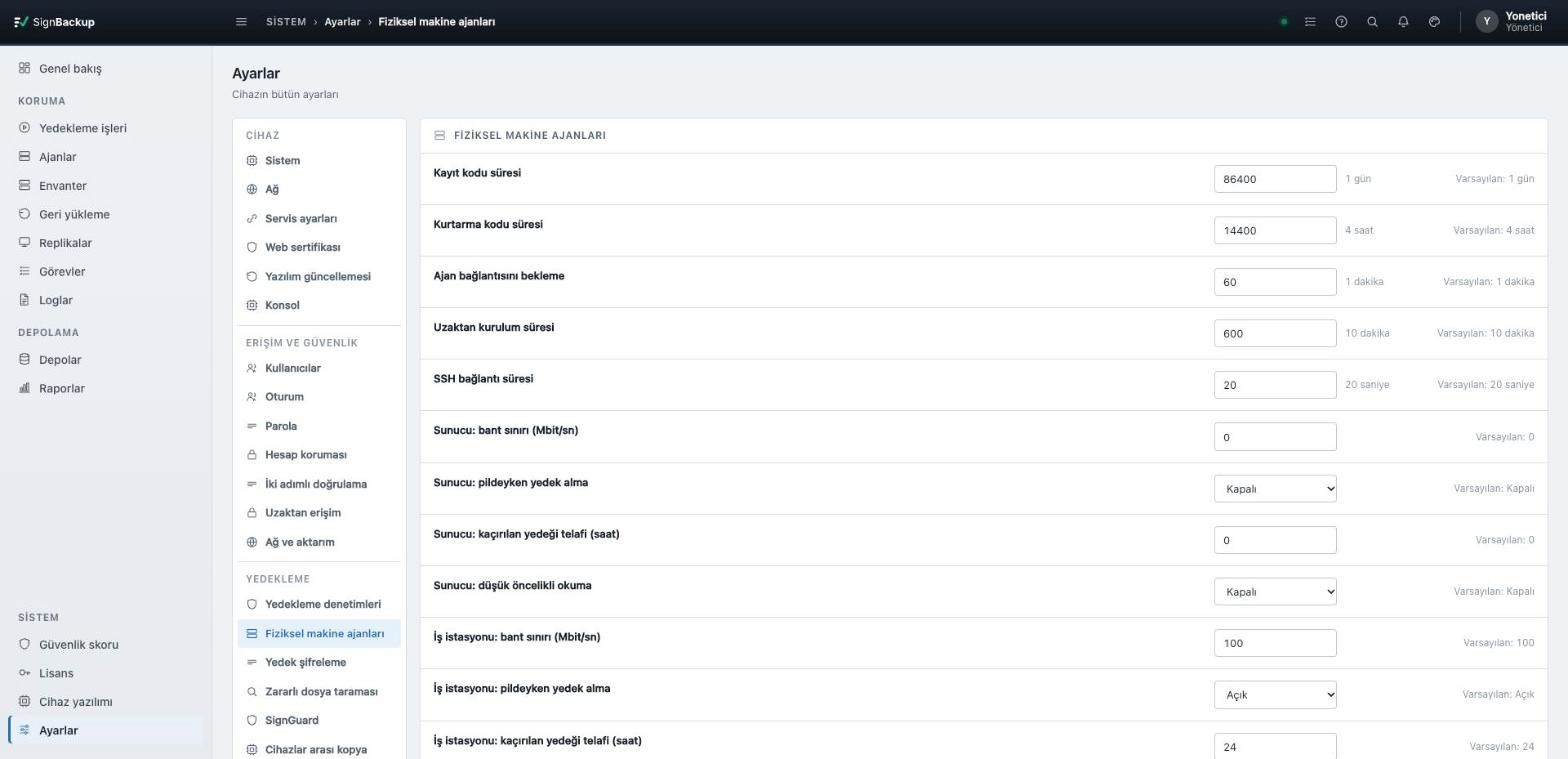
| Setting | Default | What it does |
|---|---|---|
| Registration code validity | 1 day | How long an agent registration code is valid (5 min – 30 days). |
| Recovery code validity | 4 hours | How long a recovery environment code is valid. |
| Wait for agent connection | 1 minute | How long to wait for an agent that is not connected when a backup starts. |
| Remote installation timeout | 10 minutes | Total time allowed for Windows and Linux remote installation. |
| SSH connection timeout | 20 seconds | Time allowed for the SSH connection and for reading the host key. |
| Bandwidth limit (server / workstation) | 0 / 100 Mbit/s | Read speed per machine. |
| Do not back up on battery | off / on | When on, a machine running on battery is skipped in that run (Warning). |
| Catch up missed backups | 0 / 24 hours | A missed backup is taken within this period once the machine is available. |
| Low-priority reading | off / on | The disk is read with low I/O priority. |
| Snapshot space (Linux) | 10%, 1024–20480 MB | Size of the LVM CoW or module difference file. |
| Linux script timeout | 5 minutes | Maximum run time of each pre/post script. |
| Update agents automatically | on | Updates agents to the new package in the maintenance window. |
| Update days / start / end | every day, 02–05 | Maintenance window (appliance time); if the end is earlier than the start, the window spans midnight. |
| Update wait time | 15 minutes | How long to wait for the agent to connect with the new version. |
Protection group settings (AD scan interval, concurrent installations, retries, LDAP timeout): Protection groups and Active Directory.